
Filelist
The Filelist module effectively provides the files (including images and PDFs) that will be integrated into your webpage. With this module, files can be uploaded, modified, and deleted.
Overview
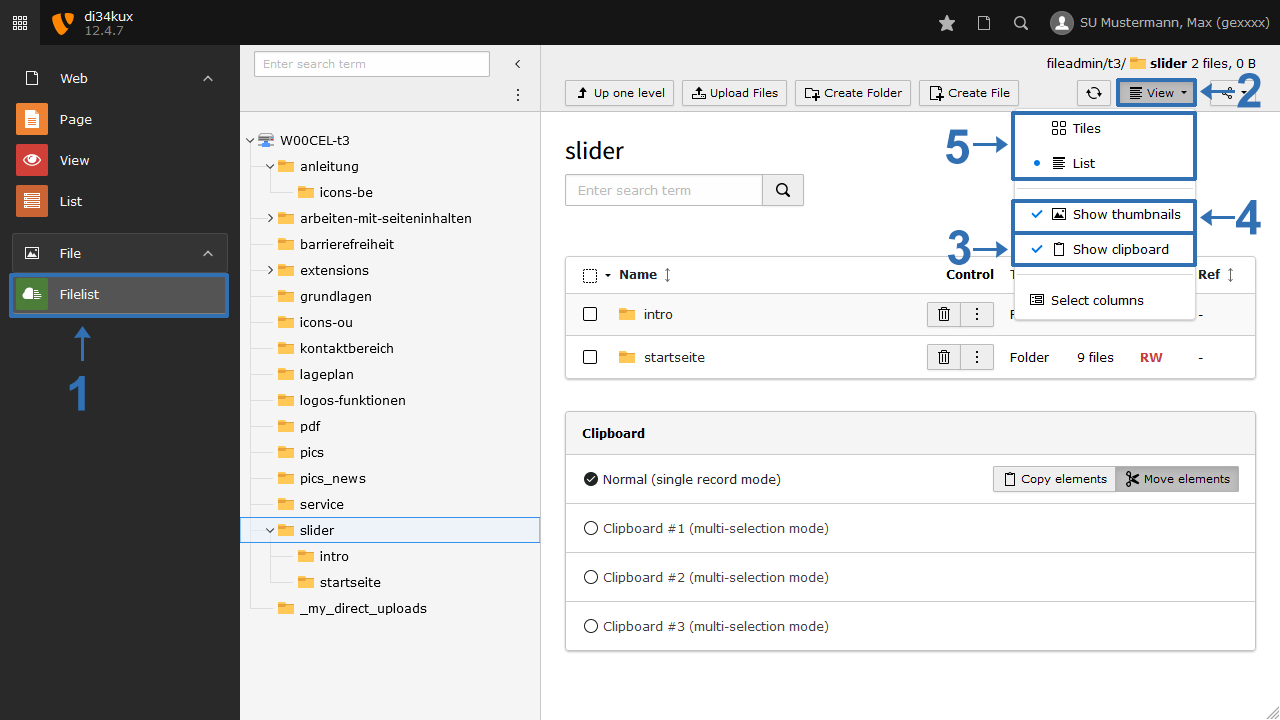
Before media such as images or PDF files can be integrated into the page content, they must be available on the TYPO3 server. Please note the maximum file size of 64MB. When you start working in the “Filelist” module:
- Make sure that "Show clipboard" is enabled (Image 1, No. 3). This will make all editing options visible.
- You can work with or without preview images (thumbnails) (Image 1, No. 4).
- Choose between the “List view” or “Tiles view” (Image 1, No.5).
Note
Please note that the filelist can grow very quickly and become confusing. Therefore, use meaningful file names and use folders and subfolders to structure your files in a logical way.
Creating folders
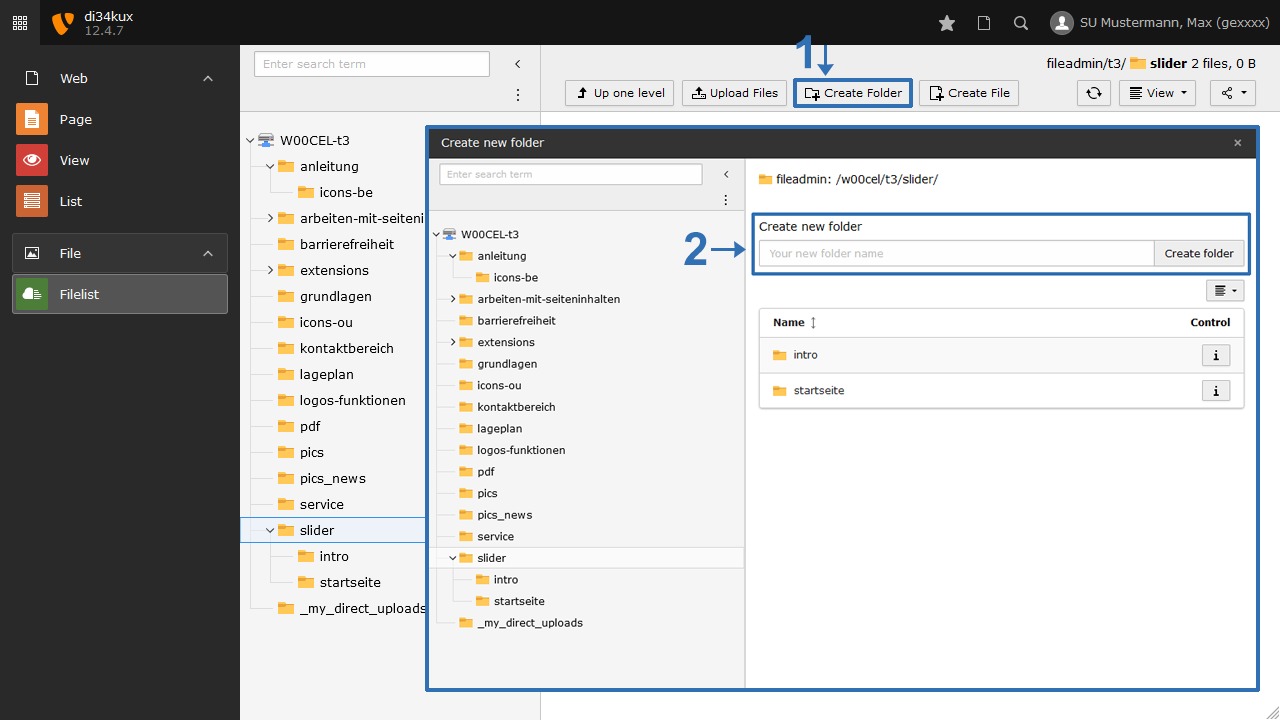
Create directories to organise files and make them easier to integrate. To do this, select the location where you want to create the new folder, then click the “Create folder” icon (Image 2, No. 1).
You will see the view as shown in Image 2, No. 2, where you can create a folder.
Working with files
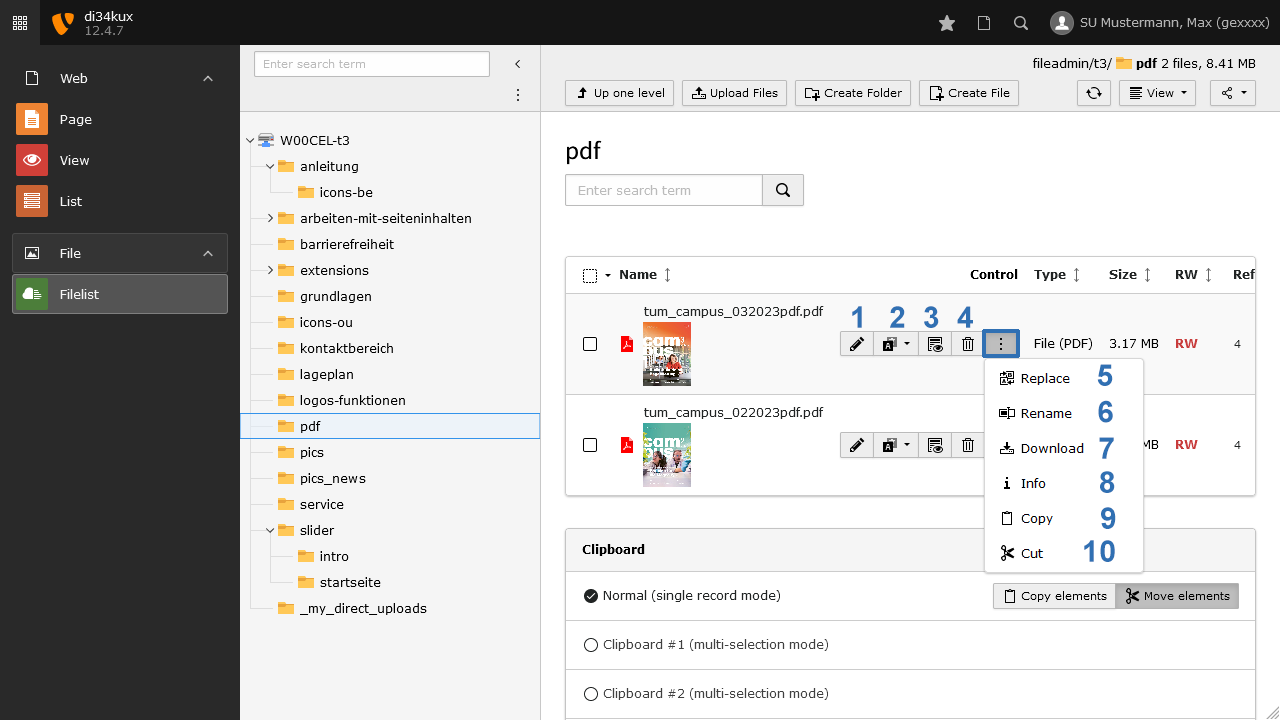
Once you have uploaded a file to the Filelist, you can use various options to work with it.
- Metadata for the file can be entered and modified. This is relevant for both search engine processing and accessibility.
- Here you can enter the English metadata.
- The respective file will be displayed in a new browser window.
- Permanently delete files/folders from the server.
- Uploaded files can be replaced. This also means that already used files in the corresponding content elements can be swapped out.
- Rename the file. The new filename will automatically be updated in the content elements where the files are in use.
- Files can be downloaded.
- Detailed information about the stored file.
- Files/folders can be copied and pasted elsewhere. Files/folders can be moved by cutting and pasting to another location.
Fill out the metadata
In the metadata, you can include information such as alternative texts and captions. You can find more on this in the “captions and alternative text” section.
You can create metadata globally in the Filelist, directly in the file, or individually for each content element (CE). The former is advantageous if you want to embed a file in different parts of your website.
Metadata entered directly in a CE overrides the information set globally (only within that CE).
Working with multiple files/folders
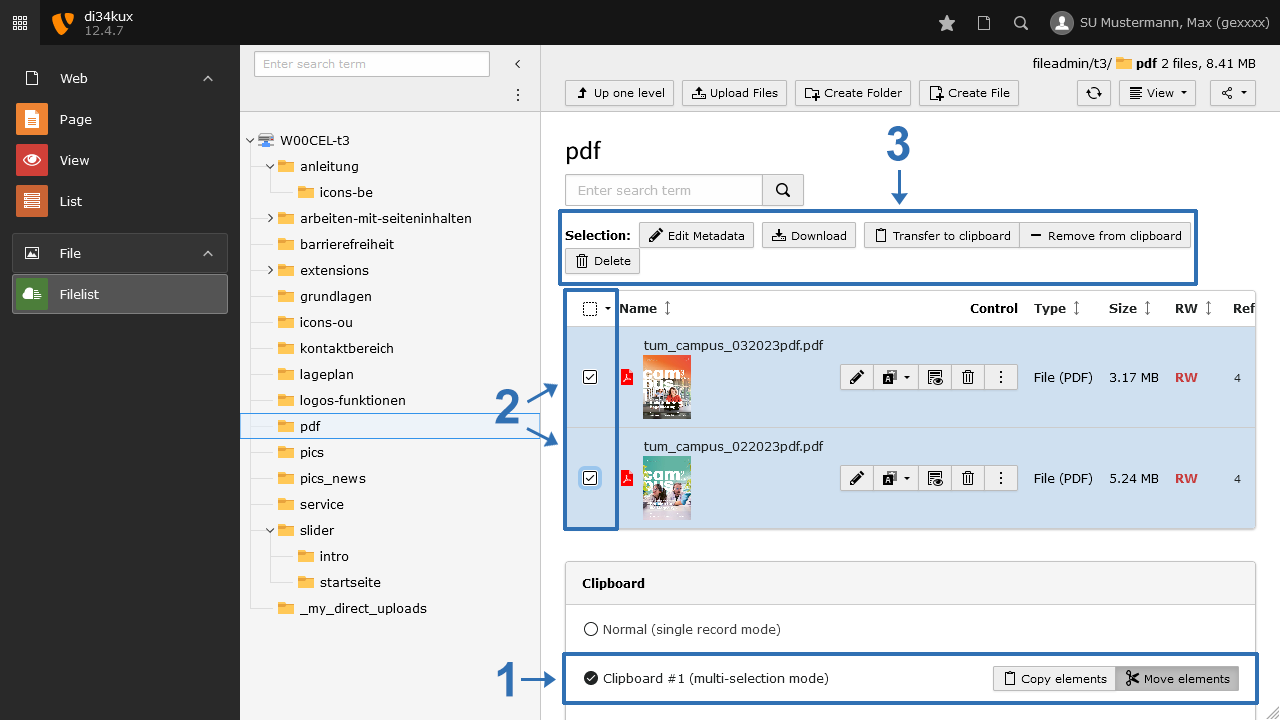
You also have the option to work with multiple files/folders at the same time:
- “Show clipboard” (Image 1, No. 3) is enabled by default.
- Click on “Clipboard #1 (multi-section mode)” (Image 5, No. 1).
- Select the desired files/folders using the checkbox (Image 5, No. 2).
- All editing options for your selection will become visible (Image 5, No. 3).