Linking headers
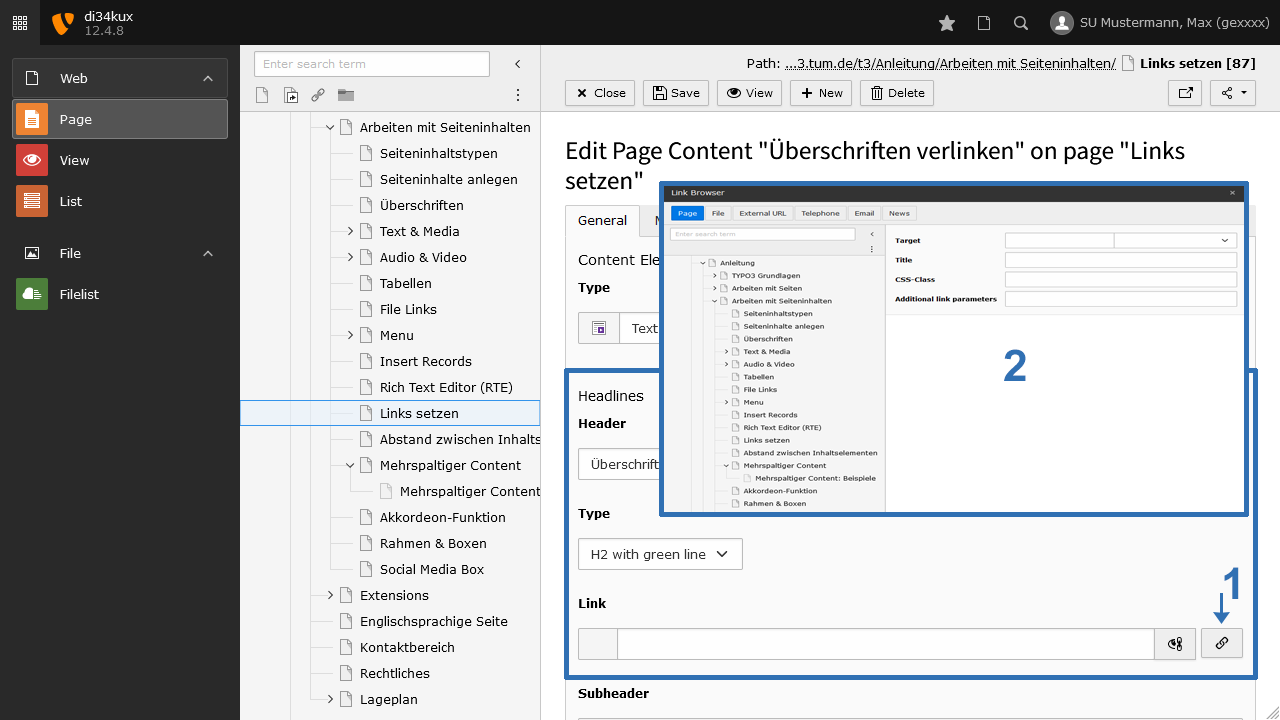
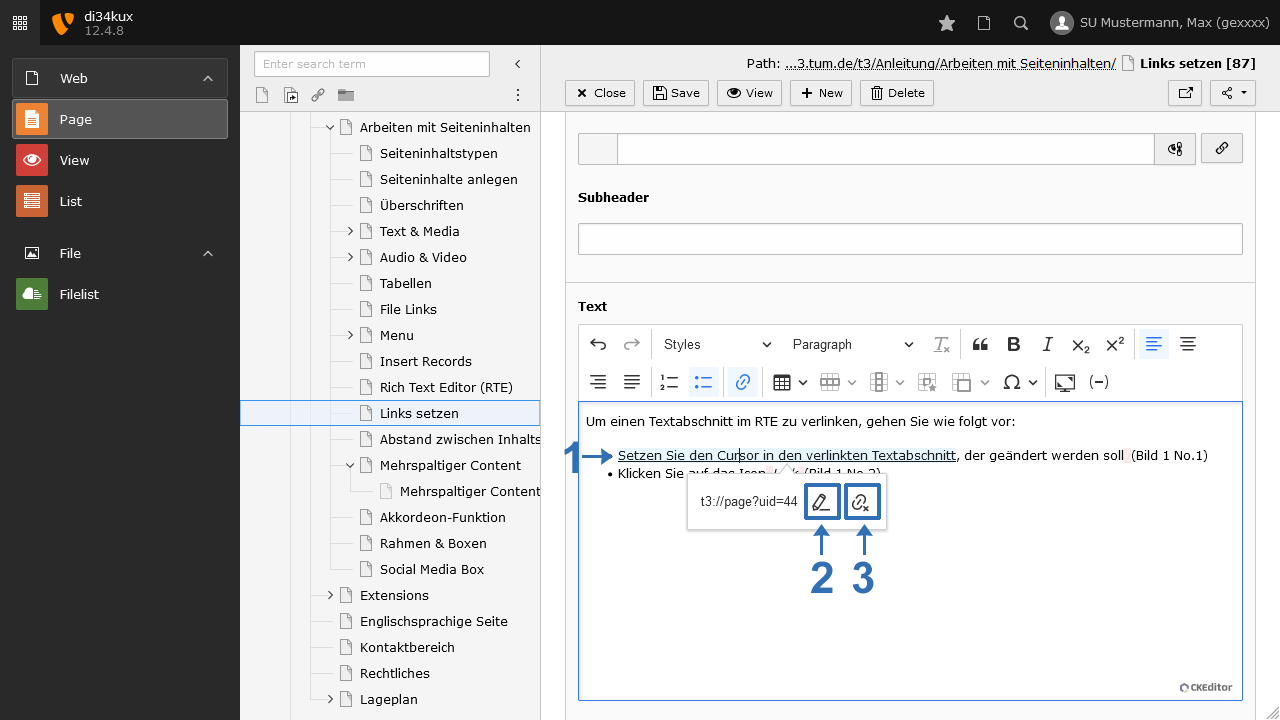
- Click on the icon to the right of the “link” field (Image 1, No.1).
- The Link browser opens (Image 1, No.2), where you can enter the link address.
Linking text
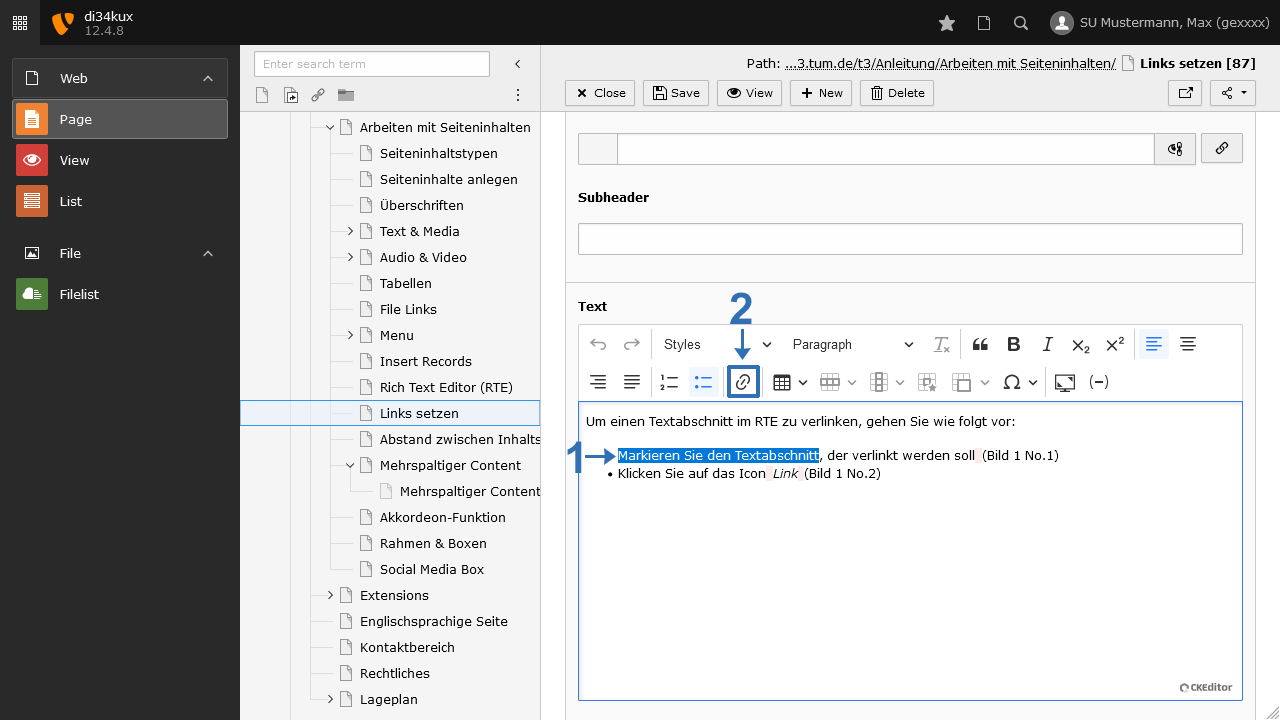
- Highlight the text section that you want to link (Image 2, No. 1).
- Click on the Link icon (Image 2, No. 2).
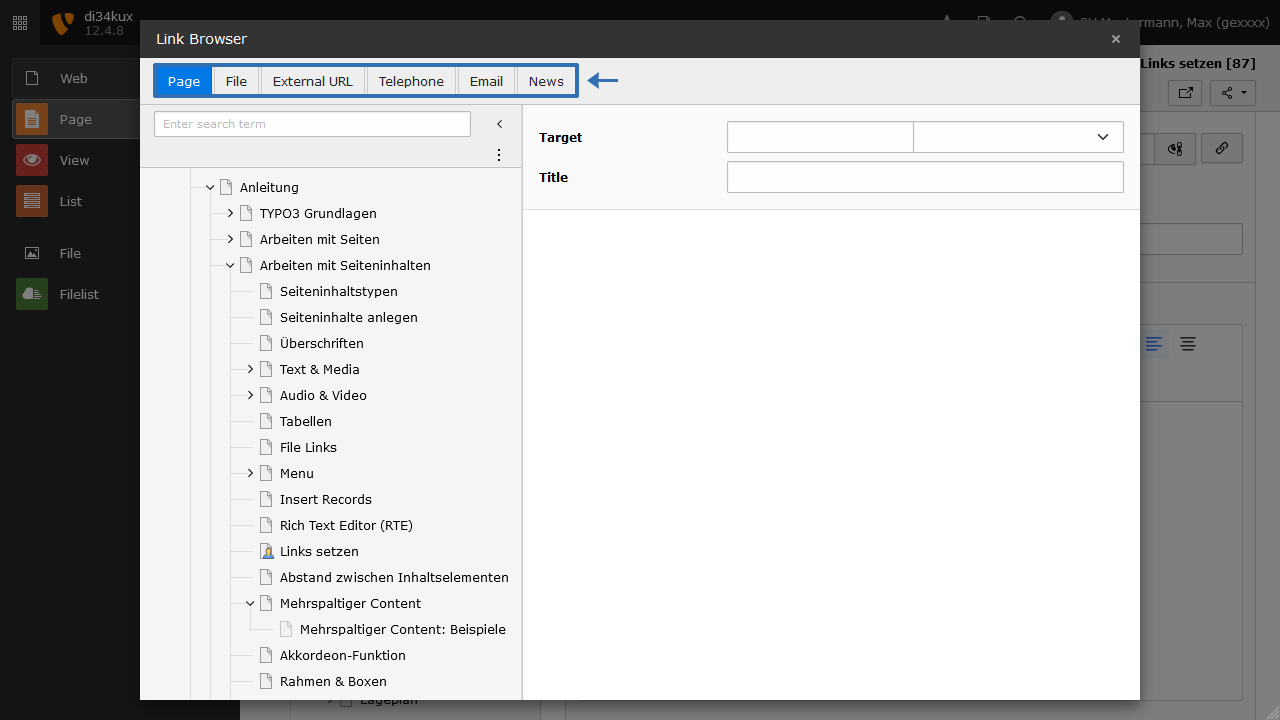
The Link Browser opens (Image 3), where you have the following link options:
- Page: for links within your website.
- File: for links to a file in your file list.
- External URL: links to external websites.
- Telephone: for linking to phone numbers (e.g. for smartphones).
- Email: for linking to email addresses.
- News: for linking to news posts (only if the news extension is implemented).
Linking images
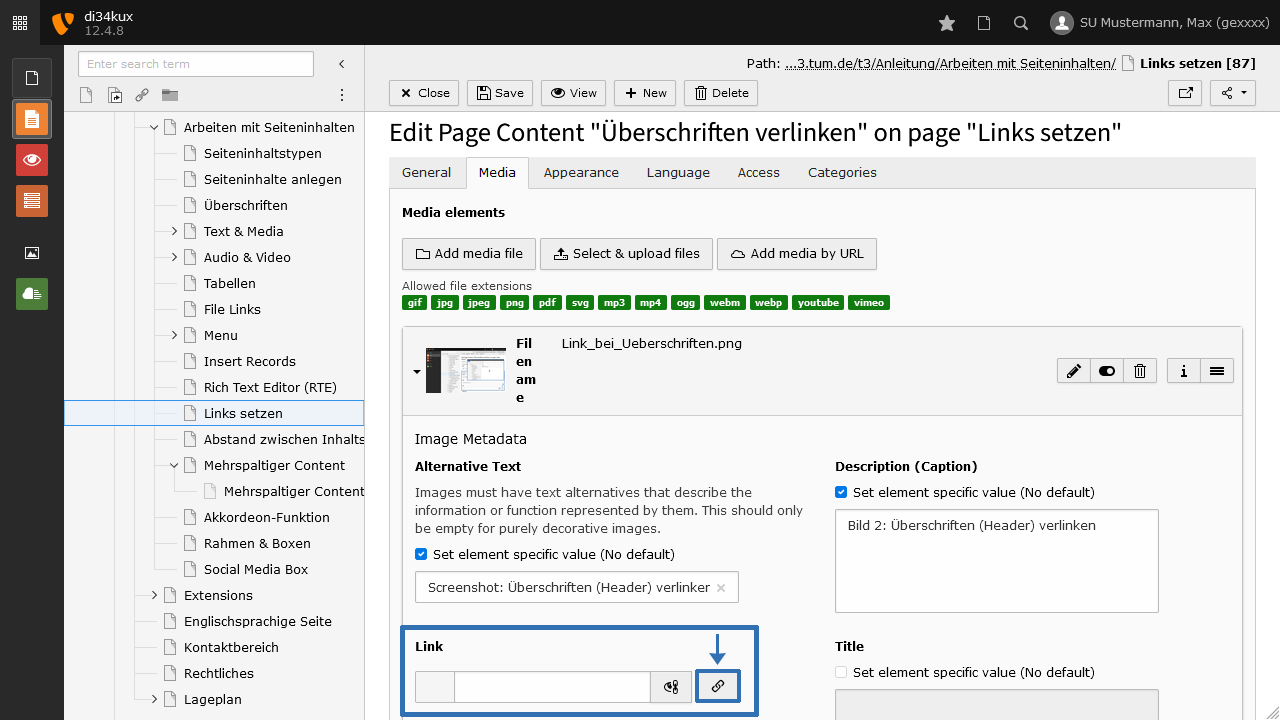
- Click on the icon to the right of the link field (Image 4).
- The Link browser opens, where you can enter the link address.
Option "no-hint"
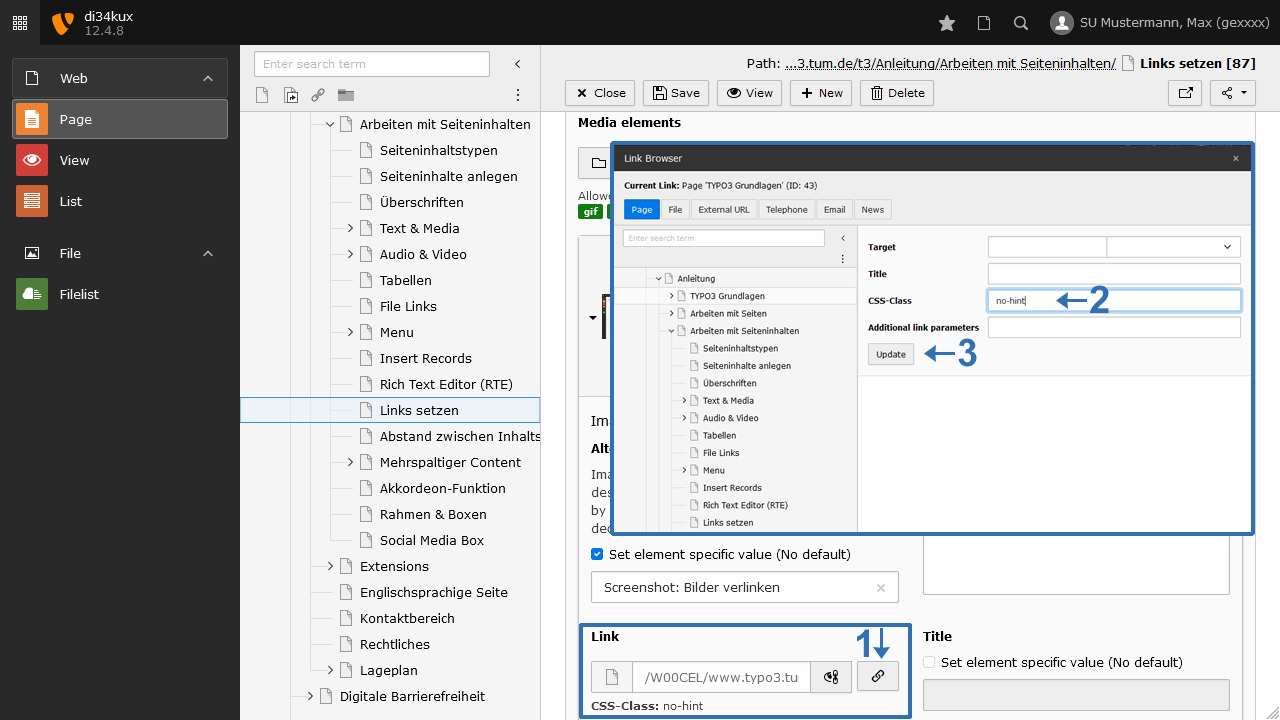
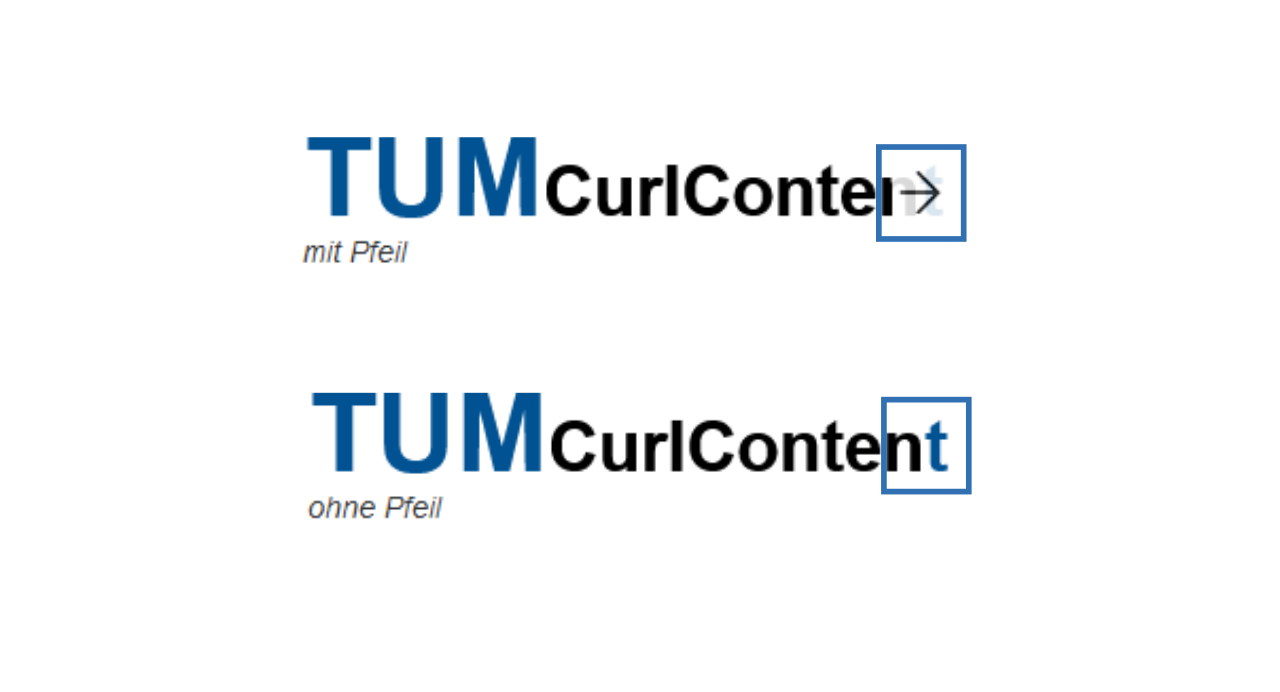
Images with a link are displayed with a small arrow icon. In some cases, such as logos or icons, these arrows can be distracting. You can disable the arrow:
- Enter "no-hint" (without quotes) in the CSS-Class field of the Link browser (Image 5, No. 2) and click the Update button.
Link to an internal page or directly to a content element
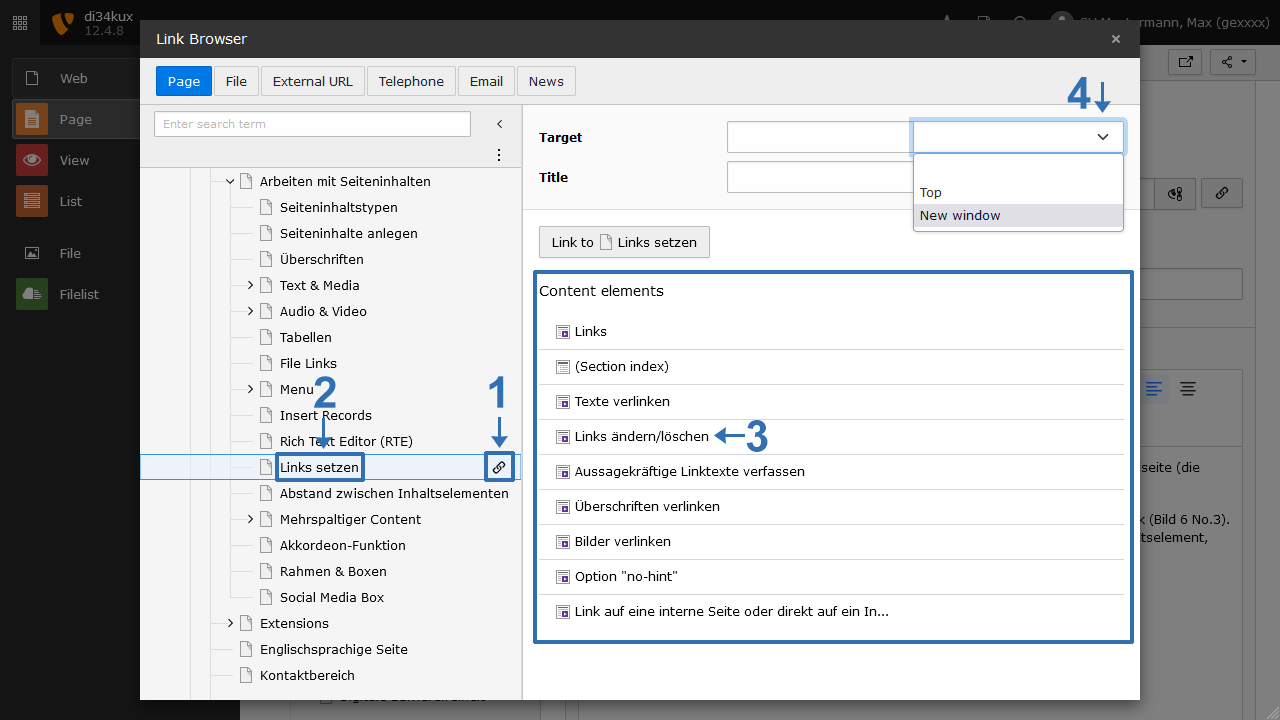
For a link to a page within your website:
- In the Link Browser, under the Page tab, you can see the navigation structure of your site.
- Select the target page (Image 8, No. 2) and click on the chain symbol next to the page title (Image 8, No. 1).
To link directly to a content element:
- Click on the page title (Image 8, No. 2). The content elements of this page will be listed in the right column.
- Click on the desired content element (Image 8, No. 3) to generate the link.
Additional Options:
- The link will open in the same window if you leave the field (Image 8, No. 4) blank or select "Top".
- If you select "New window", the page will open in a new window or tab (Image 8, No. 4).
Link to a specific section ("anchor")
Anchor links allow you to link to a specific section on the same page or on a different page. This is particularly helpful on long pages, where users can jump directly to a specific section.
You create an anchor link using the text editor (Rich Text Editor):
- Open a content element.
- Click into the text section that should be linked.
- Click “Set anchor” (bookmark icon).
- Enter a meaningful and unique (for the page) anchor name and confirm by clicking the green checkmark.
How to link to the anchor:
The anchor link consists of the target page plus a hash symbol and the anchor name you defined:
www.xy.tum.de/shortcut/target-page#anchor-name
More detailed guide on managing anchor links
Link to an internal file
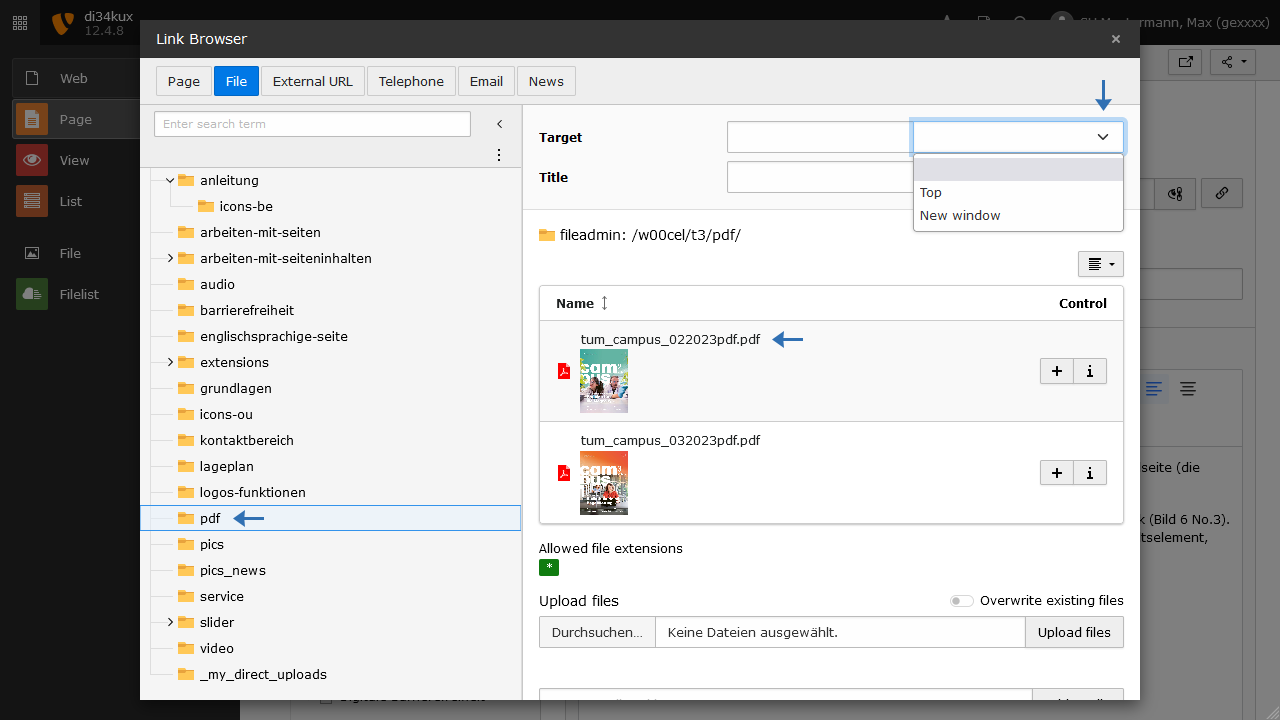
In the Link browser, under the File tab, you can select a file (e.g., PDF) from your filelist:
- Click the relevant folder, then click the desired file.
- Instead of linking a text section to a file, you can use the File Links content element, which provides different styling options.
Link to external websites
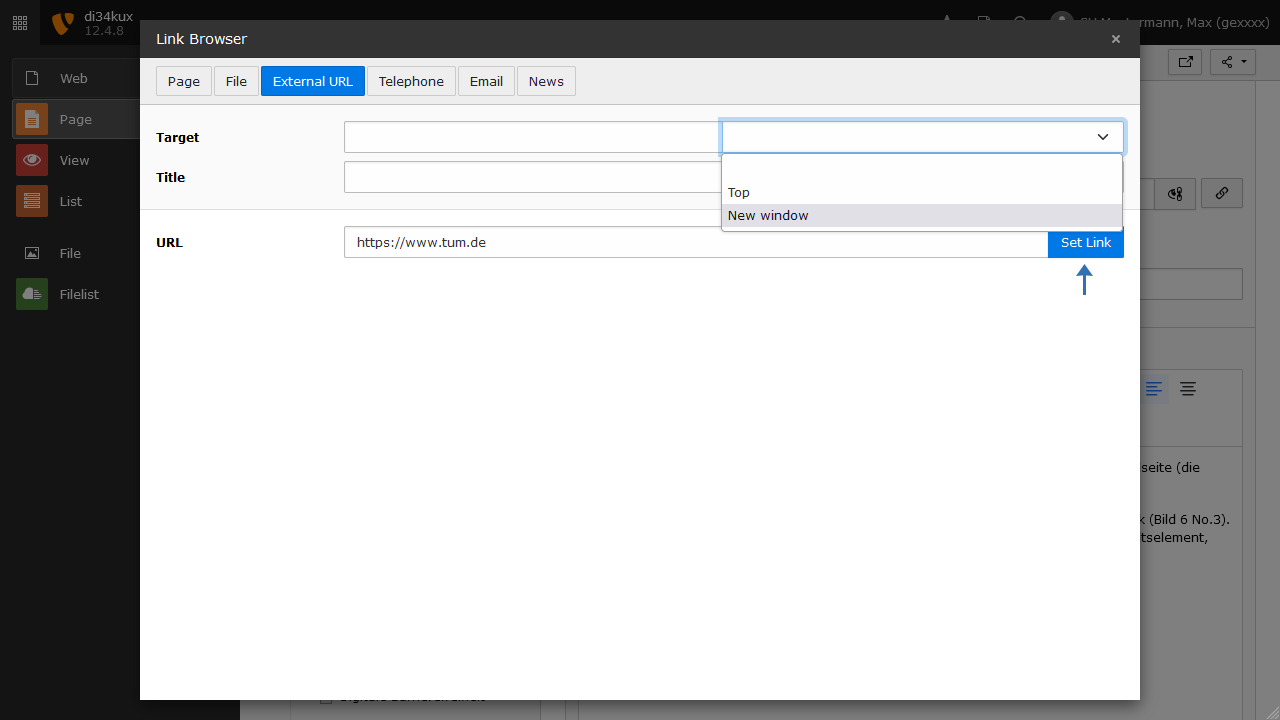
- Switch to the “External URL” tab in the Link Browser.
- Enter the complete URL (including "https://") in the corresponding field and then click “Set Link”.
- The link will open in the same window if you leave the field blank or select "Top".
- If you select "New window", the page will open in a new window or tab.
Link to an email address
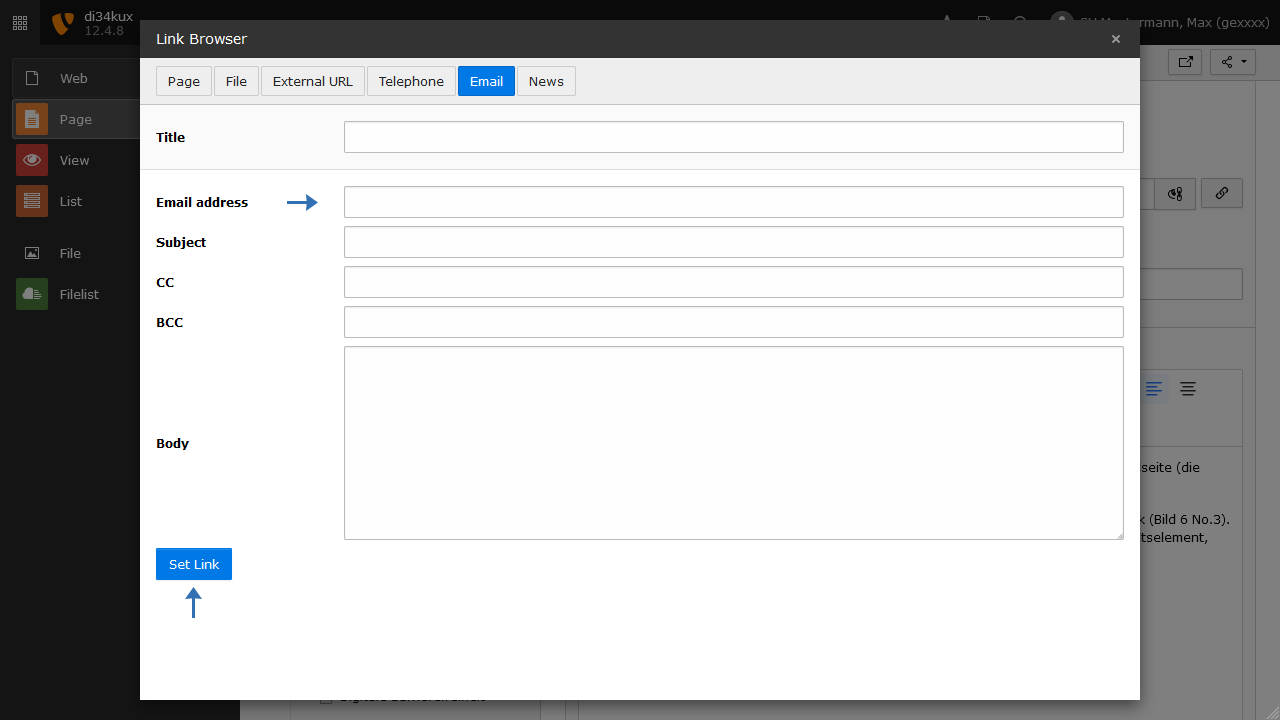
To link an email address, click on the “Email” tab in the link browser:
- Enter the desired email address in the Email Address field and confirm by clicking “Set Link”.
- Optionally, you can fill in the additional fields.
- You can also add an icon to the email address (Image 12, No. 4).
Link to a password-protected area
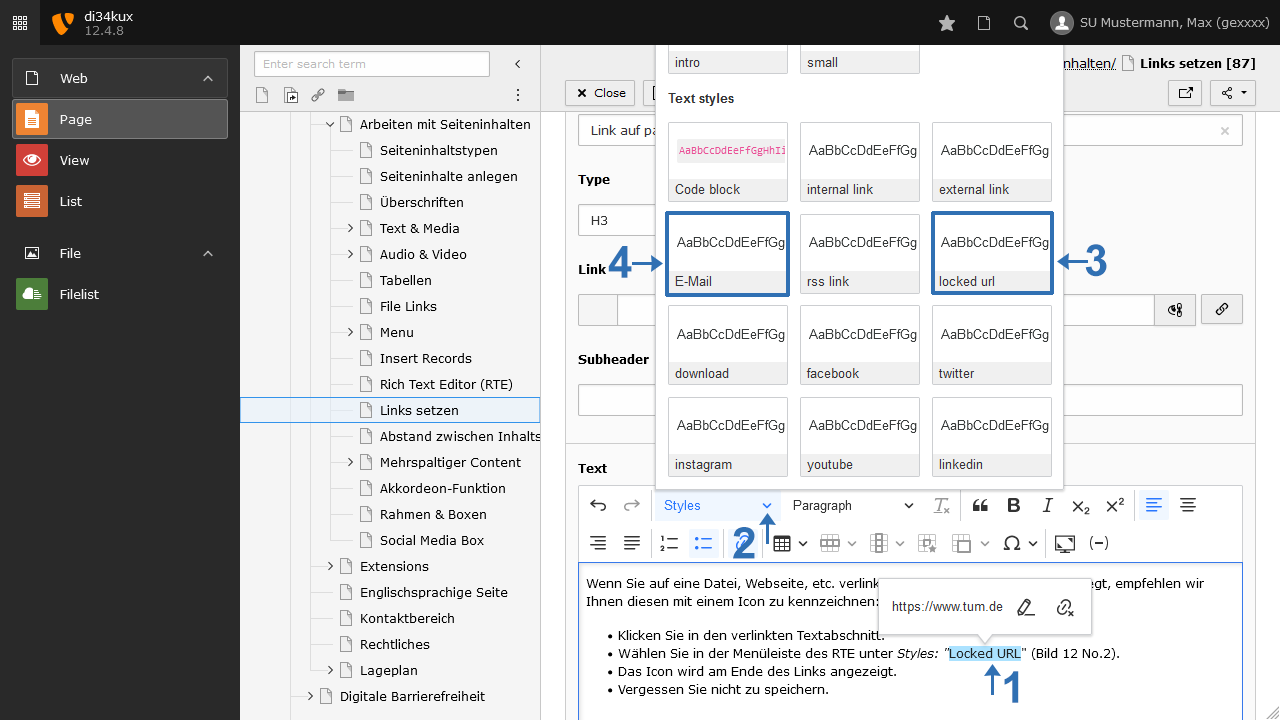
If you are linking to a file, webpage, etc., that has password protection, we recommend marking it with the "Locked URL" icon:
- Click on the linked text section (Image 12, No. 1).
- Select “Locked URL” (Image 12, No. 3) from the "Style"s" menu in the RTE.
- The link will be marked with an icon.
- Don't forget to save.