
Headers
Headings structure your website and provide your visitors with an overview of the content on your pages. Many TYPO3 functions, search engines, and so-called assistive technologies (e.g., screen readers for visually impaired individuals) rely on them. Break the content into smaller sections (multiple “content elements”) and include an appropriate heading for each. This allows users to quickly skim the website by only reading the headings. It improves accessibility and also helps you manage the content more effectively in the backend.
Heading levels
Use headings according to their heading levels. The main heading of a page is the most important heading and has a heading level of 1 (H1). Use the H1 only once per page. Each heading introduces a new section on the page. A heading with a lower level (H1 > H2 > H3 > H4) introduces a subsection.
Inconsistent heading hierarchies can be confusing; both screen reader users and search engines may not be able to accurately interpret the content.
A good heading hierarchy functions like a table of contents in a book. Users can quickly see which sections are present and what the main and subsections are. Always choose heading levels according to their correct hierarchy on the page and not based on design considerations.
Choosing the Header type

The selection of headings for a content element is done through the “Type” field (see image 3).
Choose heading levels according to their correct hierarchy on the page and not based on design considerations.
Choosing a subheader
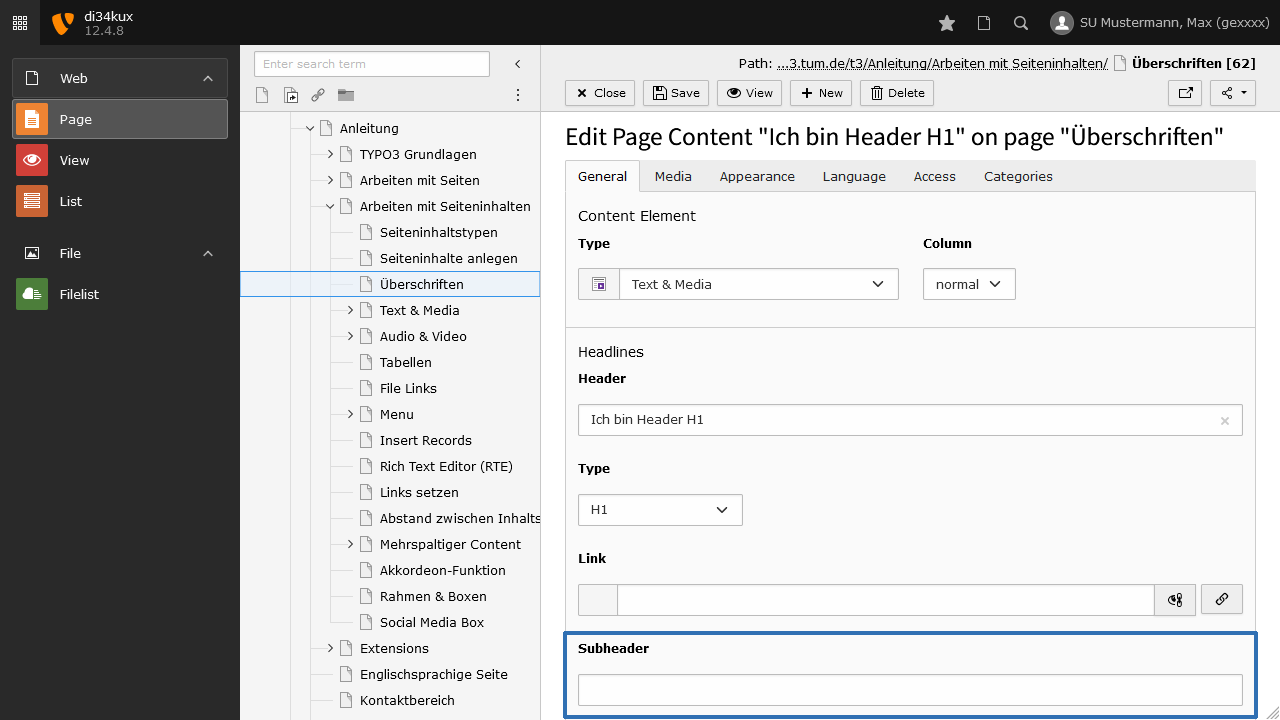
The subheader is automatically assigned a hierarchical level below the associated header.
For example, a header labelled H2 will automatically format the subheader as H3.
Header type "hidden"
You can prevent the header from being displayed by selecting the “Hidden” type.
Header H1
Only use one H1 heading per page!
Lorem ipsum dolor sit amet, consetetur sadipscing elitr, sed diam nonumy eirmod tempor invidunt ut labore et dolore magna aliquyam erat, sed diam voluptua. At vero eos et accusam et justo duo dolores et ea rebum.
Header H2
Lorem ipsum dolor sit amet, consetetur sadipscing elitr, sed diam nonumy eirmod tempor invidunt ut labore et dolore magna aliquyam erat, sed diam voluptua. At vero eos et accusam et justo duo dolores et ea rebum.
Header H3
Lorem ipsum dolor sit amet, consetetur sadipscing elitr, sed diam nonumy eirmod tempor invidunt ut labore et dolore magna aliquyam erat, sed diam voluptua. At vero eos et accusam et justo duo dolores et ea rebum.
Header H4
Lorem ipsum dolor sit amet, consetetur sadipscing elitr, sed diam nonumy eirmod tempor invidunt ut labore et dolore magna aliquyam erat, sed diam voluptua. At vero eos et accusam et justo duo dolores et ea rebum.
Header H5
Lorem ipsum dolor sit amet, consetetur sadipscing elitr, sed diam nonumy eirmod tempor invidunt ut labore et dolore magna aliquyam erat, sed diam voluptua. At vero eos et accusam et justo duo dolores et ea rebum.
Header H6
Lorem ipsum dolor sit amet, consetetur sadipscing elitr, sed diam nonumy eirmod tempor invidunt ut labore et dolore magna aliquyam erat, sed diam voluptua. At vero eos et accusam et justo duo dolores et ea rebum.
Headlines with the Rich Text Editor
You can also create headings directly in the Rich Text Editor, but we do not recommend this! Instead, divide a page's content into several elements and use the header field for your headlines.
If you use headings within the RTE, you will have to forgo the following features:
- You cannot create links that jump directly to a content element.
- The headings cannot appear in generated menus ("Section index").
- Individual sections cannot be rearranged, hidden, or formatted with additional styles (e.g., borders or boxes).