
Requirement
To create news articles, you need an additional permission for the News system. Please contact the editor-in-chief of your website.
This is what it looks like
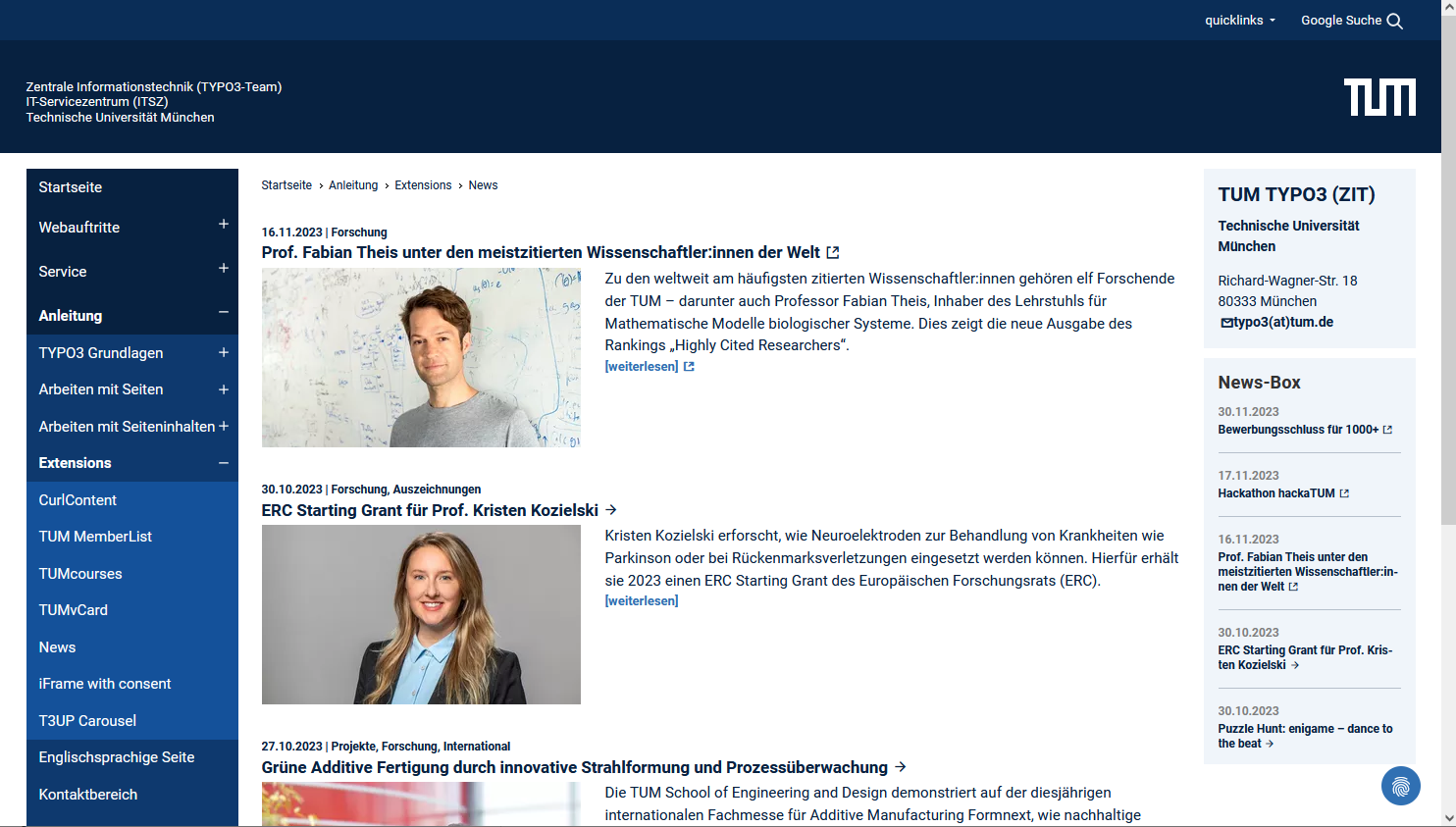
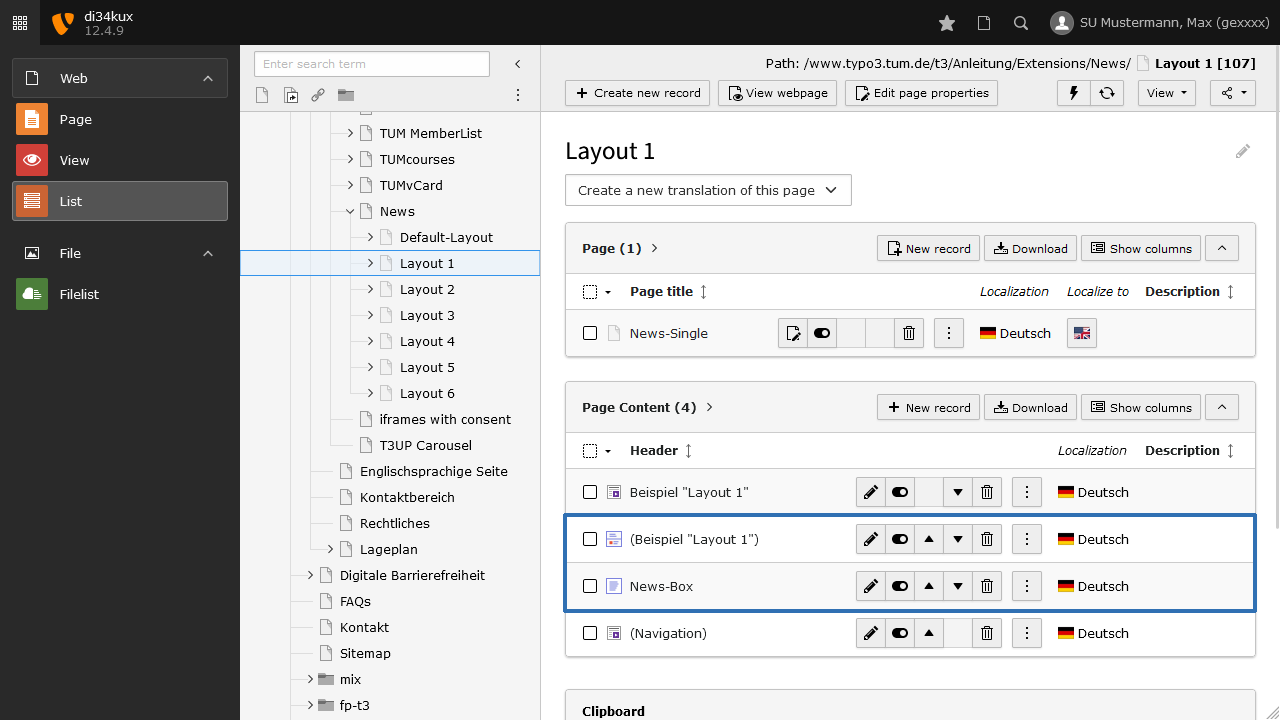
Create a new news item
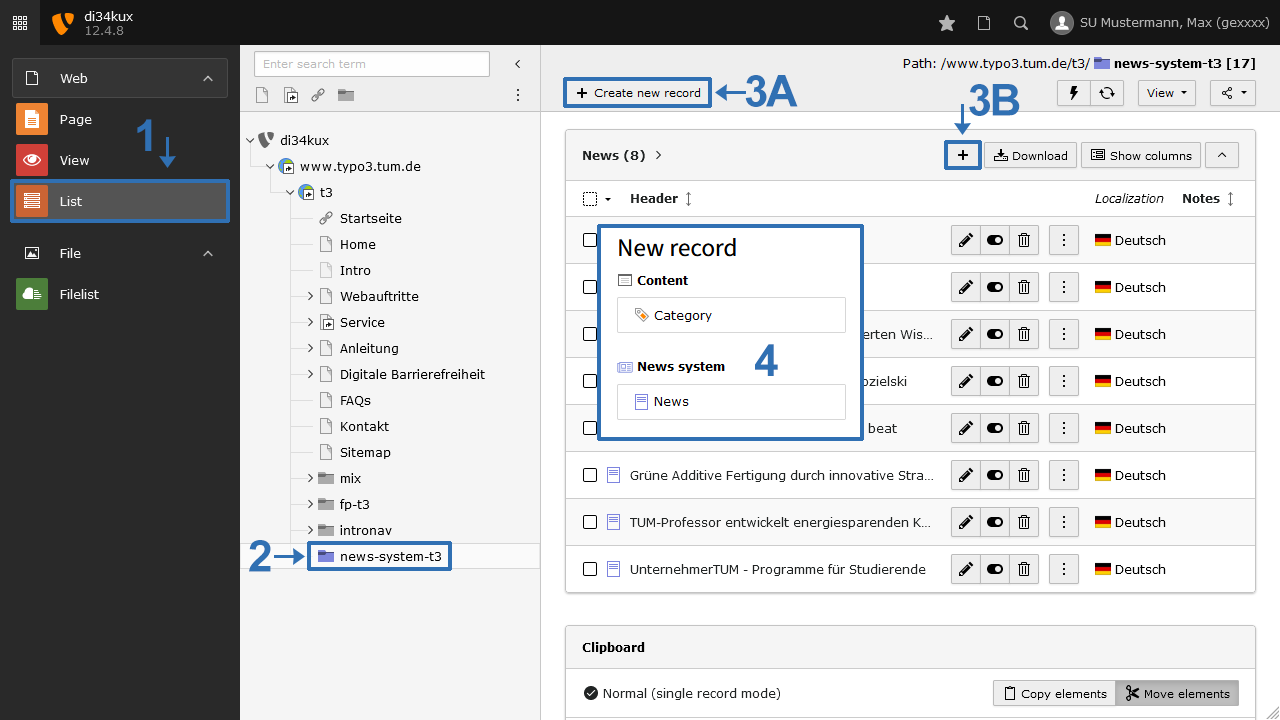
Once the News extension is set up, you’ll see the folder “news-system-xx” in the page tree in the backend.
- Go to the List module.
(The “Page” module is NOT suitable for creating or editing news.) - Click the folder “news-system-xx” in the page tree (Image 3 No. 2).
- If no news exists yet, click Create new record (Image 3 No. 3a) and select “News” (Image 3 No. 4). The input form will then open (Image 4).
- If a news item already exists, you can also click Create new record (Image 3 No. 3b), and the input form will open immediately.
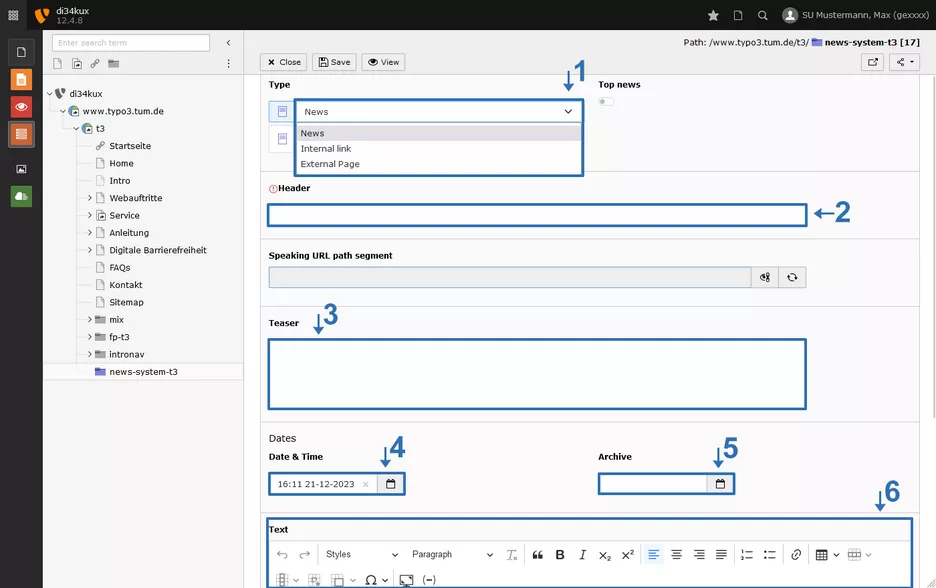
- Type:
- News: A classic news article.
- Internal Link: Your news item contains no content; it links to a page within your website. Enter a headline and teaser, then select the internal link.
- External Link: Your news item contains no content; it links to an external page. Enter a headline, teaser, and the URL of the external page you want to link to.
- Header: Enter the headline for the news item. The format cannot be changed here because it is defined centrally by the News template.
- Teaser: This text appears as the intro text of the news item (in bold) and as a teaser in the news list. The length of this excerpt is set once in the News plugin (default is 300 characters).
- Date & Time: The creation date is entered automatically. You can adjust it to influence sorting. Default: newest news first.
- Archive: Hier können Sie ein weiteres Datum eintragen, ab dem die News archiviert werden soll und nicht mehr im normalen News-Feed auftaucht. Voraussetzung für eine Archivliste ist, dass auch ein News-Plugin für dieses Archiv erstellt wurde.
- RTE: Here you create the content of your news item.
Adding images/media
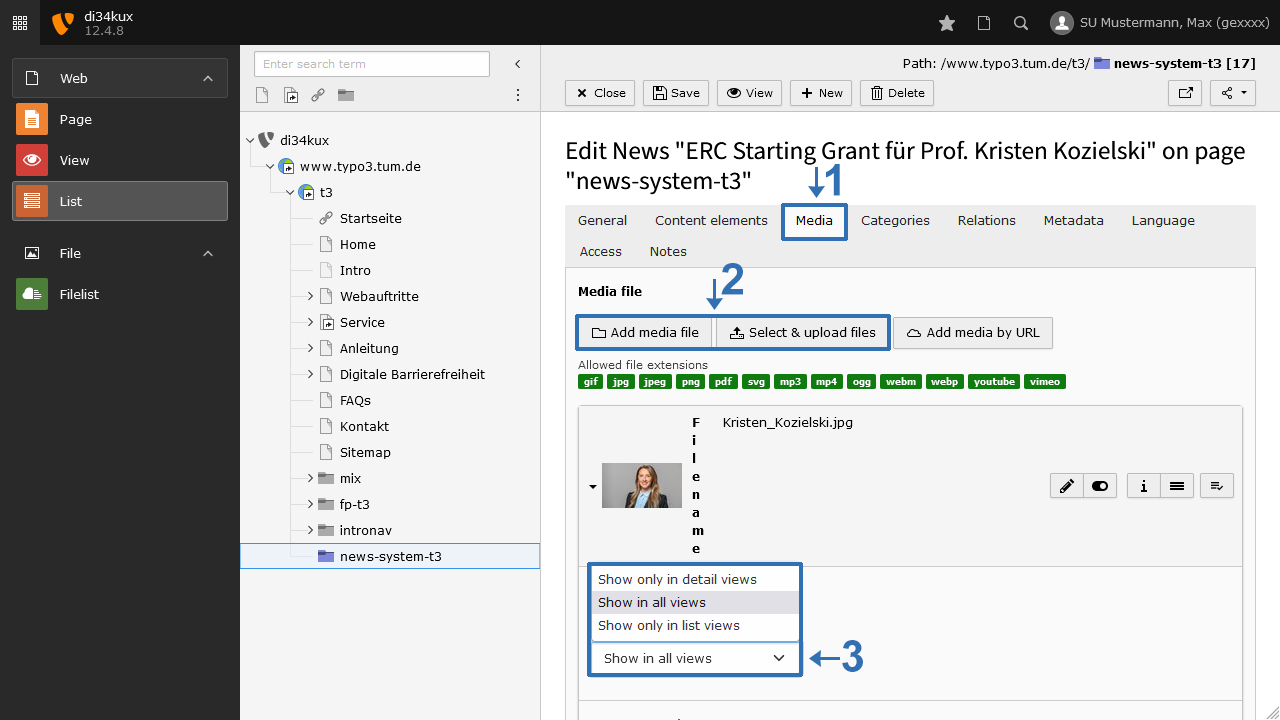
In the Media tab, you can add images/media to the news item. Using the “Show in views” setting, you can choose whether images appear only in list views, only in detail views, or in all views. This allows you to control which image appears in the list view and which images appear on the detail page.
Important: Only one image can be shown in the list view.
Videos and advanced content in news articles
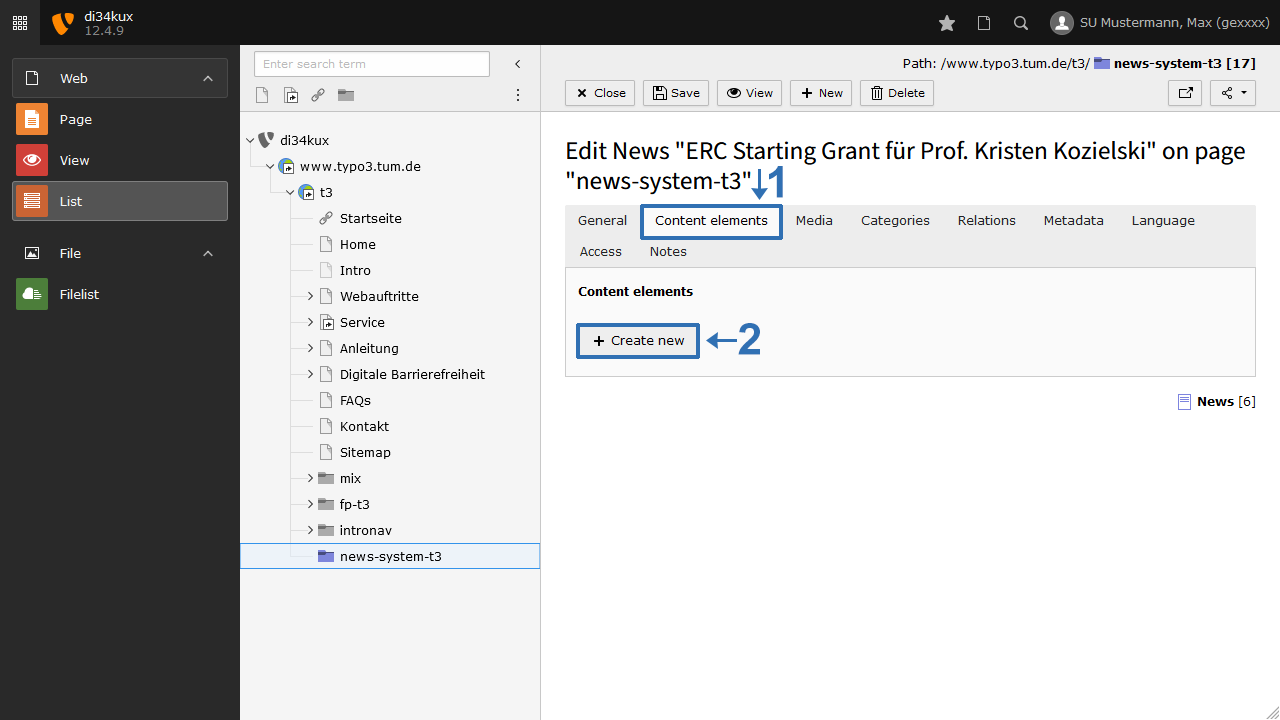
If you want to embed a video or multiple sections with different content elements in a news article, it’s recommended to use a Content element (Image 6). This way, you can combine text blocks, image galleries, or videos modularly within a news article.
Using Content elements allows flexible image placement and text combination, ensuring the article is displayed attractively and well-structured in the frontend. For more information on image placement, see the display options.
If you want to embed a video in a news item, we also recommend using a Content element. Further steps are described under Embed Video.
Metadata

Metadata is output in the source code of the detail view and is a fundamental element of search engine optimization. It also affects the Open Graph data of the news (Description and Alternative Title).
- Author’s name
- Author’s email
- Description: Briefly and interestingly describe the content of the news item
- Alternative Title: This is the title tag that also appears in the browser tab during a search
Hint
For error-free structured data, we recommend adding an image to the news item and including the author’s metadata.
Working with categories
A common use case for the News extension is displaying different news sections: for example, one plugin shows “current news,” another shows “upcoming events,” and a third shows “job openings.” For these cases, working with categories is ideal.
Create a category for news
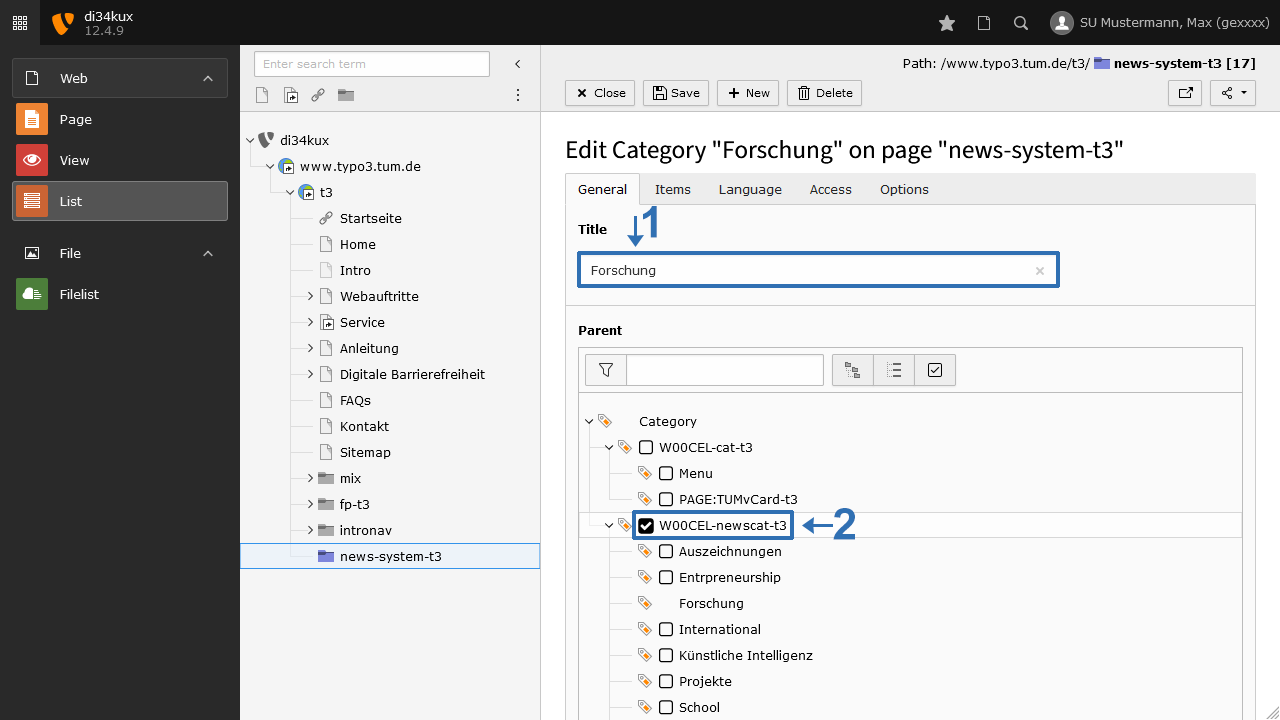
- Create a new category in the news-system-xx folder: Click Create new record (Image 3 No. 3a) and select “Category” (Image 3 No. 4). The input form will then open (Image 8).
- Enter a title for the category.
Each new category must be assigned to a parent category. Select “W00XXX-newscat-xx” (Image 8 No. 2).
If you don’t select a parent category, you won’t be able to access the category later when assigning it to news items!
Plugin settings for categories
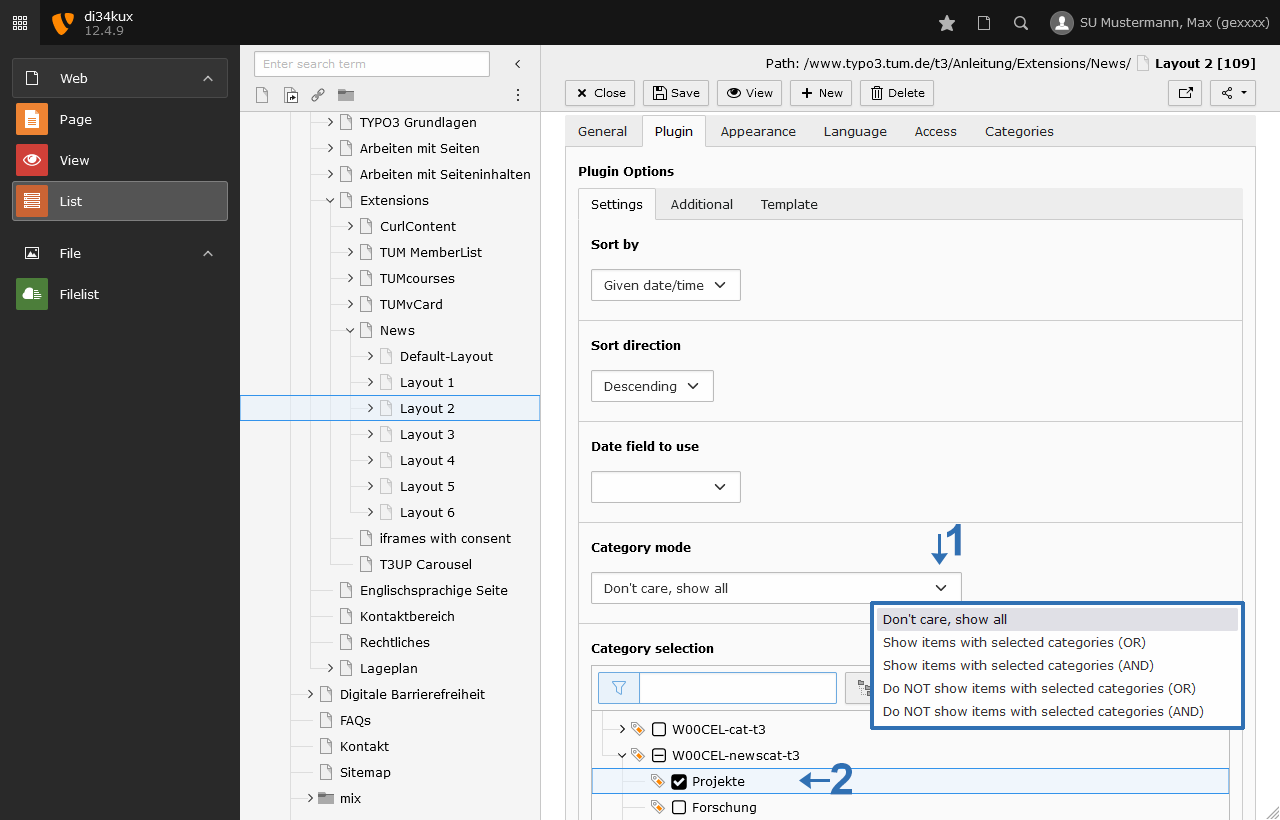
- Click the Plugin tab in the News plugin, then the Settings tab. Here you’ll find category settings (Image 9).
- In the Default setting, “Don’t care, show all” is selected. This means all news items are displayed regardless of category. Choose a setting (Image 9 No. 1) and check the desired category (Image 9 No. 2) to apply the selection:
| Category Mode | Effect |
|---|---|
| Don't care, show all | All news items are displayed regardless of category (“Default” setting) |
| Show items with selected categories (OR) | News items belonging to at least one selected category are displayed |
| Show items with selected categories (AND) | News items are displayed only if they belong to all selected categories |
| Do NOT show items with selected categories (OR) | Only news items NOT belonging to any selected category are displayed |
| Do NOT show items with selected categories (AND) | News items are displayed if they do NOT belong to all selected categories |
Assigning news to a category
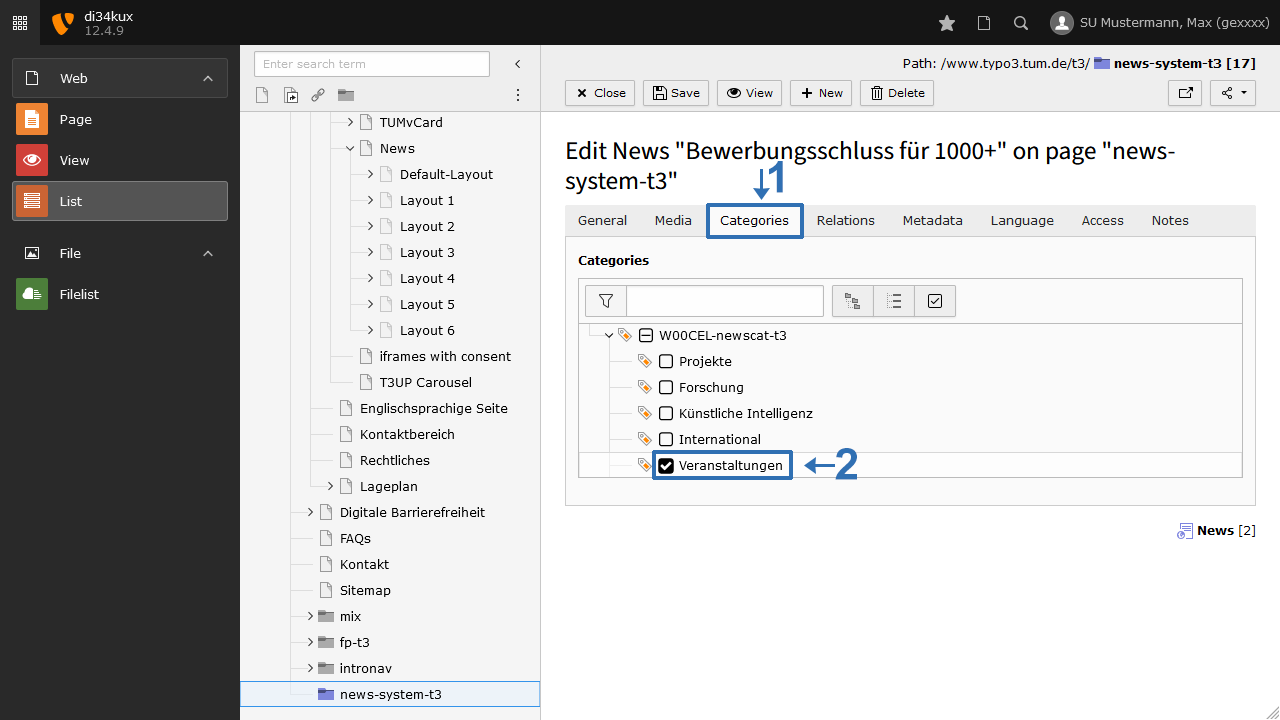
- Edit the news item you want to assign to a category.
- Go to the Categories tab (Image 10 No. 1).
- Select the desired category (Image 10 No. 2).
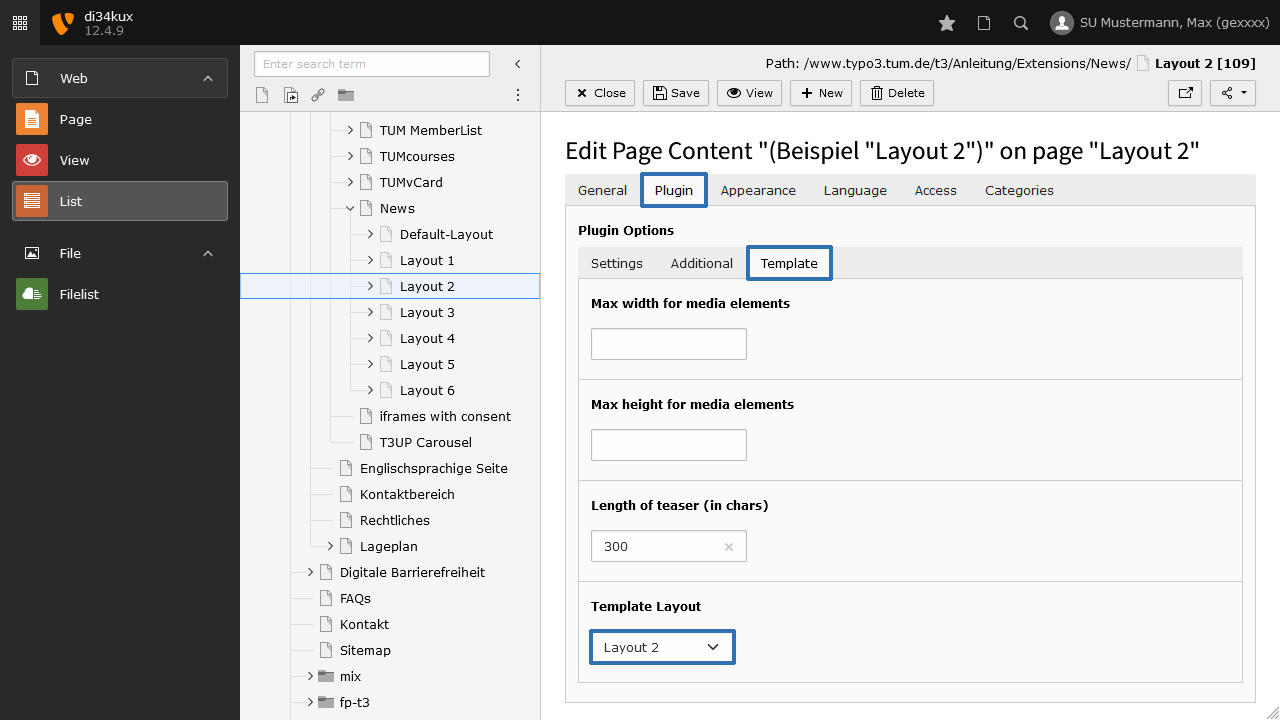
Change number of news items in list view
The number of news items displayed in the news list can be changed. Open the News plugin, go to the Plugin tab, then the Additional tab:
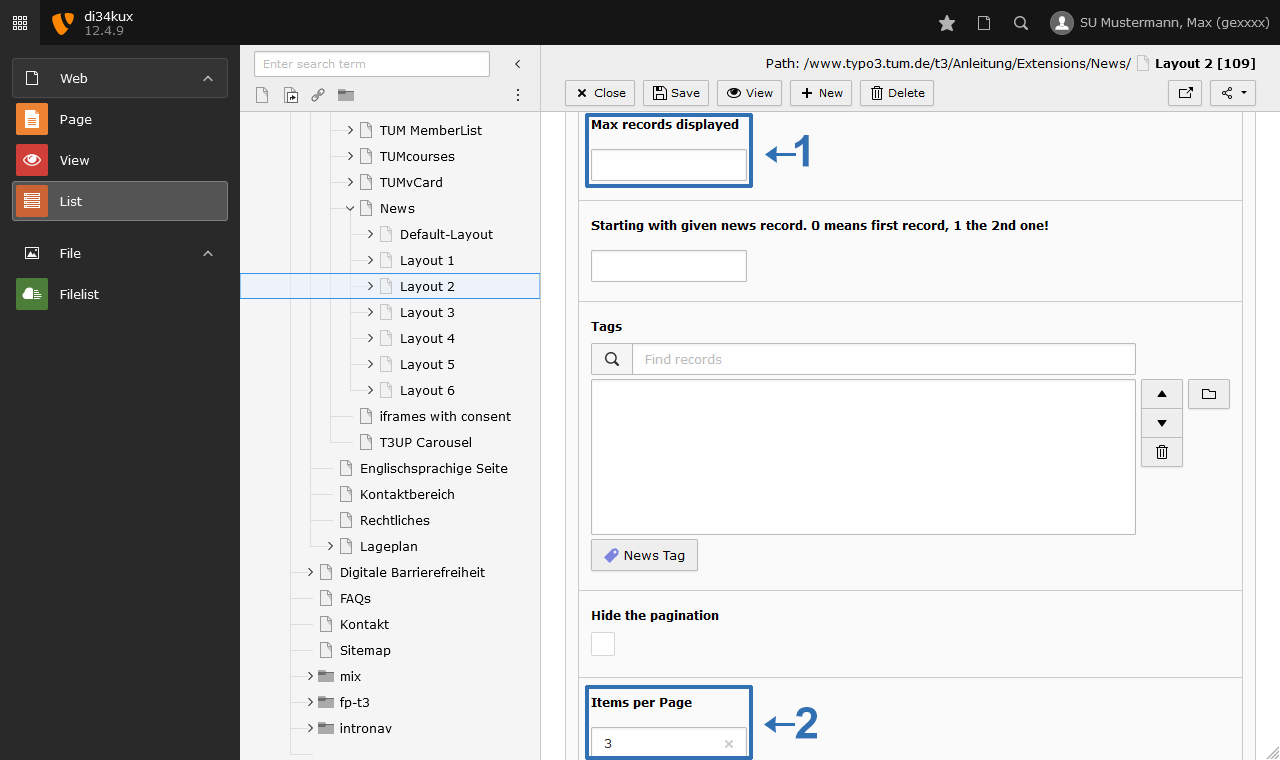
- “Max records displayed” (Image 12 No. 1) limits the total number of news items displayed by the plugin (important only for the News Box).
- “Items per Page” (Image 12 No. 2) enables pagination. Enter how many news items should appear on one page (important for news lists that are not in the News Box).
RSS-Feed
Any page that contains articles from the News system can also be output as an RSS feed and is accessible via /rss.xml at the end of the URL.
Example: On the homepage of the “Research Neutron Source Heinz Maier-Leibnitz (FRM II)” https://www.hs.mh.tum.de/mh/startseite/, several News plugins are embedded. The feed is linked accordingly at https://www.hs.mh.tum.de/mh/startseite/rss.xml.
In the RTE under Styles, you’ll also find an RSS icon.
Prerequisite: We configure the RSS feed upon request. If this hasn’t been done for your site yet, please contact us. Also let us know if you want to work with categories - this is possible as an additional option.