TUMcourses
The TUMcourses extension integrates course information from TUMonline directly into your website. The data is retrieved automatically and always kept up to date from TUMonline – no manual maintenance is required.
Requirement: TUMonline settings
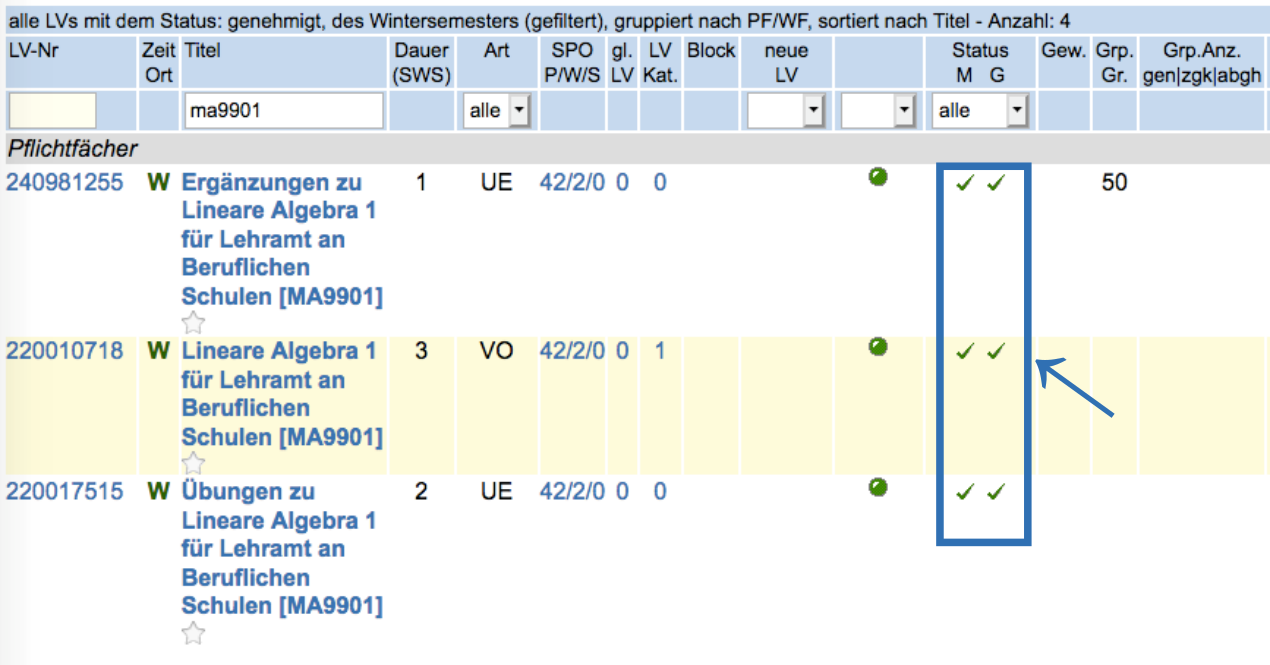
For courses to appear on the website, both checkboxes in the "Status" field must be enabled in TUMonline. Without this setting, the extension cannot retrieve any data and therefore will not display any courses. If you encounter any issues, please contact your TUMonline administrator.
Preparation: Obtain the ID from TUMonline
Depending on whether you want to display the courses of a chair/professorship or of an individual person, you first need one of the following IDs from TUMonline:
| Display | Required ID | How to find the ID |
|---|---|---|
| Chair / Professorship | Organization ID | Same procedure as for TUM MemberList |
| Individual person | Person ID | Same procedure as for TUMvCard |
Make a note of the appropriate ID - you will enter it in the next step when integrating the plugin.
Integrating the TUMcourses plugin – step by step
- Open the Page module and select the target page.
- Click “+ Content” → “Special” → “Insert plugin”.
- In the “Plugin” field, select “TUMcourses list”.
- Choose the desired display mode.
- Enter the Organization ID or Person ID obtained from TUMonline.
- Save the element to configure the plugin options.
Plugin options: Data source
In the “Data source” tab, define which courses are displayed:
- Under "List the courses of…", choose between Organization and Person.
- Enter the previously noted Organization ID or Person ID.
- Select the desired semester.
- Set the language of the display.
Plugin options: List view
In the "List view" tab, define how the course list is displayed on the frontend:
- Displayed columns: Choose which course information (e.g. title, type, dates) appears in the list.
- Link method: Determines what a click on a course leads to:
- link to the TUMonline detail page
- link to the plugin's own detail view
- no link
- Style: Choose between "Grid" (tabular display with border lines) and “Horizontal lines” (a leaner display with separator lines only).
Linking lecturers and assistants
In the "Link lecturers, assistants" tab, define what a click on the name of a lecturer or assistant leads to. The available options are:
- link to their personal website with TUMvCard
- link to a specific page
- link to their business card in TUMonline
- no link
Combining multiple TUMvCards of one person
If multiple TUMvCard elements exist for the same person on different pages, you must additionally define which TUMvCard TUMcourses should link to. The mechanism is the same category assignment used when combining TUMvCard with the TUM MemberList (see TUMvCard):
- Open the TUMcourses plugin and select the category “PAGE:TUMvCard-xxx” (xxx = the sequential number of the relevant TUMvCard) in the corresponding field.
- Open the page properties of the page containing the relevant TUMvCard.
- Assign the same category “PAGE:TUMvCard-xxx” there as well.
- Save both changes.
English version
Like any other content element, the TUMcourses element must also be translated for the English page. The general procedure is described in “English version”:
- Switch to the language view in the Page module.
- Click "Translate" on the TUMcourses element.
- In the “Data source” tab of the English copy, switch the language to English so that the course data is displayed from TUMonline in the English translation.
- Enable the English element (turn on visibility).
Note
The organization/person ID, semester, and the settings in "List view" and "Link lecturers, assistants" are carried over automatically - usually only the language in "Data source" needs to be adjusted.