Skip to content
  • Guide TYPO3
  • Login / Account
  • Functions / Extensions
  • Audio / Video
  • Terms of Use
  • FAQs
  • de
  • en
  • Central Information Technology (TYPO3-Team)
  • IT Service Center (ITSZ)
  • Technical University of Munich
Technical University of Munich
  • Home
  • News from TYPO3 Team
  • Webpool
    • Non-faculty institutions
    • TUM School of CIT
    • TUM School of ED
    • TUM School of LS
    • TUM School of MGT
    • TUM School of MH
    • TUM School of NAT
    • TUM School of SOT
    • TUM Graduate School (GS)
    • Integrative Research Institutes (IRI)
    • Technology Core Facilities (TCF)
    • Corporate Research Centers
    • Munich School of Politics and Public Policy
    • TYPO3 Web-Archive
  • Service
    • Offer
    • Terms of use
    • Requirement
  • Documentation
    • TYPO3 basics
      • Terms
      • Module bar
      • Page tree
      • Filelist
      • Recycler
    • User management
      • Registration and login
      • Permission concept
      • Groupdelegation
    • Pages
      • Page types
      • Create a page
      • Visibility
      • Order pages
      • Delete pages
      • Scheduled publishing
      • Page layout
    • Content elements
      • Page content types
      • Create Page content
      • Headers
      • Text & Media
        • Images
        • Image gallery
        • Slideshow
        • Alternative text for images
        • Image cropping
      • Audio & video
        • Embedding audio files
        • Embedding videos
      • Tables
      • File Links
      • Menu
      • Insert records
      • Rich Text Editor (RTE)
      • Adding links
        • Manage anchors
      • Spacing between content elements
      • Multi-column content
      • Accordion Functionality
      • Frames & Boxes
      • Social Media Box
    • Extensions
      • CurlContent
      • TUM MemberList
      • TUMcourses
      • TUMvCard
      • News
      • TUMFIS
      • T3UP Carousel
      • iframe with consent
    • English version
    • Contact area
    • Accessible content
    • Legal matters
    • Maps
      • Maps with Google Maps
      • Maps with BayernAtlas
  • FAQs
  • Contact
  • Sitemap
  1. Home
  2. Documentation
  3. English version

English version

You have the option to create your website in two languages: the first language is German, and the second language is English. So, first set up the German version of your website, and then the English version.

Information

When translating the pages and content, the text – meaning the wording – is not translated into English. The German texts are retained. With Translate, a technical translation is meant – all settings for the pages and content are carried over into the English version. The actual translation of the content must be done by you. Therefore, we recommend that you prepare the English texts in advance.


Procedure

  • Translating the German page
  • Translating the German content elements
  • Translation of later added content elements
  • Same content element for both languages
  • My English content element is not showing up

Translating the German page

Before you can translate the content elements, you need to create a translation of the page. TYPO3 offers you two options for this: using the Page module and the List module. Here, we describe the procedure using the Page module.
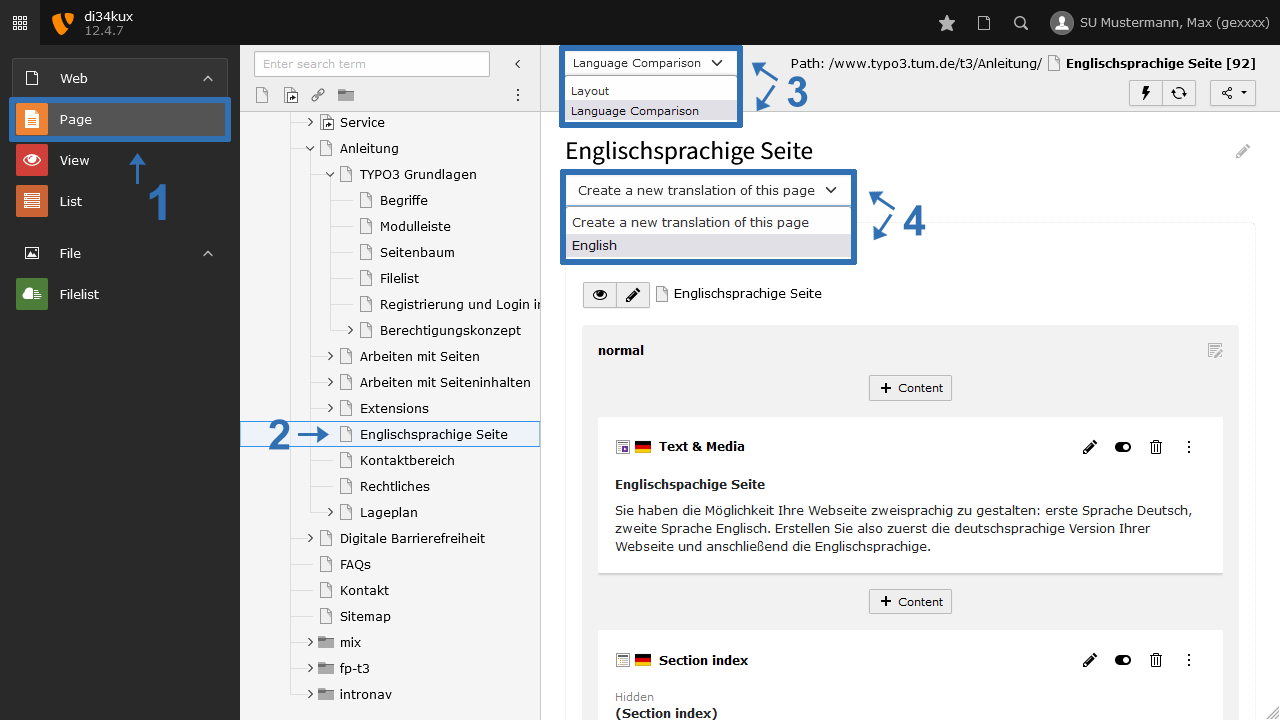
 

Screenshot: Page translation
Image 1: Page translation
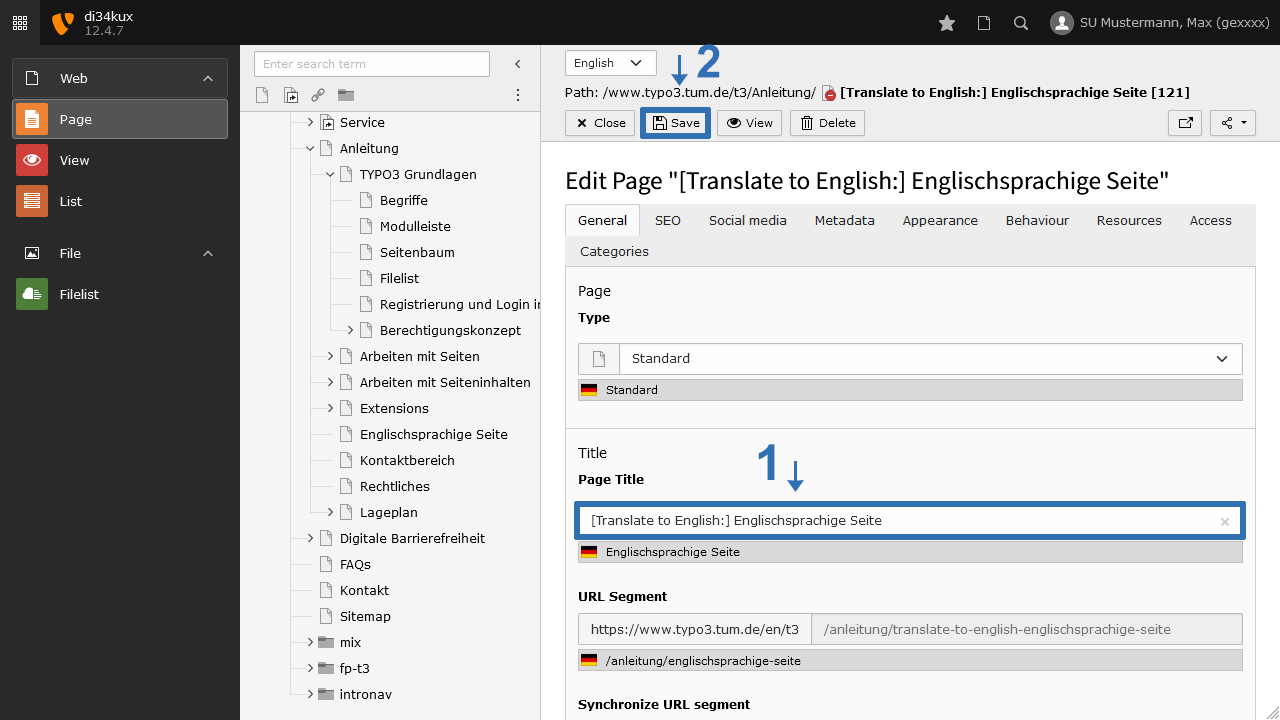
Screenshot: Page Title
Image 2: Page Title
  1. Go to the Page module.  
  2. Select the page you want to translate.  
  3. In the drop-down list, select "Language Comparison" (Image 1 No. 3) and under “Create a new translation of this page” choose "English" (Image 1, No. 4).  
  4. Please wait a moment until the edit mode for the new English page appears. Now, enter the English title of the page in the “Page Title” field. Then save and close (Image 2).  
  5. Please note that the page will be created as deactivated. Don't forget to publish it to make it live.

Translating the German content elements

Click on the Page module and select the page whose content elements you want to localise (translate):

  1. Go to Language and select English (Image 3, No. 2).
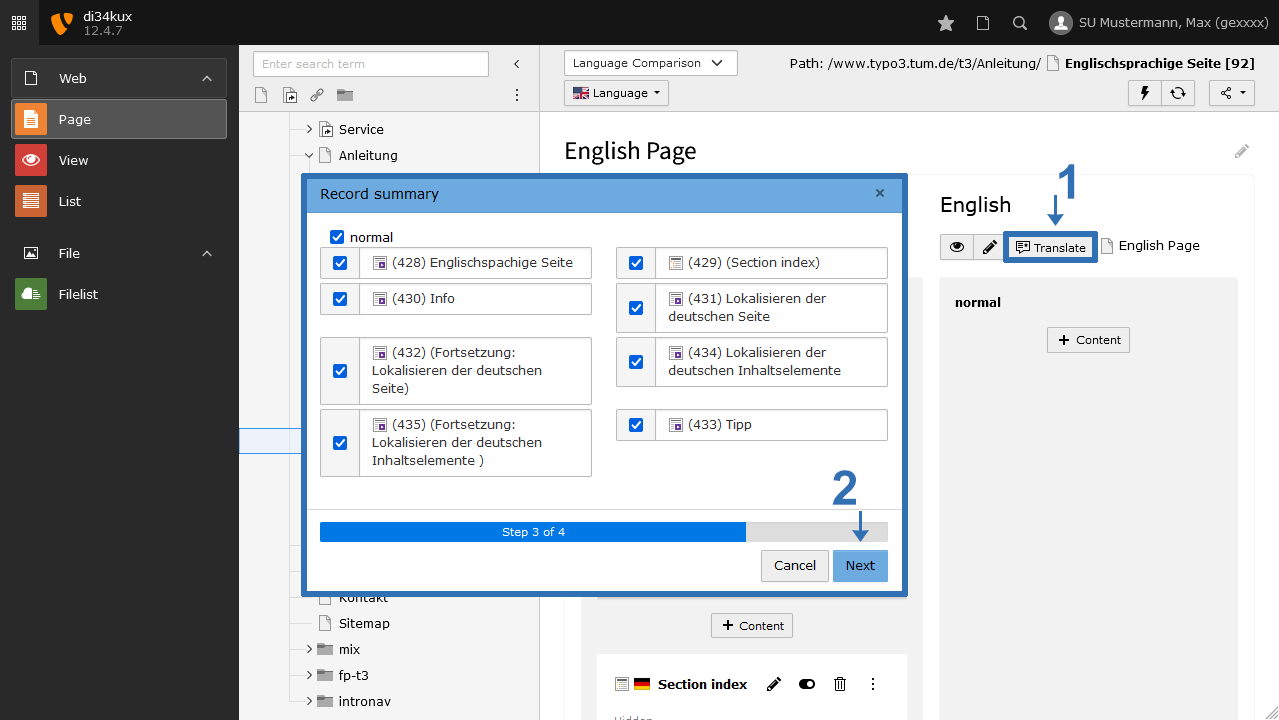
  2. Click on "Translate" (Image 4, No. 1)
  3. A new window will open, displaying all the page's content elements.
  4. To exclude content elements from translation, uncheck the box next to each element. Then click on "Next" (Image 4, No. 2) to complete the process.
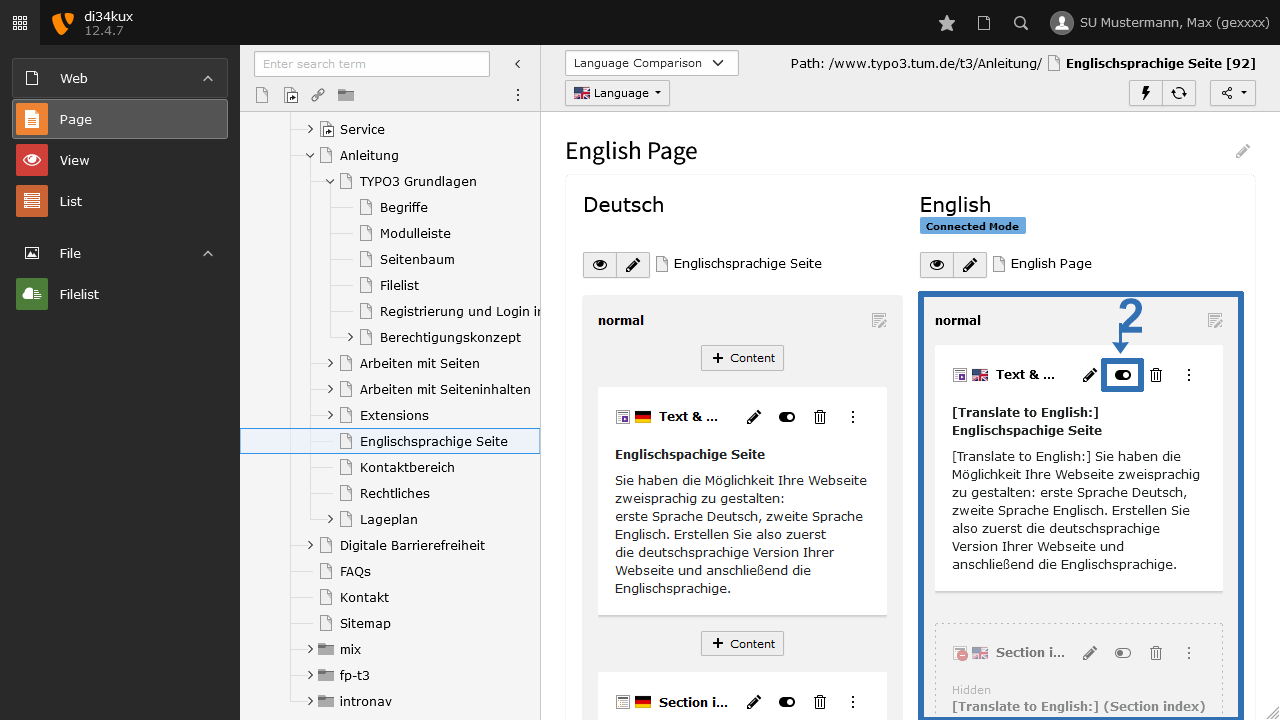
  5. The English content elements are now created. These need to be adjusted (removing [Translate to en:]) and filled in with the English text. Don't forget to activate the new English elements (Image 5, No. 2).
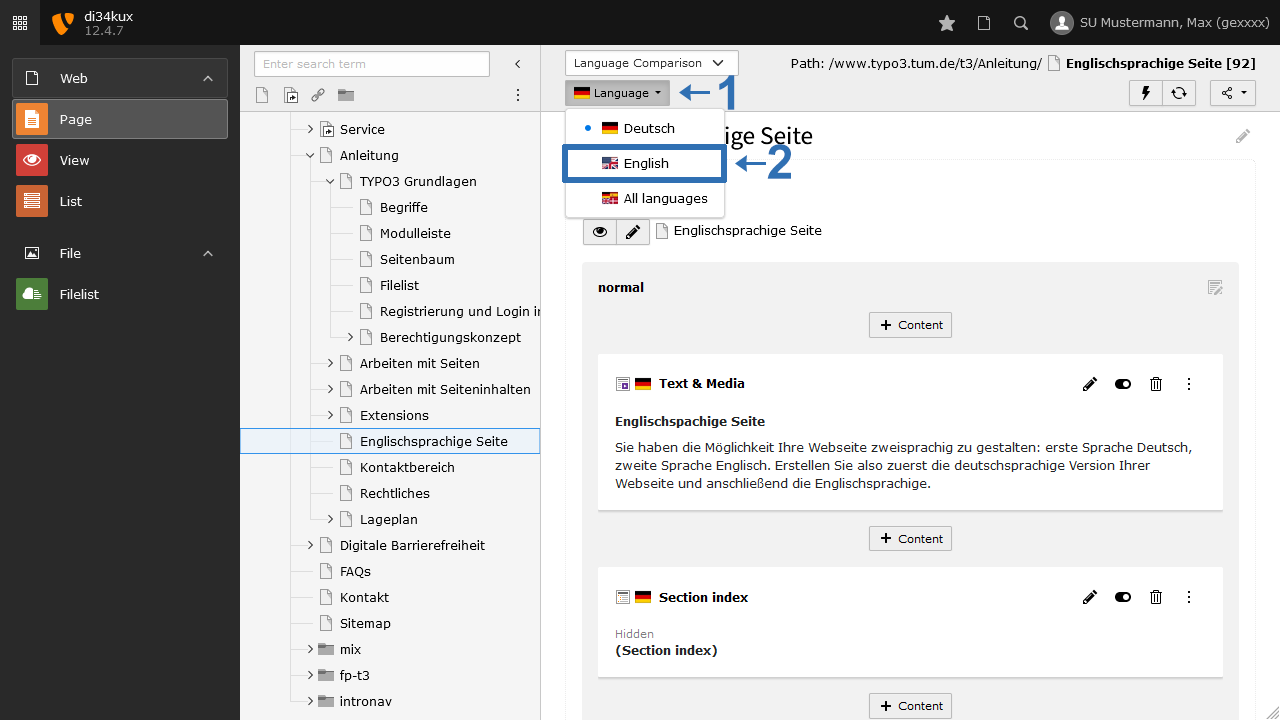
Screenshot: Language English
Image 3: Language English
Screenshot: Localize content elements
Image 4: Localize content elements
Screenshot: Translated content elements
Image 5: Translated content elements

Hint

We recommend creating the translation of a content element only after the default element is fully configured to your specifications (images, formats, metadata, borders, etc.). This ensures that these settings are directly transferred during the translation process, allowing you to focus on adjusting the text.


Translation of later added content elements

  1. Select the Page module.  
  2. Choose the page from the page tree.  
  3. Click the Translate icon (Image 4, No. 1). The German element without an English translation will be displayed.  
  4. Click on Next (Image 4, No. 2).  
  5. Replace the German text and activate the new element.

Note
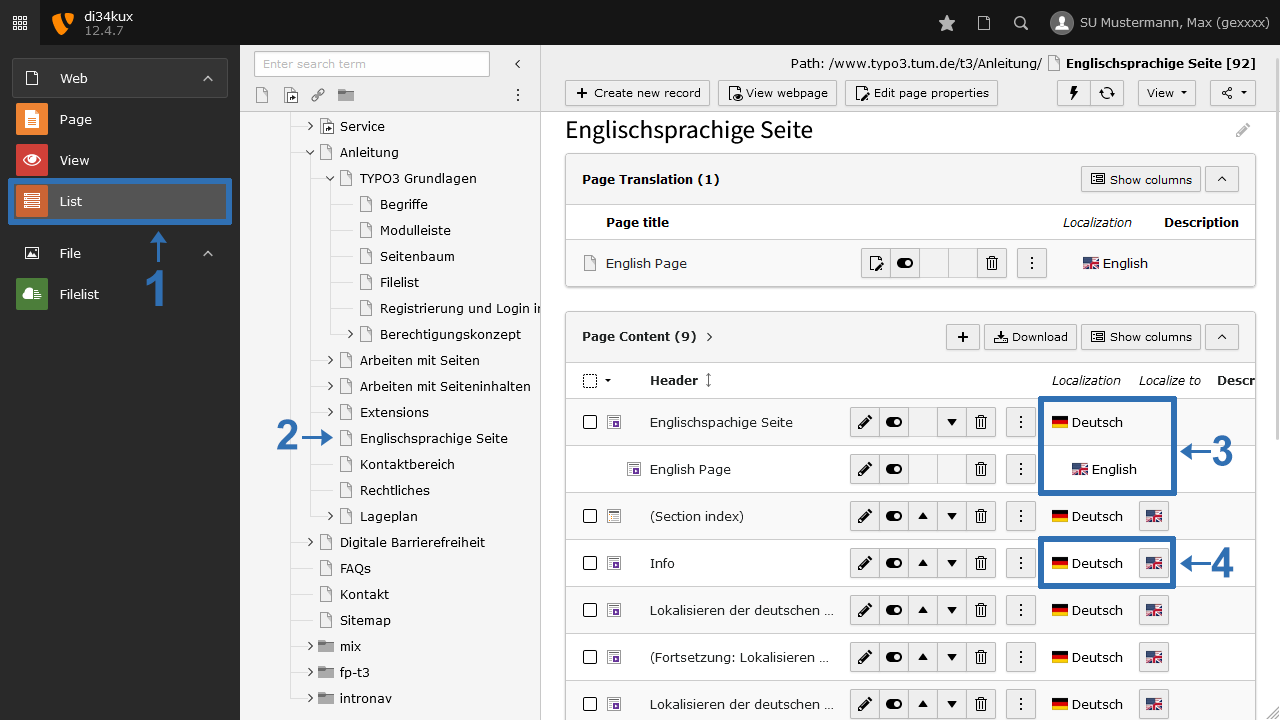
Screenshot: Content element localized/not localized
Image 6: Content element localized/not localized

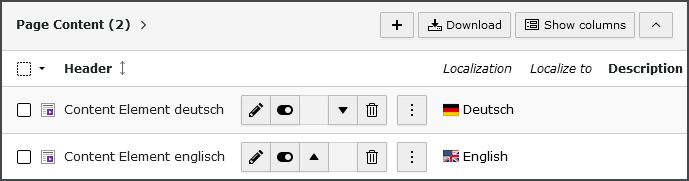
Here you can see that only the first content element has a translation (Image 6, No. 3). In the list view, the German/English content elements are displayed in pairs, one under the other and indented.

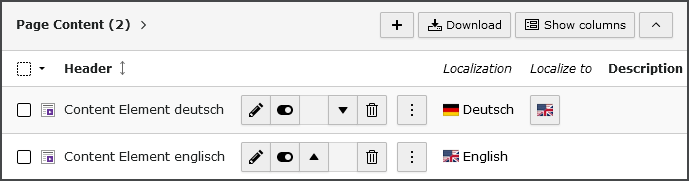
If both the German and English flags are visible in a single row (Image 6, No. 4), it means this content element has not yet been translated.

Same content element for both languages

Screenshot: Switch the language to "[All]"
Image 7: Switch the language to "[All]"

If you have created a content element that is the same in both languages (e.g. images without descriptions, divider lines), you do not need to translate this element. Instead, you can make the following setting: Select the option “[All]” in the “Language” tab (see Image 7).


My English content element is not showing up
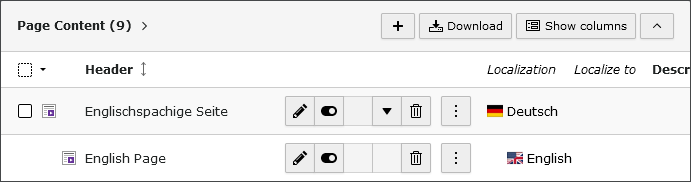
Screenshot: Related CE's are displayed in pairs, with the English element indented.
Image 8: Related CE's are displayed in pairs, with the English element indented.
Screenshot: The CE's are not related to each other and the menu item has not yet been translated
Image 9: The CE's are not related to each other and the menu item has not yet been translated
Screenshot: The menu item has been translated, but the CE's are not yet related to each other
Image 10: The menu item has been translated, but the CE's are not yet related to each other

When translating your website, it is very important to follow the guidelines. Please adhere to the specified order. If your English content elements are not appearing, they may be missing the reference to the German content elements.

Related content elements are displayed in pairs, with the English element indented (see Image 8). In Images 9 and 10, you can see that the content elements (CEs) do not have any relationship to each other. 

If you click the List module and see the CEs shown in Image 9, the translation for the menu item/is missing.
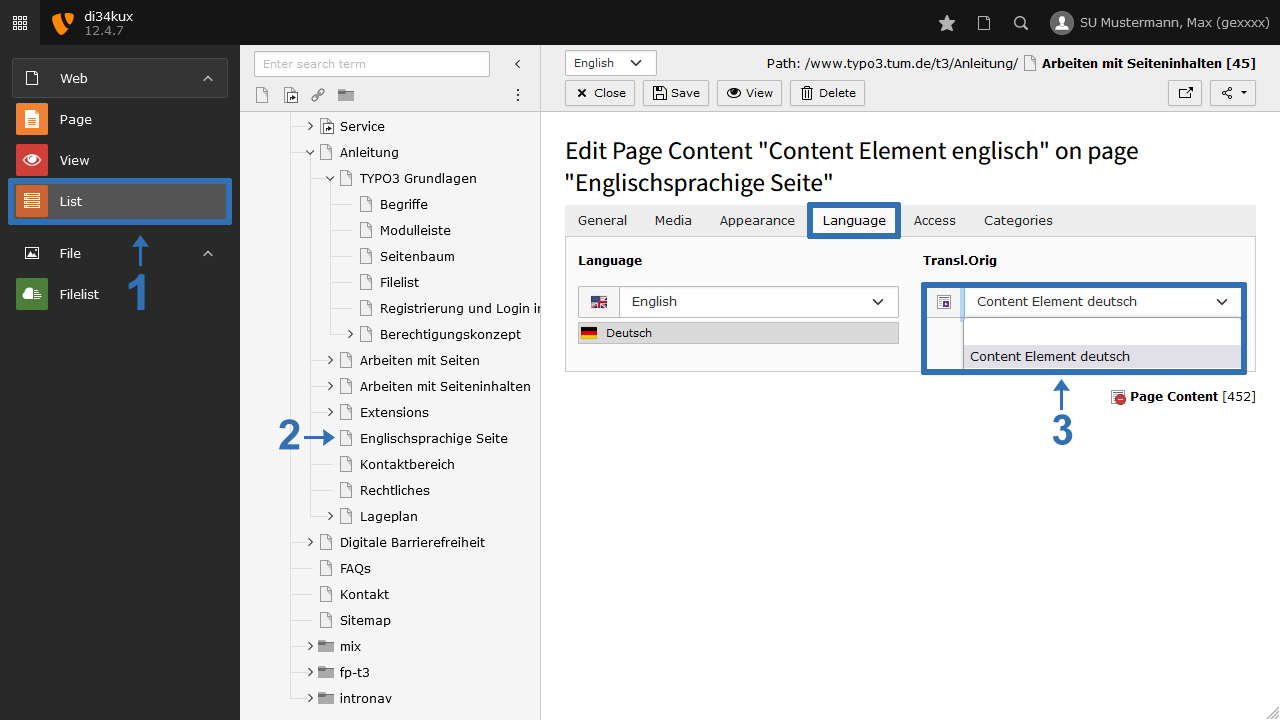
Screenshot: In the Transl.Orig field, assign the German CE to the English CE.
Image 11: In the Transl.Orig field, assign the German CE to the English CE.

If you see the view as in Image 10:

  1. Edit the English CE.
  2. Switch to the “Language” tab.
  3. Select the German CE in the “Transl. Orig” field (Image 11, No. 3).
To top

TYPO3 News

14.04.2026

TUMFIS is now available (Open Beta)

23.03.2026

Structured Data and JSON‑LD available

25.02.2026

New functions: Image cropping and Anchor links

21.01.2026

New Security Concept - User Accounts

01.08.2025

We are in OTRS!

RSS Feed

TUM TYPO3 (ZIT)

Richard-Wagner-Str. 18
80333 München
typo3@tum.de

  • Privacy
  • Imprint
  • Accessibility