Adding images
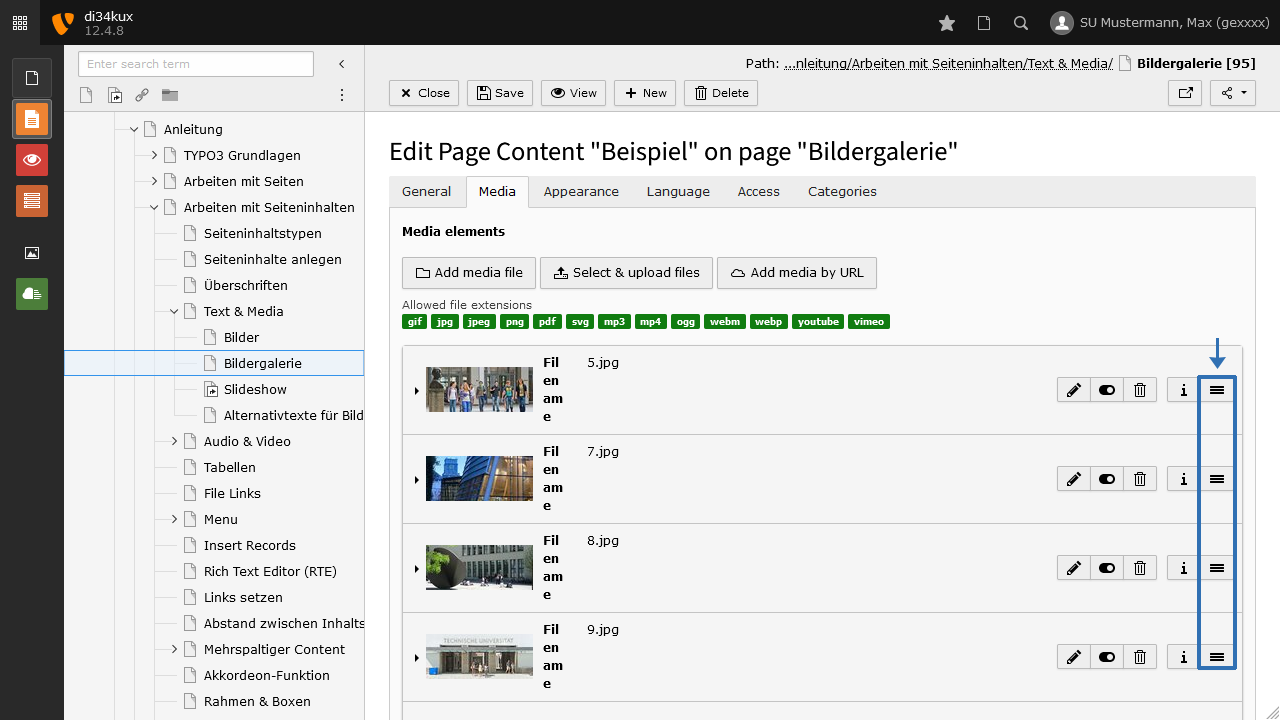
Images can be added alone or combined with text. Multiple images can also be embedded at the same time, arranged either side by side or one below the other.
Before adding images to the content element, they must be uploaded to the file list.
Prepare images for the website
Images must be prepared before uploading them to the website:
- Do not upload images directly from the camera to the website or the website's file system.
- Edit the images in advance using image editing software (e.g., Photoshop):
- Change the file names.
- Reduce the image size to the dimensions in which they will be displayed on the website.
- Use only image file formats such as jpg/jpeg, gif, png, svg, or webp.
- Ensure that images have the same width and height if they are to be inserted into the same content element before uploading them to the website's file list.
- For layouts with a right column, the maximum width for images is 936 pixels; for layouts without a right column, the maximum width is 1176 pixels.
Create content element "Text&Media"
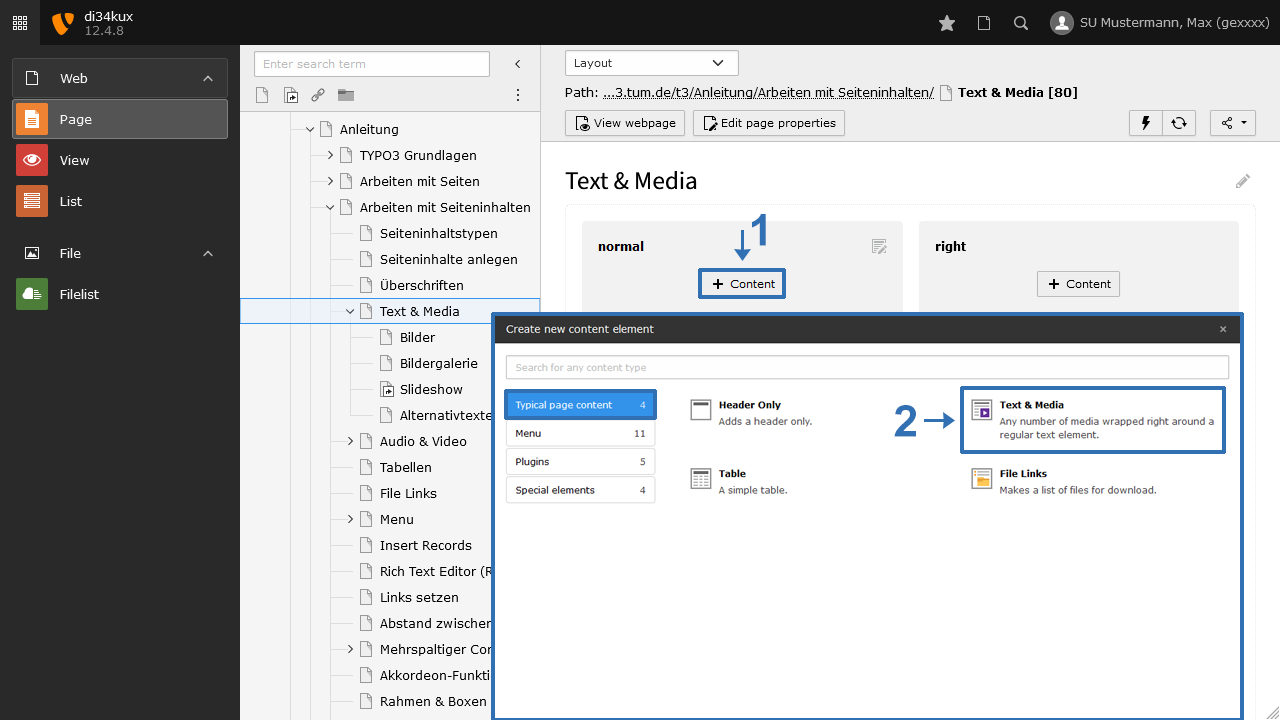
To insert media elements (images, video, audio) into a content element, select “Text & Media”.
Insert images
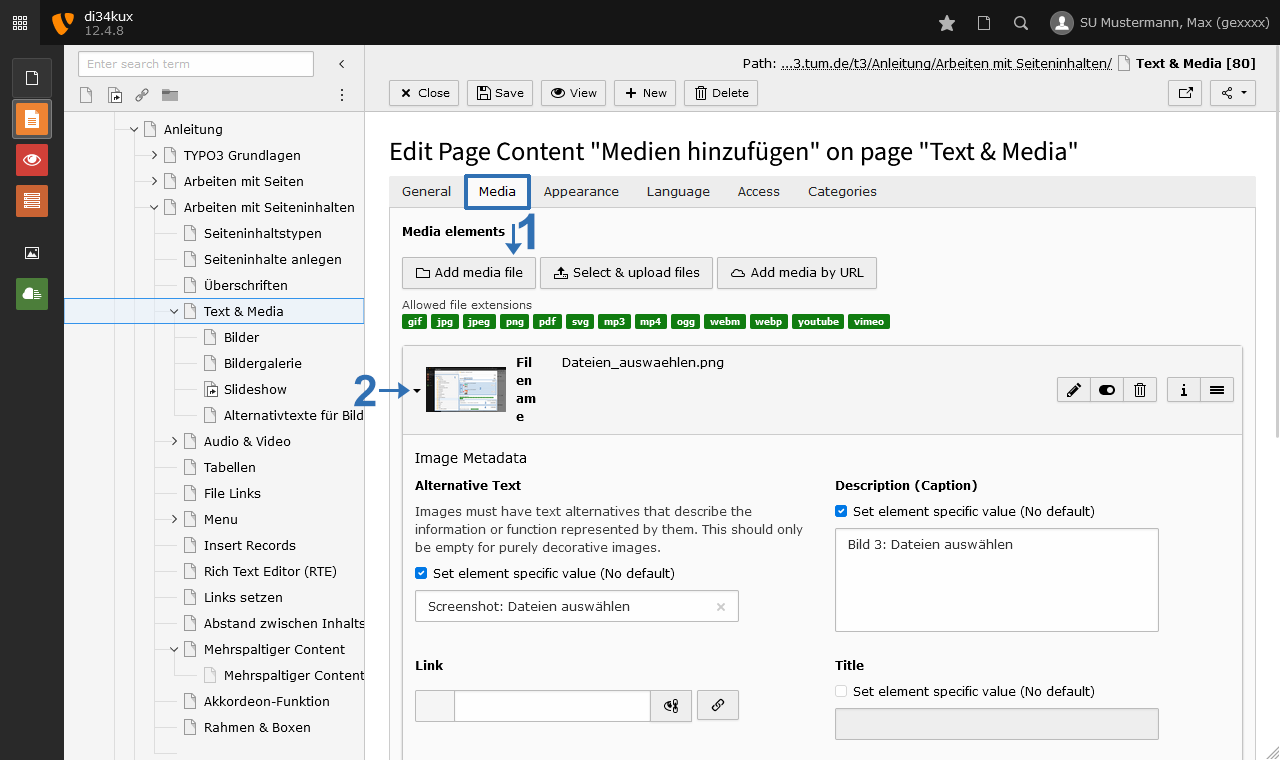
- Click on the Media tab and select Add media file (Image 2 No.1). The file list will open in a pop-up window.
- You can now add one or more images to the content element.
- You can edit the image metadata by clicking on the respective image in the backend (Image 2 No.2).
Media adjustments
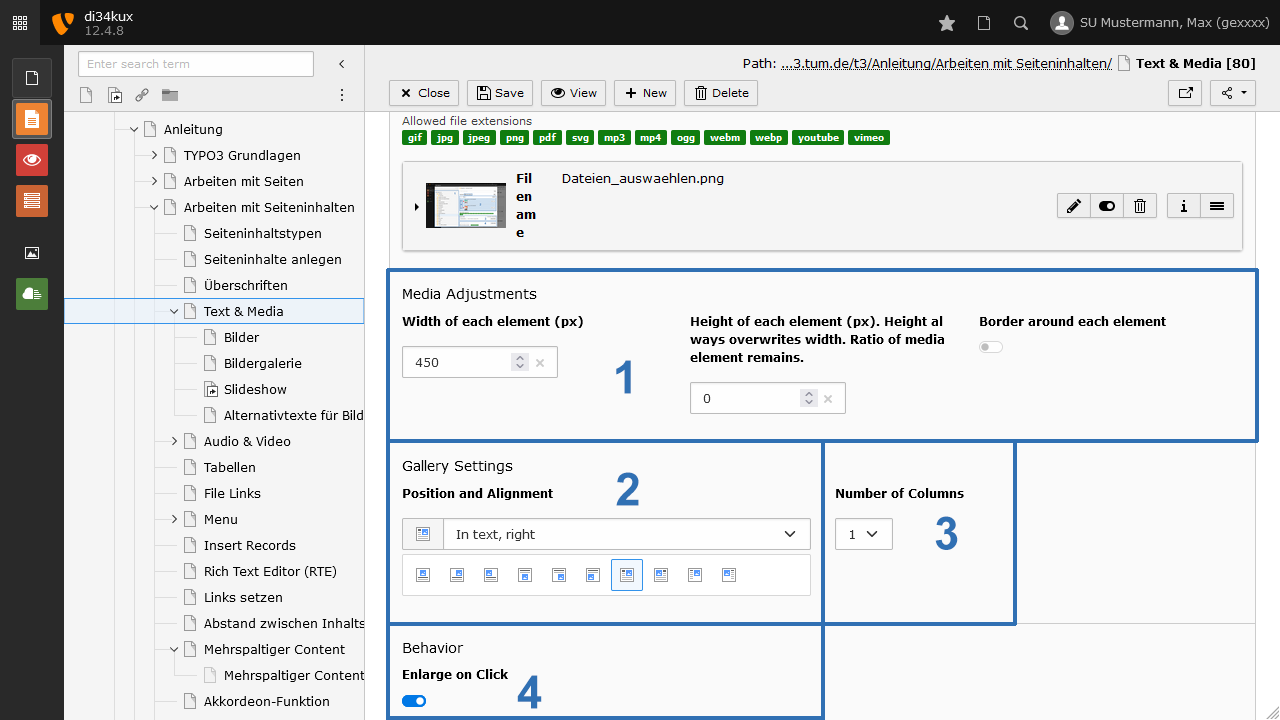
Below the image selection, the media adjustments are now set, which will apply equally to all the selected images above:
- Enter either the width or height (Image 3 No.1). Please only enter one of the two values!
- Choose the text wrapping: What is the position of the media elements in relation to the text (Image 3 No.2)
- Number of Columns (Image 3 No.3): If you want to display several images one below the other, select Number of Columns = 1.
- If you want to place multiple images side by side, select the desired number (maximum of 9) of columns.
- Enlarge on Click (Image 3 No.4): This function is only available for images. For more information, please refer to the description of the image gallery function.