Skip to content
  • Anleitung TYPO3
  • Login / Account
  • Funktionen / Extensions
  • Audio / Video
  • Dig. Barrierefreiheit
  • Nutzungsbedingungen
  • FAQ
  • de
  • en
  • Central Information Technology (TYPO3-Team)
  • IT Service Center (ITSZ)
  • Technical University of Munich
Technical University of Munich
  • Startseite
  • Webauftritte
    • Nichtfakultäre Einrichtungen
    • TUM School of CIT
    • TUM School of ED
    • TUM School of LS
    • TUM School of MGT
    • TUM School of MH
    • TUM School of NAT
    • TUM School of SOT
    • TUM Graduate School (GS)
    • Integrative Research Institutes (IRI)
    • Technology Core Facilities (TCF)
    • Wissenschaftliche Zentralinstitute (WZI)
    • Hochschule für Politik
    • TYPO3 Web-Archiv
  • Service
    • Scope
    • Terms of Use
    • Requirement
  • Documentation
    • TYPO3 Basics
      • Terms
      • Module bar
      • Side tree
      • Filelist
      • Registration and login to the backend
      • Permissions concept
        • Groupdelegation
    • Working with Pages
      • Page types
      • Create a page
      • Hide/show pages
      • Sort/copy pages
      • Delete pages
      • Scheduled publishing
      • Change page layout
    • Working with Page content
      • Page Content types
      • Create Page content
      • Headers
      • Text & Media
        • Images
        • Image gallery
        • Slideshow
        • Alternative text for images
      • Audio & Video
        • Embed audio files
        • Embed video
      • Tables
      • File Links
      • Menu
      • Insert Records
      • Rich Text Editor (RTE)
      • Links setzen
      • Spacing between Content elements
      • Multi-column Content
      • Accordion Functionality
      • Frames & Boxes
      • Social Media Box
    • Extensions
      • CurlContent
      • TUM MemberList
      • TUMcourses
      • TUMvCard
      • News
      • iFrame with consent
      • T3UP Carousel
    • English Version
    • Contact Area
    • Legal Matters
    • Maps
      • Maps with Google Maps
      • Maps with BayernAtlas
  • Digital Accessibility
    • Quick Start for Editors
    • Leichte Sprache
  • FAQs
  • Contact
  • Sitemap
  1. Startseite
  2. Documentation
  3. Working with Page content
  4. Multi-column Content

Multi-column content

With the multi-column content option, you can arrange content elements side by side (in two or three columns).

  • Positioning of content elements
  • Two-Column Content
  • Three-Column Content
  • Placeholders
  • Examples of Multi-Column Content

Positioning of content elements

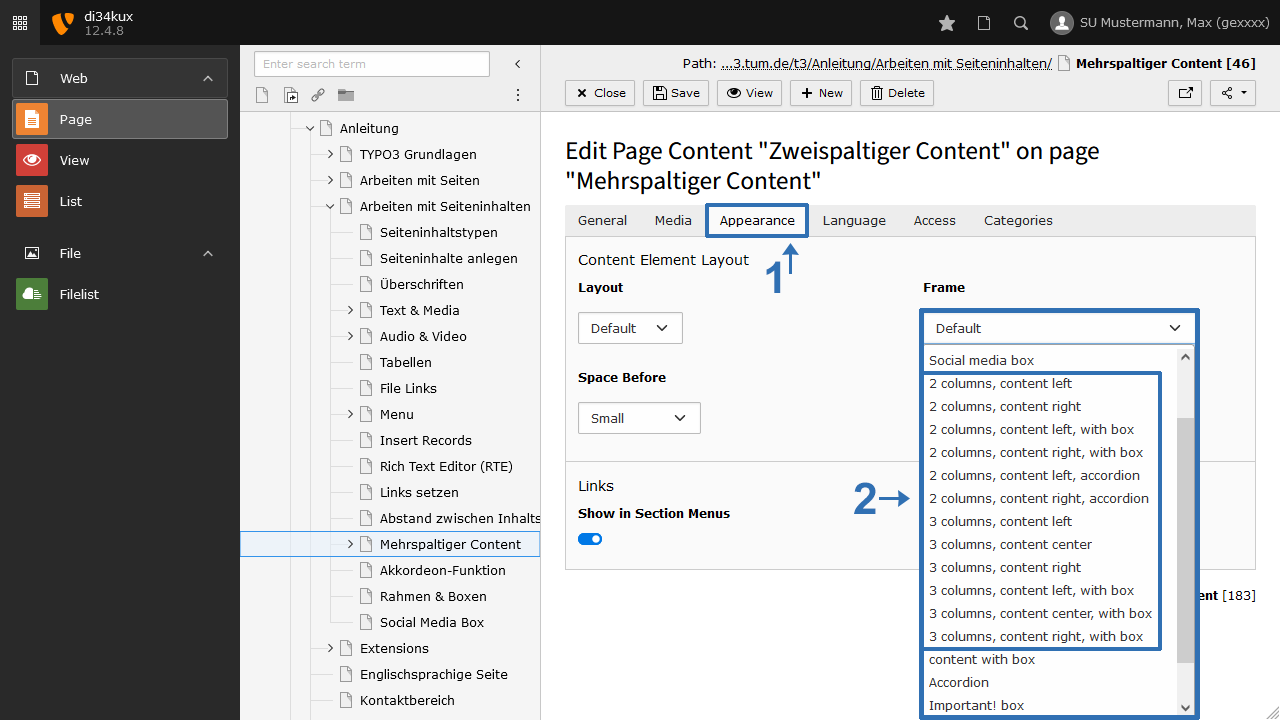
Screenshot: Positioning
Image 1: Positioning

Create or edit a content element. In the Appearance tab under Frame, select the desired position (Figure 1).

Note

To better view the order of the content elements in the backend, we have switched to the List module.

Two-Column Content

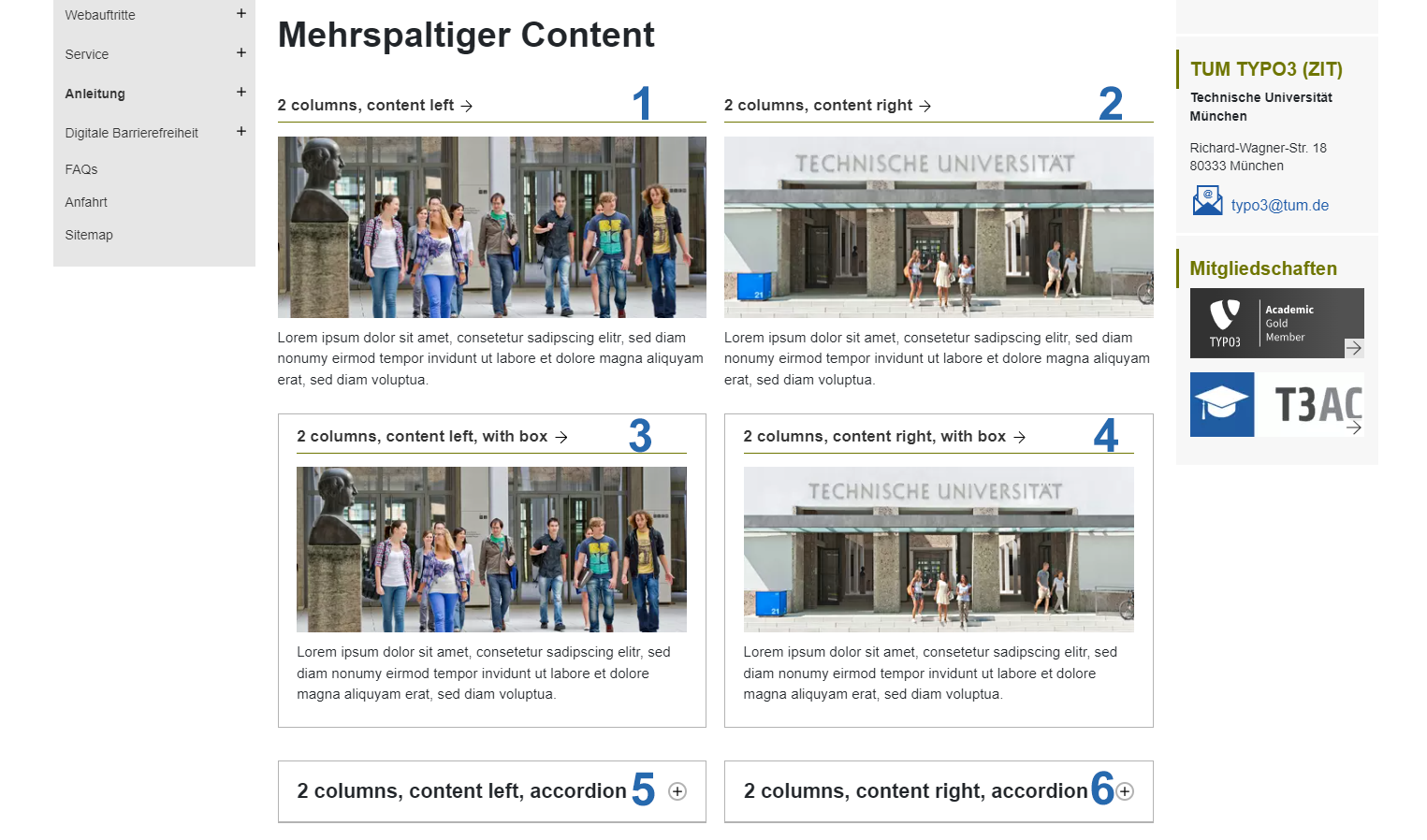
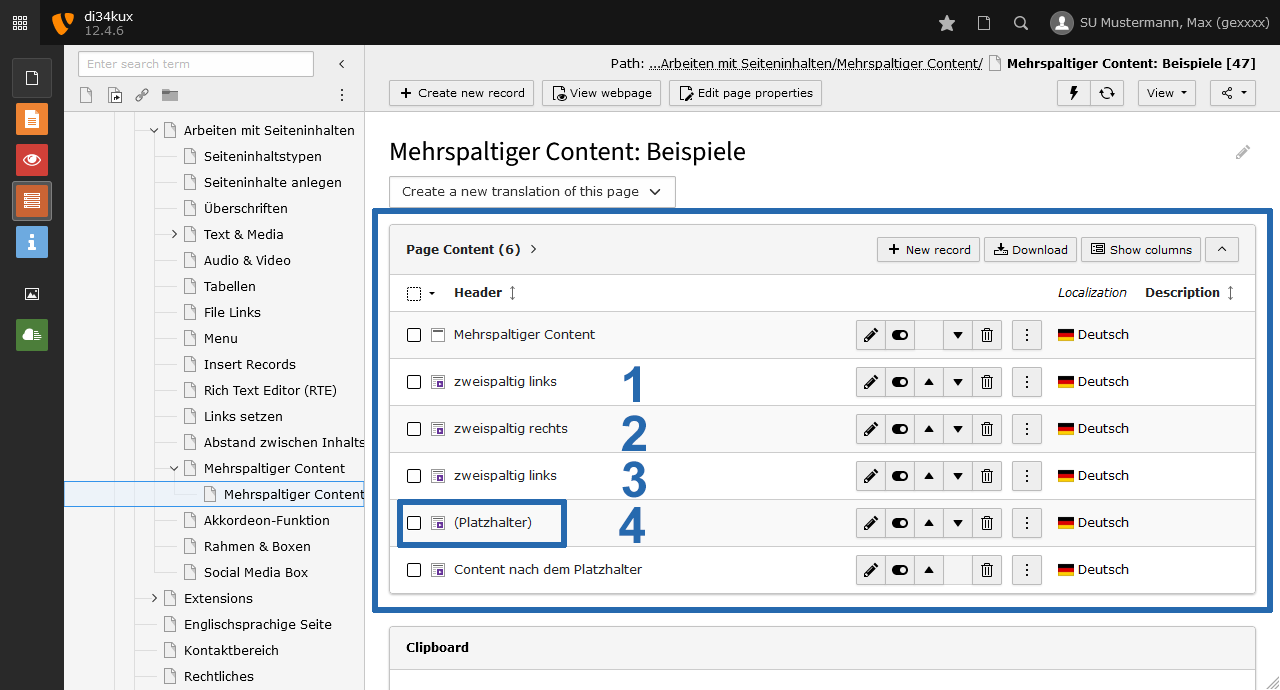
The order of the content elements in the backend must be set so that they are alternately positioned on the left and right (see Image 2). This order must be followed to ensure that the layout is correctly displayed in the frontend. 
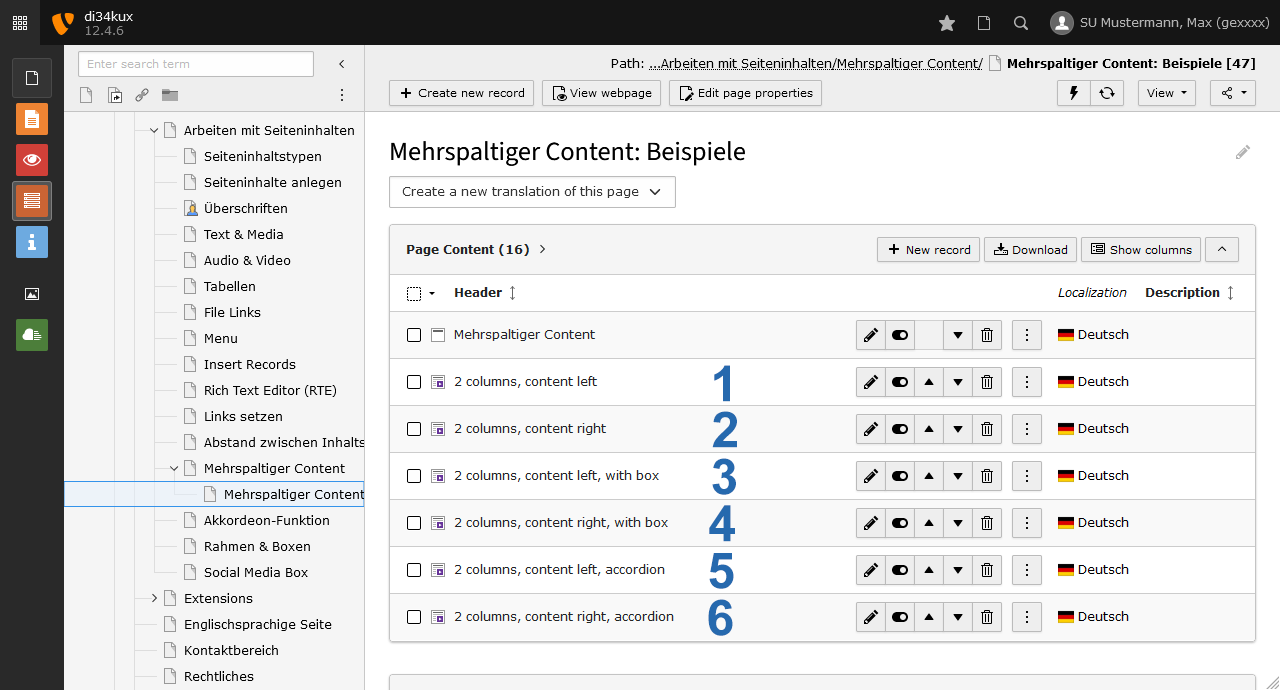
Screenshot: Order of the content elements in the backend
Image 2: Order of the content elements in the backend
Screenshot: Order and positioning in the frontend
Image 3: Order and positioning in the frontend

Three-Column Content

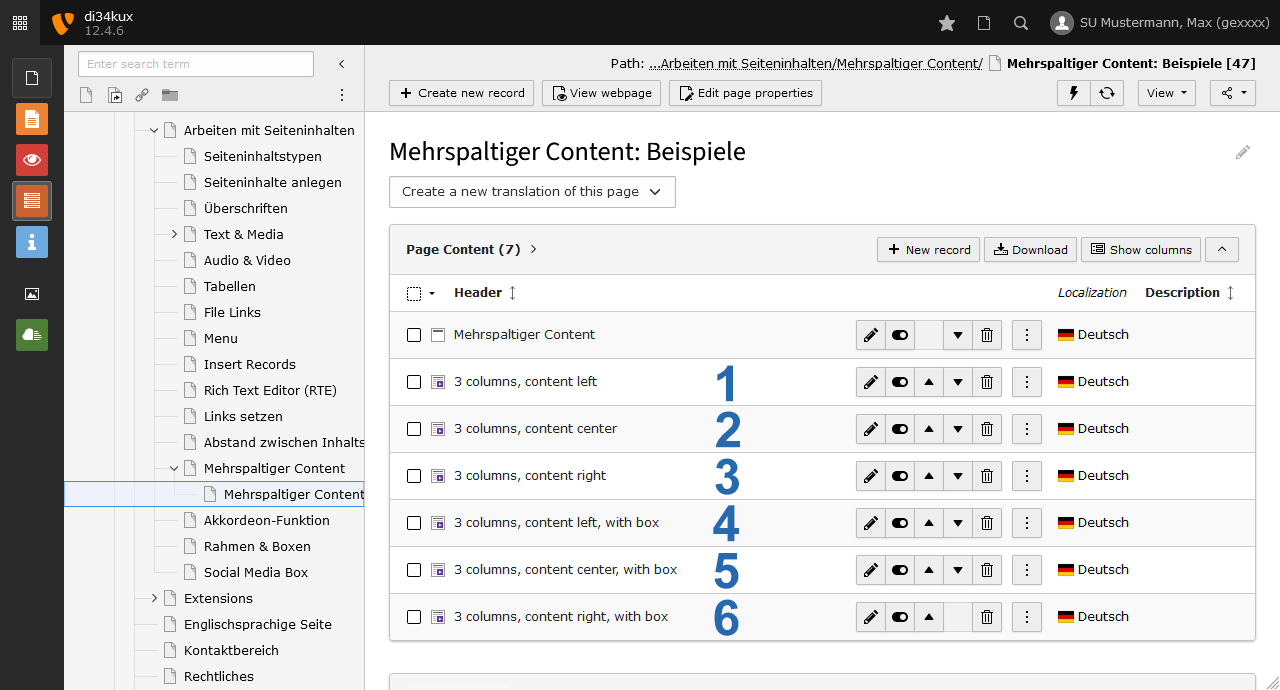
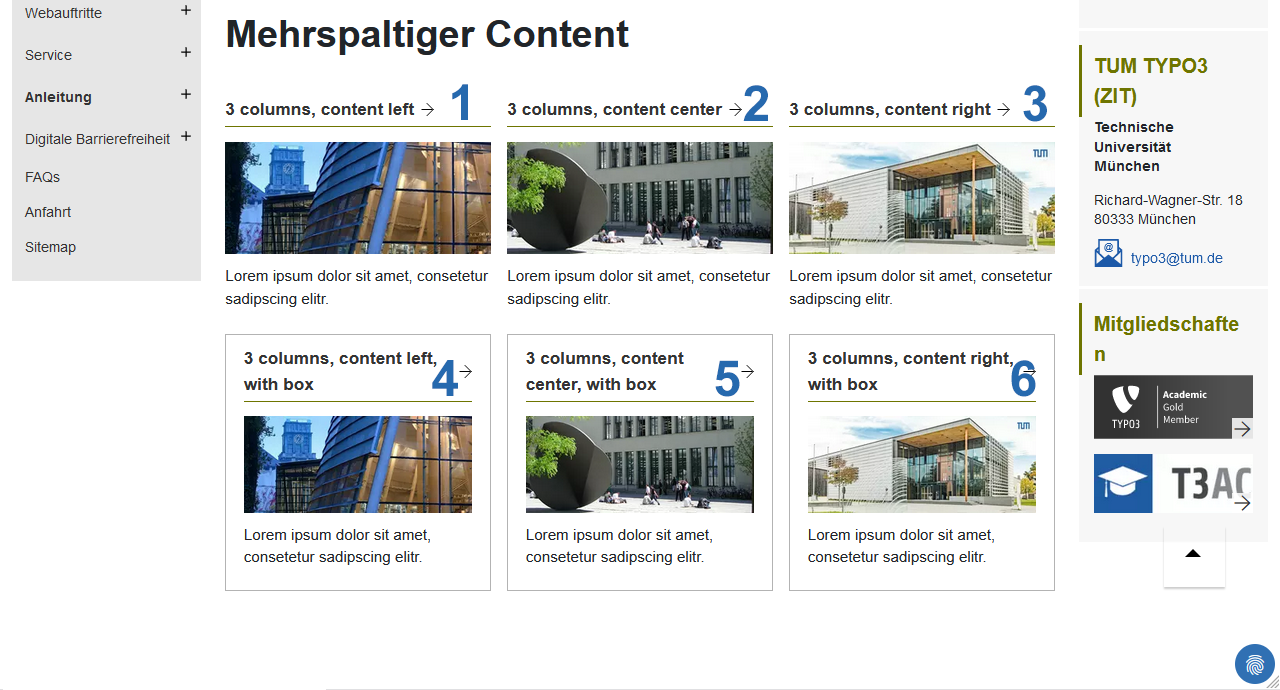
For three-column content, select the frames with "3 columns." The order of the content elements in the backend must be set so that they are alternately positioned on the left, center, and right (see Image 4).
Screenshot: Order of the content elements in the backend
Image 4: Order of the content elements in the backend
Screenshot: Order and positioning in the frontend
Image 5: Order and positioning in the frontend

Placeholders

Screenshot: Placeholder
Image 6: Placeholder

If you have an incomplete "row" - meaning there are not two (or three for three-column content) column elements - insert an empty content element as a placeholder:  

  • After the last column element, create a new content element.
  • In the General tab, set the following:
    • In the Type field, select "Header"
    • In the Header field, enter something like "(Placeholder)"
    • For Type, choose "Hidden"
  • In the Appearance tab, set the desired Frame.

Examples of Multi-Column Content

You can find examples of 2-column and 3-column content on this page.

To top

TUM TYPO3 (ZIT)

Technical University
of Munich

Richard-Wagner-Str. 18
80333 München
typo3(at)tum.de

Information

We are utilizing the OTRS system for our support services. Your support requests will be processed as tickets, in a manner similar to what you may be accustomed to from the IT support. We encourage you to continue communicating with us via email at typo3(at)tum.de.

Membership

TYPO3 Academic Gold Member
  • Privacy
  • Imprint
  • Accessibility