
Content element "Table"
The use of the content element "Table" is only advisable if you intend to fill your table with multiple images. Due to considerations such as usability and accessibility, please use tables with the RTE.
Create content element
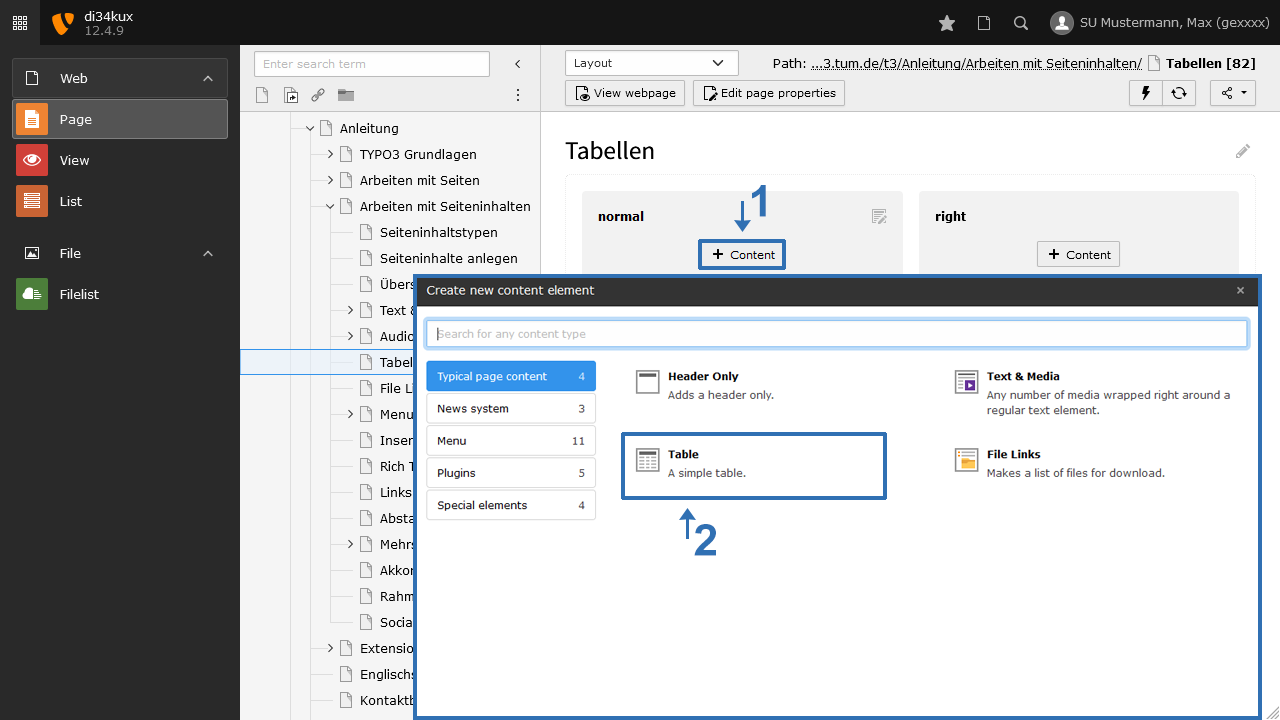
- Create a new content element with Type "Table" (Image1).
Insert table content
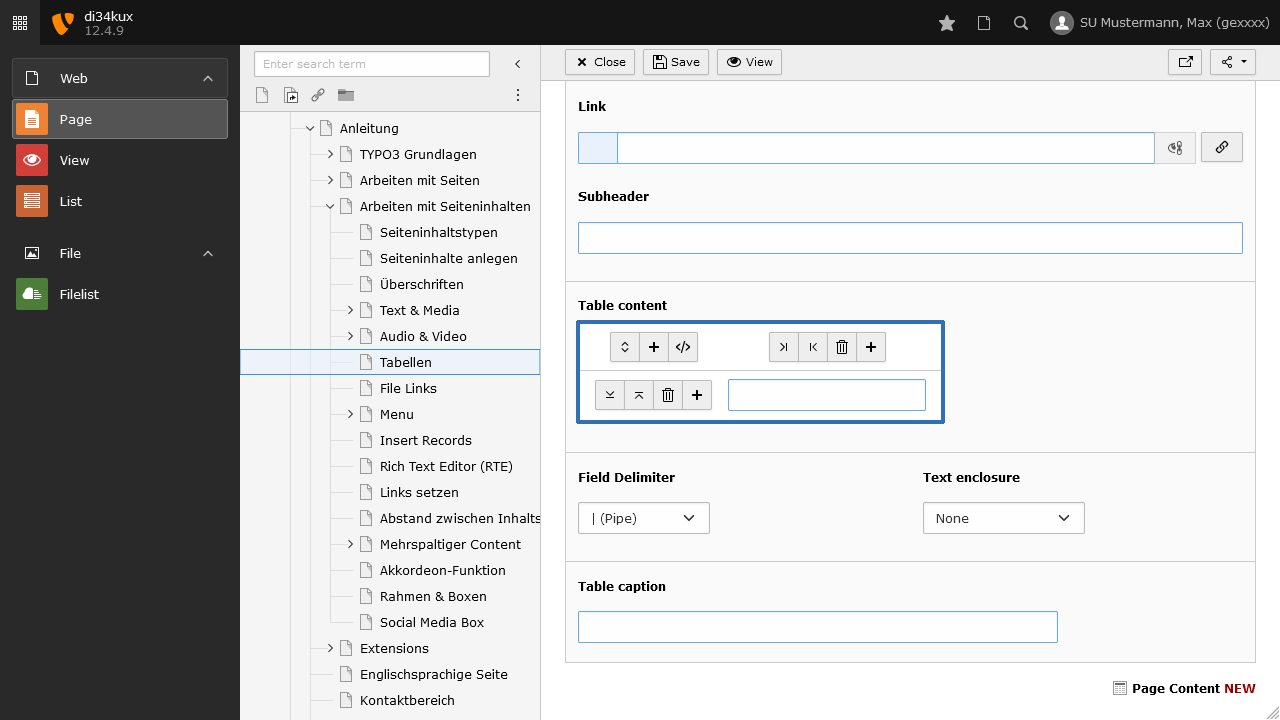
- With the available icons, you can insert/delete rows/columns or change the order (Image 2).
Additional Options:
- Table Caption: Enter the caption for the table here. Use this field for a summary of the table content in terms of accessibility.
Insert images
In order to insert images into a table, they must first be saved in the file list. This step must be completed before proceeding to place the images in the table:
- Access the file list.
- Open the image in the browser by clicking the Show icon (Image 3)
- Copy the highlighted part of the URL, and insert the image path (here is an example) /fileadmin/w00cel/t3/slider/intro/Slide_2.jpg and the alternate text Example Image into the following HTML code:
<img src="/fileadmin/w00cel/t3/slider/intro/Slide_2.jpg" alt="Example Image"> - Copy the entire code within the angle brackets and paste it into the desired cell.
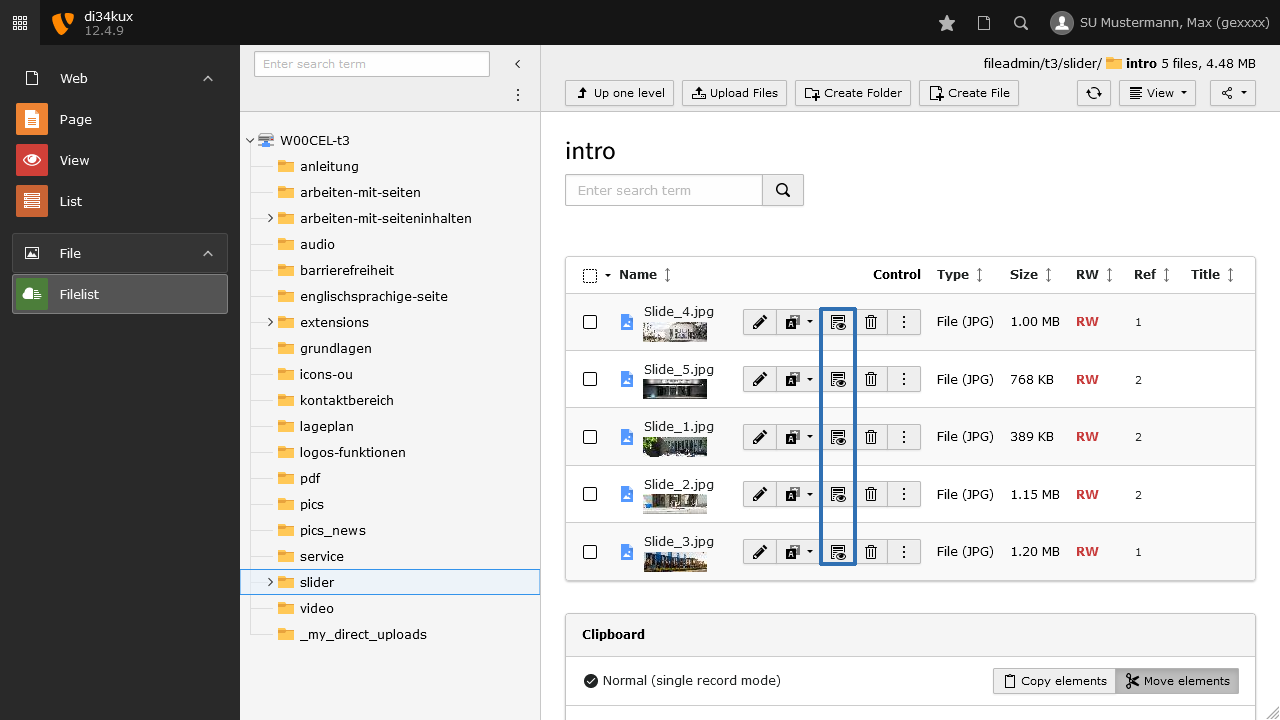
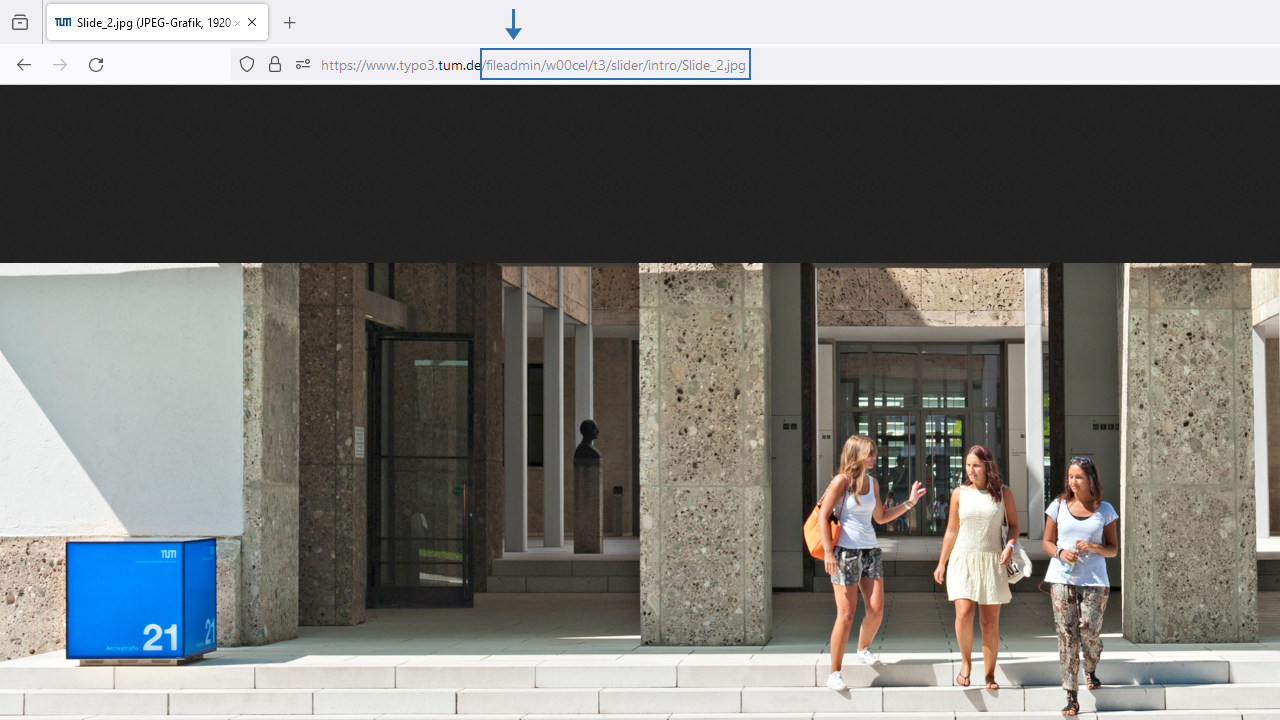
Table layout

The table layout can be selected in the "Appearance" tab (Image 5).
Table Style:
- Gitternetz (Grid)
- Horizontal lines
- Bordered
All styles are responsive.
| Name | Direct dialing | Image | |
|---|---|---|---|
| Mr. Mustermann | -7647474 | max.mustermann@tum.de |

|
| Mrs. Mustermann | -7647473 | max.mustermann@tum.de |
|