
Rich Text Editor (RTE)
For content creation, the Rich Text Editor (RTE) is available. You can find the editor, for example, in the content element "Text & Media" under the General tab (Image 1).

General
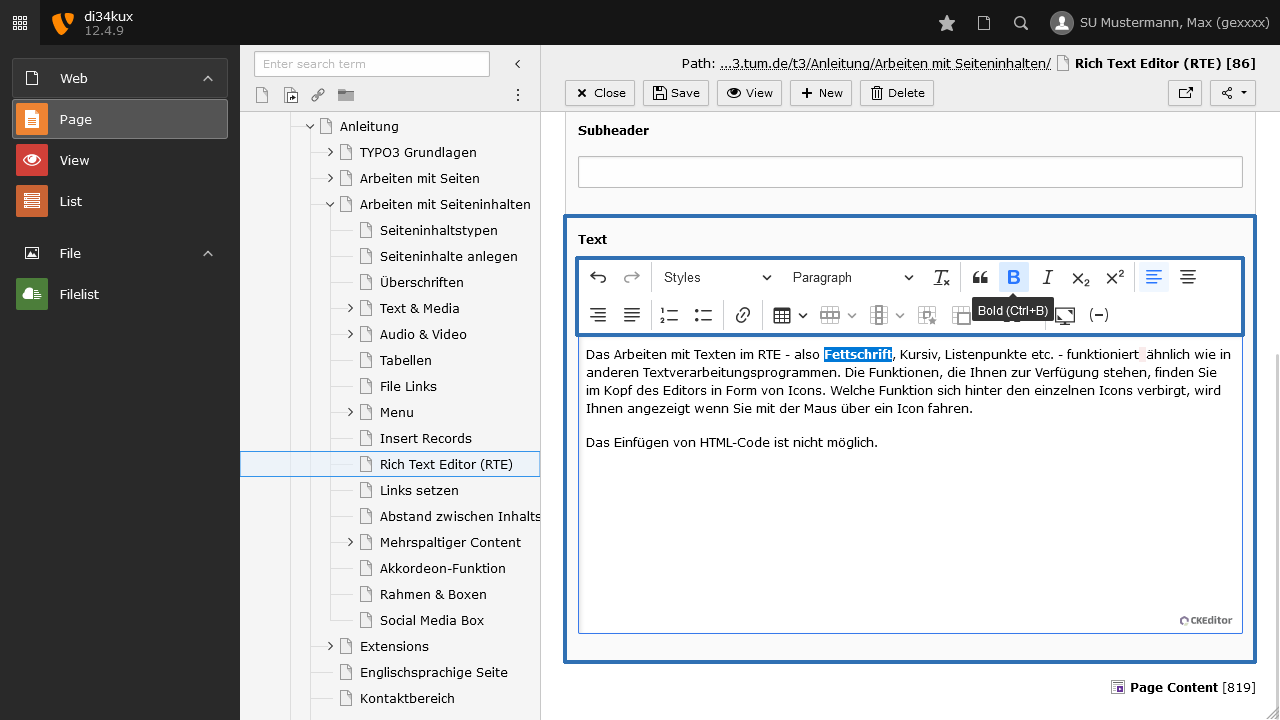
Working with text in the RTE - such as bold, italic, bullet points, etc. - operates similarly to other word processing programs. The functions are displayed as icons at the top of the editor. You can see what each icon does by hovering your mouse over the icon.
Pasting HTML code is not possible.
Copying text from external templates and pasting it into the RTE
It often happens that you want to paste text from word processing programs or websites into the RTE.
Copy the desired text (section) by pressing the keyboard shortcut [Ctrl] + [C]. The copied text is stored in your PC's clipboard. Now switch back to your TYPO3 browser window. To paste the contents from the clipboard, click at the desired location in the RTE and press the keyboard shortcut [Ctrl] + [V].
Text sections that you have copied and pasted often include not just the text but also the formatting. To paste without formatting directly, use the keyboard shortcut [Ctrl] + [Shift] + [V].
We recommend pasting text without formatting.
Removing formatting after pasting
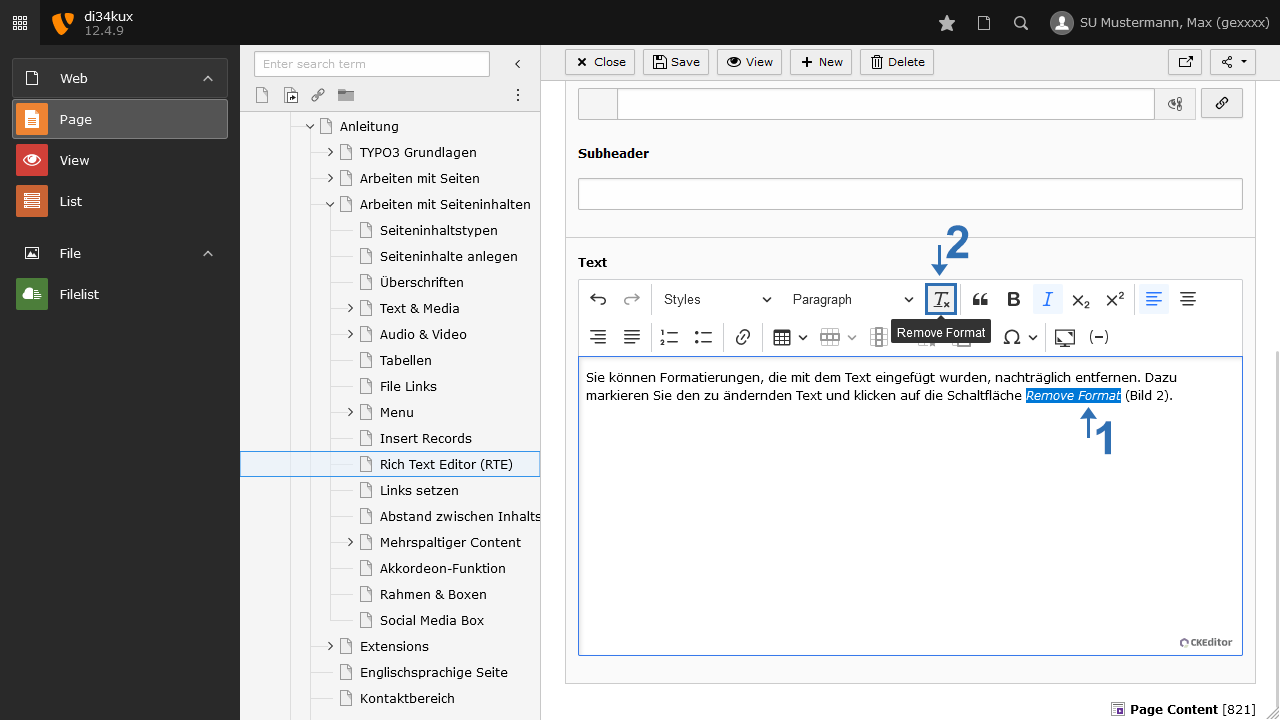
You can subsequently remove formatting that has been pasted with the text:
- Highlight the text you wish to change (Image 2 No.1).
- Click the Remove Format button (Image 2 No.2).
Tip
If you encounter difficulties removing formatting, we recommend the following approach: Copy the text from Word or a website and paste it into a simple text editor (e.g., Notepad). Then copy it again and paste it into the RTE. This should remove the formatting.
Avoiding/removing blank lines in the RTE
If you want to insert a line break without creating a new paragraph, use the keyboard shortcut [Shift] + [Enter].
To remove an existing blank line, navigate to the beginning of the line and press the Backspace key until that line moves up.
Formatting text
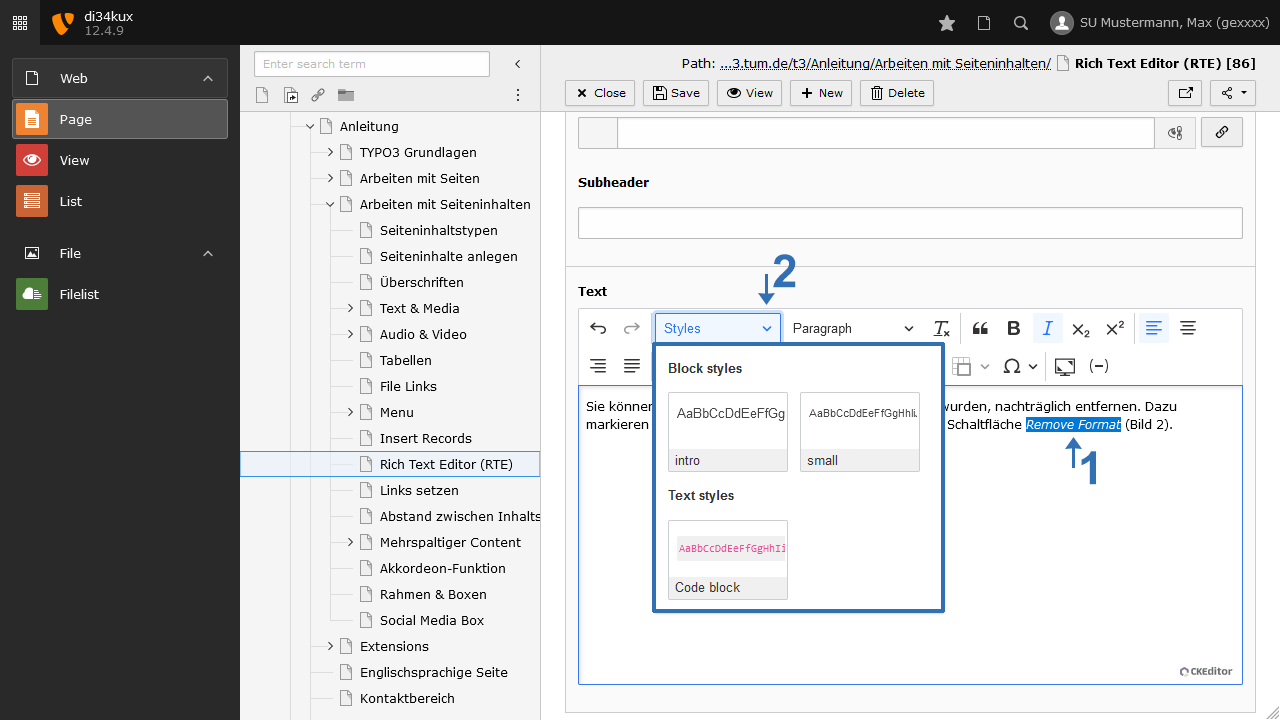
You can also write your content directly in the RTE and style it according to TUM's corporate design (Image 3).
Please keep in mind to consider accessibility when designing your content.
Inserting special characters
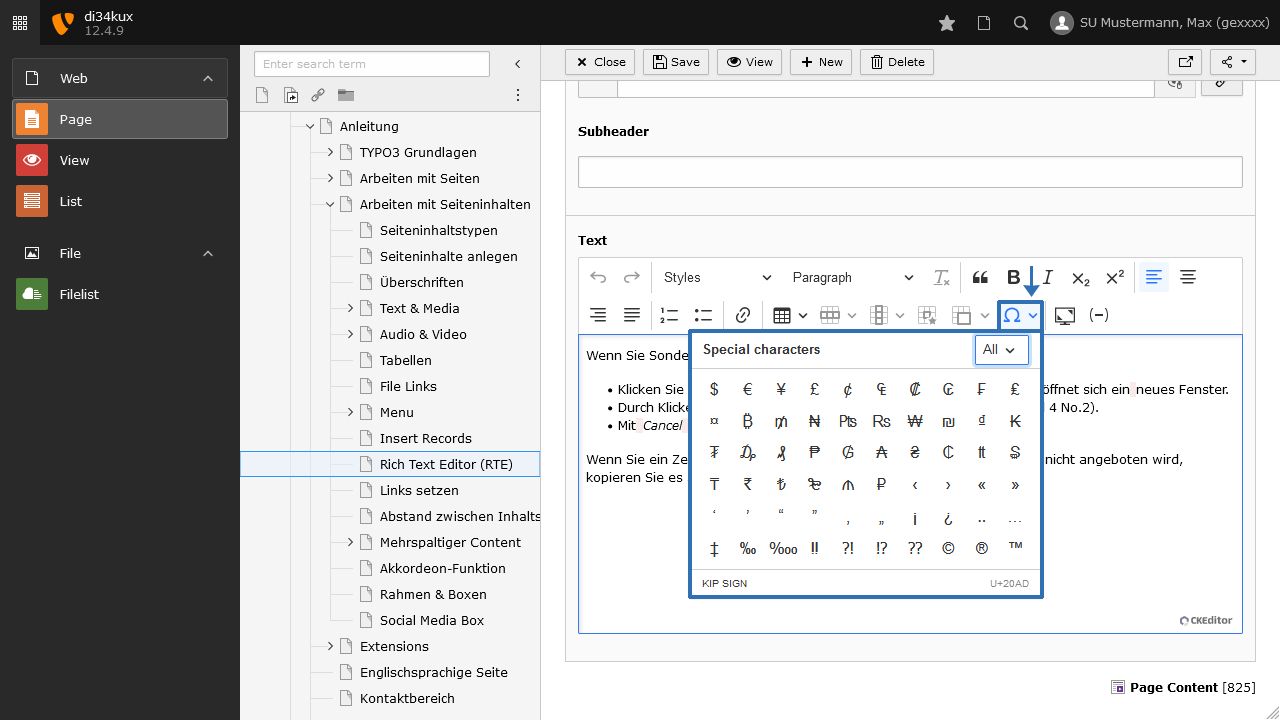
If you need special characters, proceed as follows:
- Click on the Special characters icon.
- By clicking on a character, it will be inserted into the text.
If you want to insert a character that is not offered as a special character in Image 4, copy it from an external source and paste it into the RTE.
Creating links
In the RTE, you have the option to create different types of links. Learn more on the link creation topic page.
Inserting tables
You can create tables in the RTE, or use the dedicated content element Table. Learn more on the tables topic page.
Embedding images and media
Images and other media files cannot be embedded through the RTE. For more information on this topic, click here.