
Content Group Menu

The Content Group Menu is a powerful and versatile element. With it, you can generate sitemaps or link lists, for example. These are based on the existing site structure or content elements and adjust automatically.
Menu Type
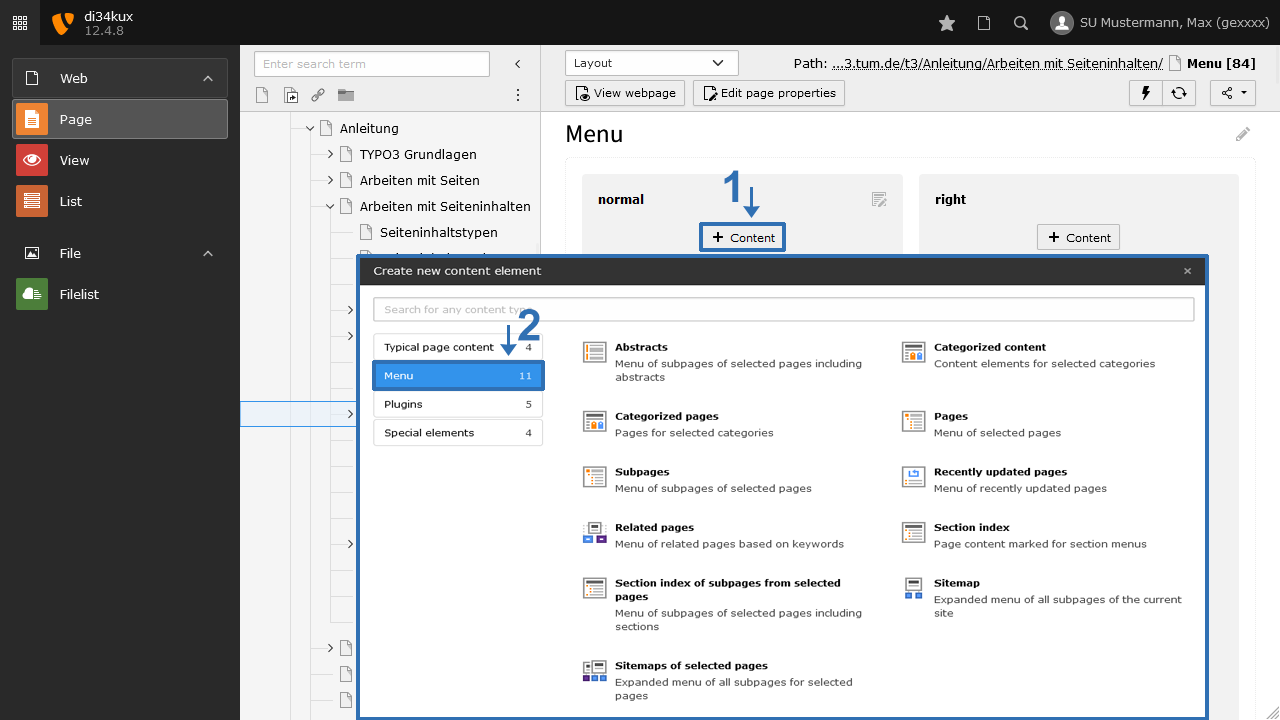
Create a new content element. Choose the desired menu type from the “Menu” group. You have the following options (Image 1).
Abstracts

With the content element Abstracts you create a link list of the subpages of a selected page. The menu type "Abstract" not only provides you with the link but also the description or abstract of the subpage.
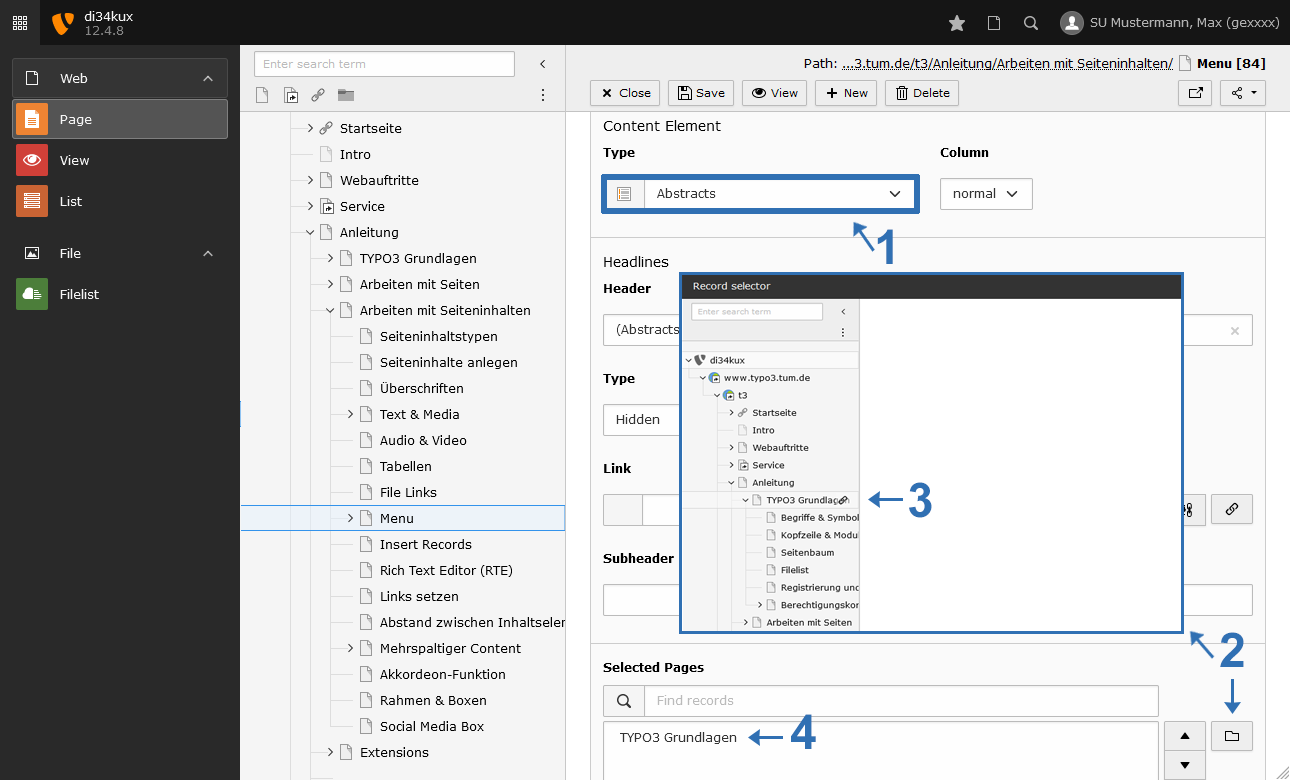
Creating an Abstract List: Click on the folder icon (Image 2 No. 2) and select the page whose subpages should represent the link list (Image 2 No. 3). You can also choose multiple pages.
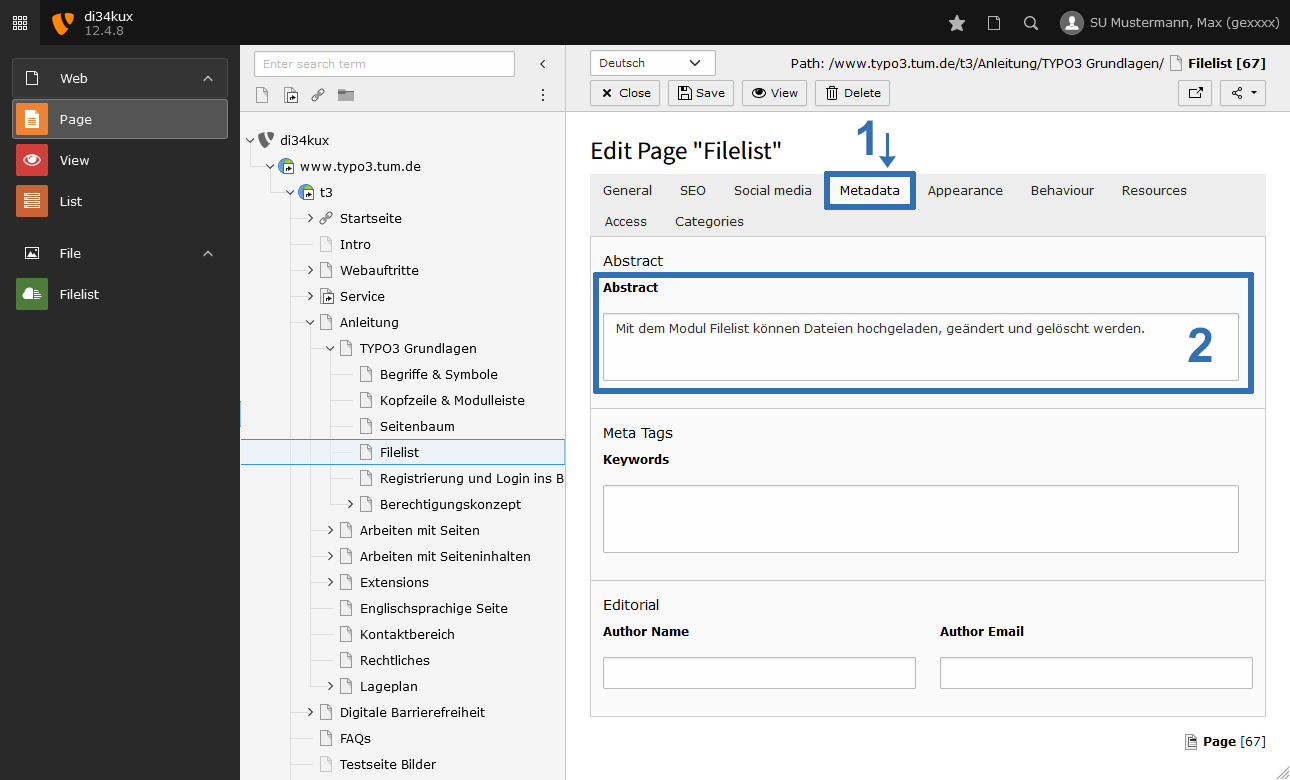
If the selected pages do not contain an abstract, only the link will be displayed. You can find the abstract field in the page properties (Image 3).
Categorized Content

The Categorized Content element generates a list of links to content elements within a selected category. The prerequisite is that you have created categories, assigned a content element to a category, and filled out the Header field.
Creating a Categorized Content Link List: Select one or more existing categories.
For a content element to be included in the link list, it is essential that the selected category is activated in the "Categories" tab. For this example, we have selected the Menu category, which allows the link list to display all content elements associated with this category:
Categorized Pages
The content element Categorized Pages generates a link list of pages that are assigned to one or more categories. The prerequisite is that you have created categories and that the page is assigned to a category.
Creating a List of Categorized Pages:
Select one or more existing categories. For a page to appear in the list, the selected category must be activated in the page properties under the "Categories" tab.
Pages

The content element Pages creates a link list of individually selected pages (see Image 2). Unlike automatically generated link lists, you have control over which pages appear and which do not.
Creating Link List Pages: Click on the folder icon (see Image 2 No. 2) and select one or more pages from the page tree. Pages that are disabled in the backend will not appear in the link list. If you do not specify any pages, you will receive a link to your home page.
Creating a Subpages List: Click on the folder icon (Image 2 No.2) and select a page whose subpages you want to display in the link list (Image 2 No.3). You can also choose multiple pages.
If a page has no subpages, nothing will be displayed in the generated list. Only the first level of subpages is output; sub-subpages are not displayed. In the example, we have chosen our page "TYPO3 Basics" which will display all its subpages:
Recently updated pages

Recently Updated Pages creates a link list of subpages whose content has been updated most recently. The list contains a maximum of 10 links.
Creating the Recently Updated Pages list: click on the folder icon (Image 2 No. 2). Here, select a page or a section of pages from which the most recently updated pages should be listed (Image 2 No. 3). You can also select multiple pages.
In the example, you can see the pages that we have recently updated:
Related Pages

The content element Related Pages generates a list of links based on keywords. The pages can be located at various places and levels on your website but share the same keywords.
Creating a Related Pages List: Click on the folder icon (Image 2 No. 2). Select a page that contains a specific keyword. The selected page will not appear in the link list; only the other pages with the same keyword will be included.
You can enter keywords in the page properties under the Metadata tab, in the Keywords field (Image 3 No. 3). If you enter multiple keywords, separate them with commas.
Section index

The section index creates a list of links to the content elements of a specific page. This can be useful when a page contains a particularly large number of elements/information.
To use the section index, the header fields of the content elements must be filled out.
Creating a section index: Click on the folder icon and select a page. If you do not select a page, the list of content elements will be generated from the current page.
If you want a content element to NOT appear in the link list, disable the "Show in Section Menus" option for that element in the Appearance tab. You can see an example of a section index at the top of this page.
With the "Layout1" option (in the Appearance tab), you have an additional display option. This is particularly well-suited for lists with short element titles, such as years or letters. You can find an example with years here.
Section index of subpages from selected pages
With the Section index of subpages from selected pages, you can create a list of links to the subpages of a specific page along with their content elements. It is important to note that in order to use the Section index of subpages, the header fields of the content elements must be filled out.
Creating a Section index of subpages from selected pages erstellen: Click on the folder icon and select a page. The list will display the subpages of the chosen page, including their content elements. Content elements without a header will not be listed.
If you do not want a content element to appear in the link list, disable the "Show in Section Menus" option for that element in the Appearance tab.
For example, we have chosen our page "Audio & Video."
Sitemap

The sitemap automatically generates a complete list of links to all pages and subpages. Pages that have the option Page enabled in menus or Page visible disabled will not be included. Under the "Sitemap" menu item, you can find an example.
Sitemaps of selected pages
The content element Sitemaps of selected pages creates a list of links to the subpages of selected pages. This displays not only the first level of subpages but also all existing page levels.
Creating Sitemaps of Selected Pages: Click on the folder icon (Image 2 No.2). Choose a page. The selected page will not be listed; only all subpages and sub-subpages will be displayed. Pages with the option Page enabled in menus or Page visible disabled will not be included, and the subpages will also not be shown.