File Links
With the content element File Links you can display lists of files on a webpage and offer them for download. Additionally, you have the option to style these file lists differently.
Creating content element and selecting files
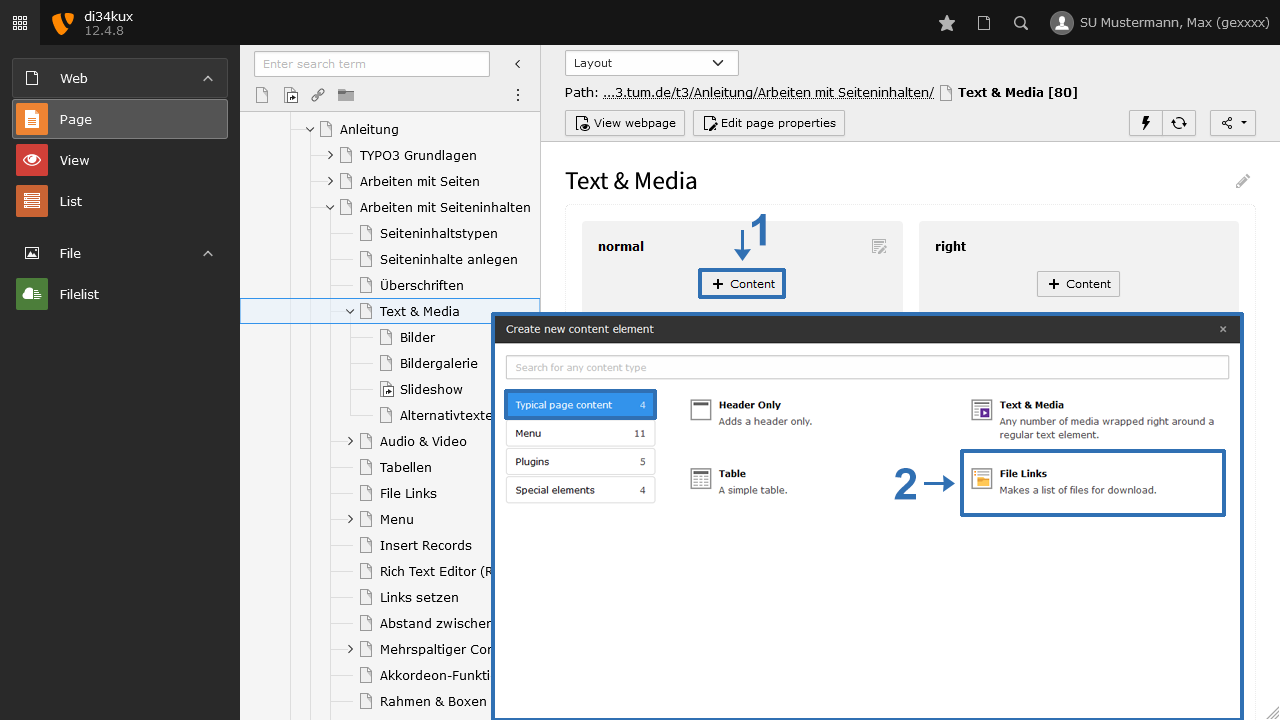
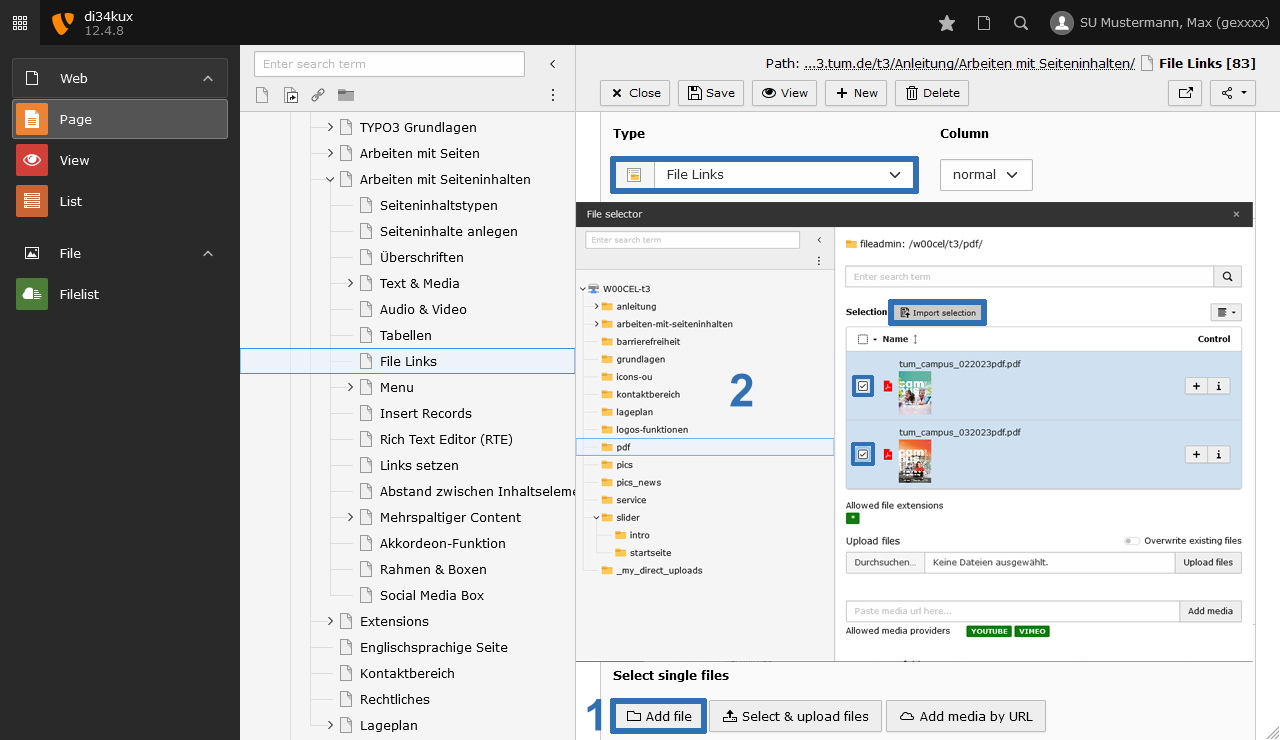
- Create a content element “File Links” (Image 1 No.1)
- Under Files, you will find the button Add File (Image 2 No.1).
- Select the desired files from the Filelist (Image 2 No.2).
Choosing the layout
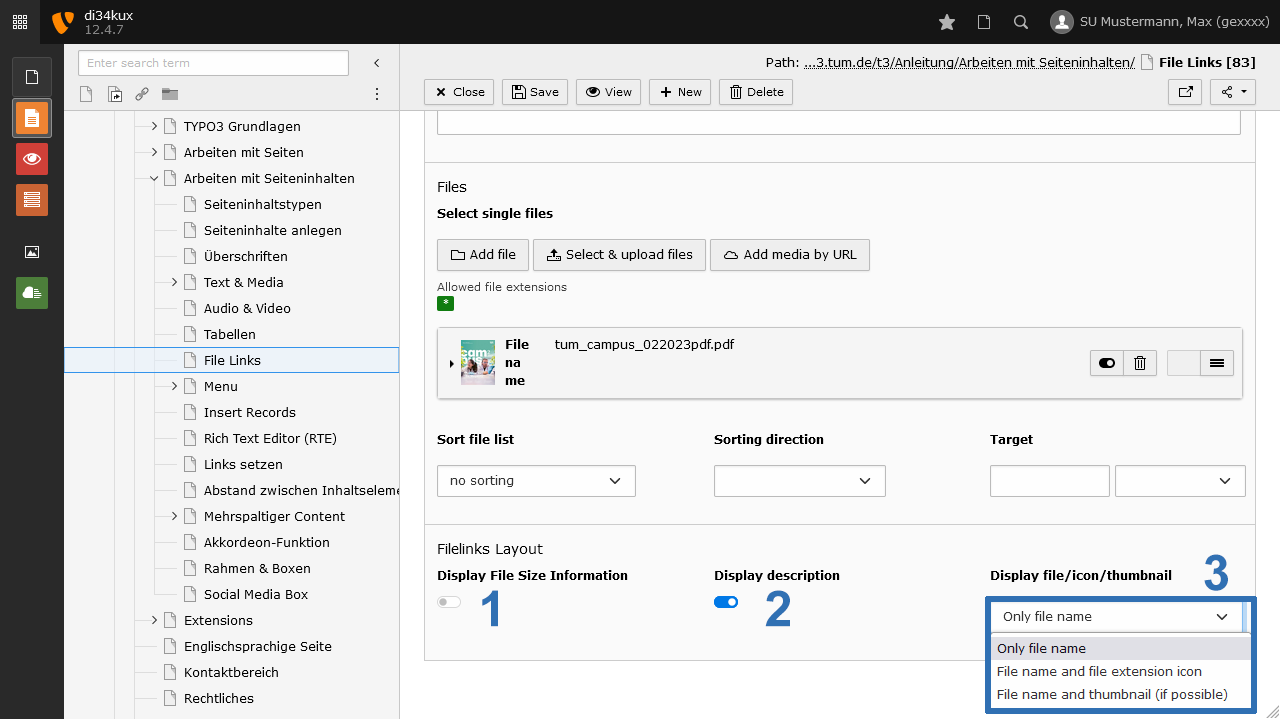
- Display File Size Information: Information about the file size will be displayed on the frontend (Image 3 No.1).
- Display Description: A description that will also be shown on the frontend (Image 3 No.2).
- Display file/icon/thumbnail: Various layout options - take a look at our examples below (Image 3 No.3).
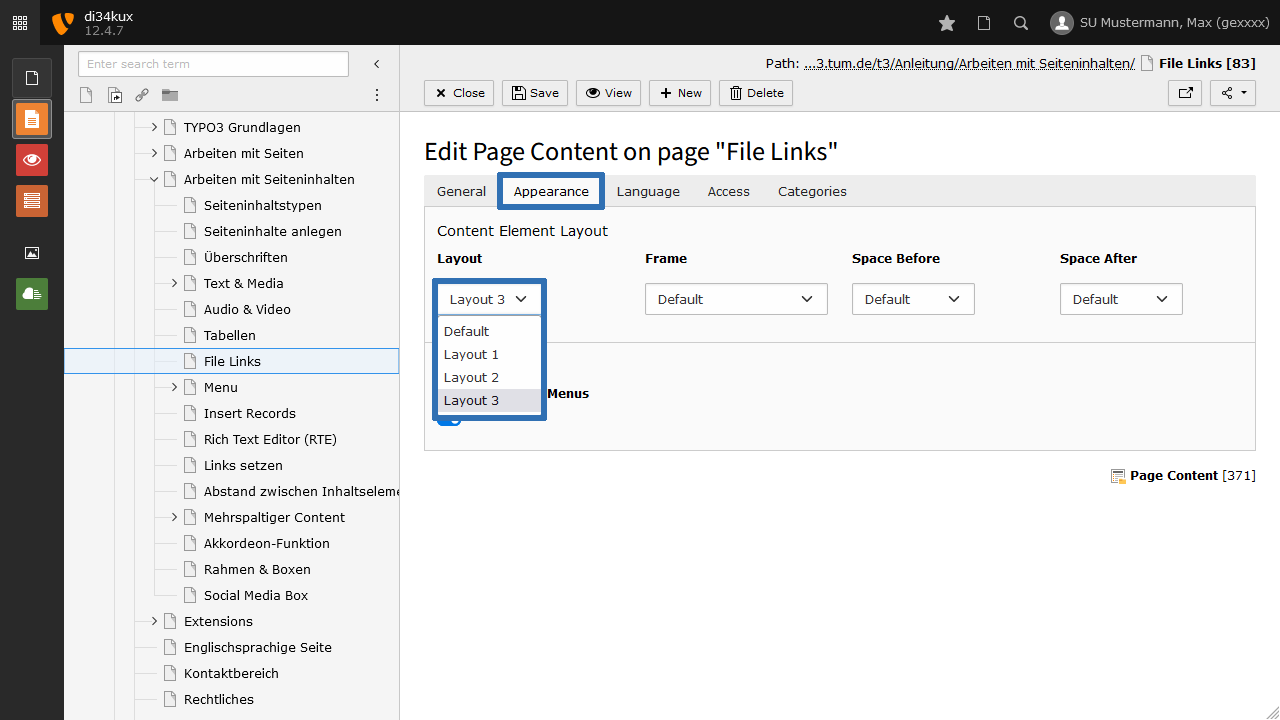
- Thumbnail mit Lightbox: A preview image (Thumbnail) with an "Enlarge on Click" feature will be created. To do this, select the "Only file name" setting (Image 3 No.3) and in the Appearance tab, choose "Layout 3" (Image 4).
Entering Metadata
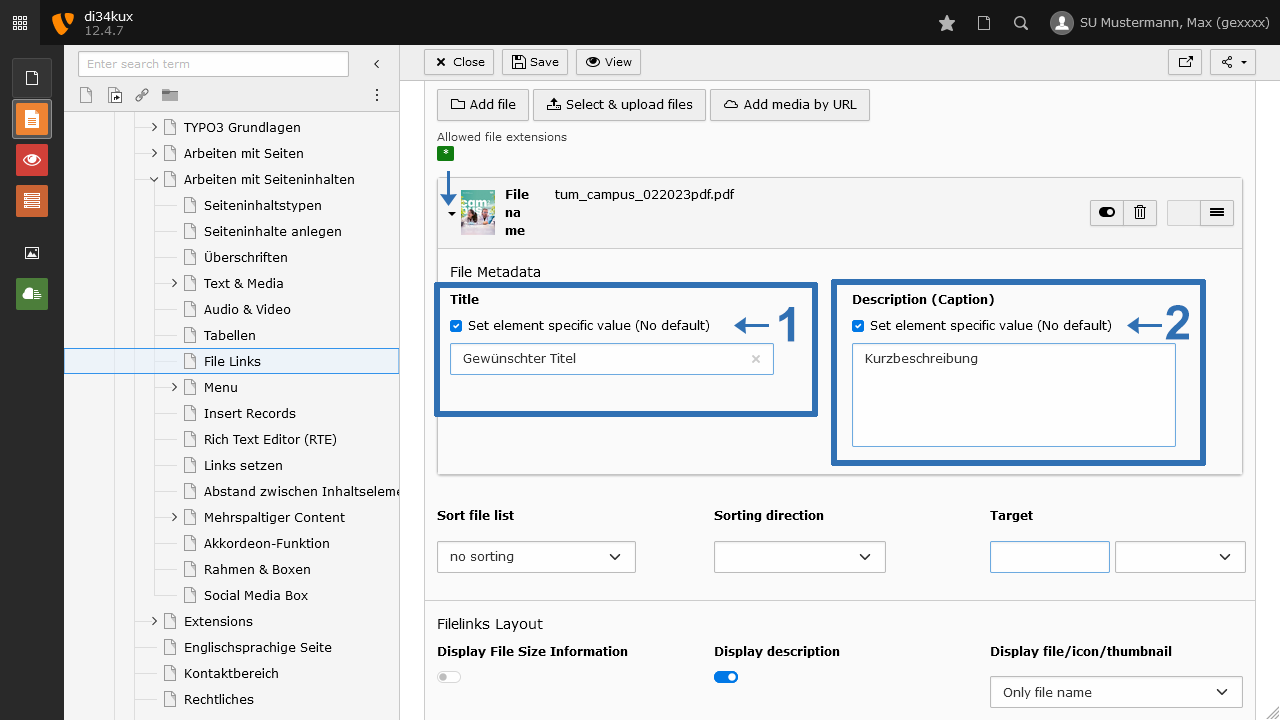
By default, the filename is displayed. If you want to change this, check the box for "Set element specific value" in the File Metadata (Image 5) and enter the desired label in the Title field.
You can also add a description in the Description (Caption) field.
Sorting files
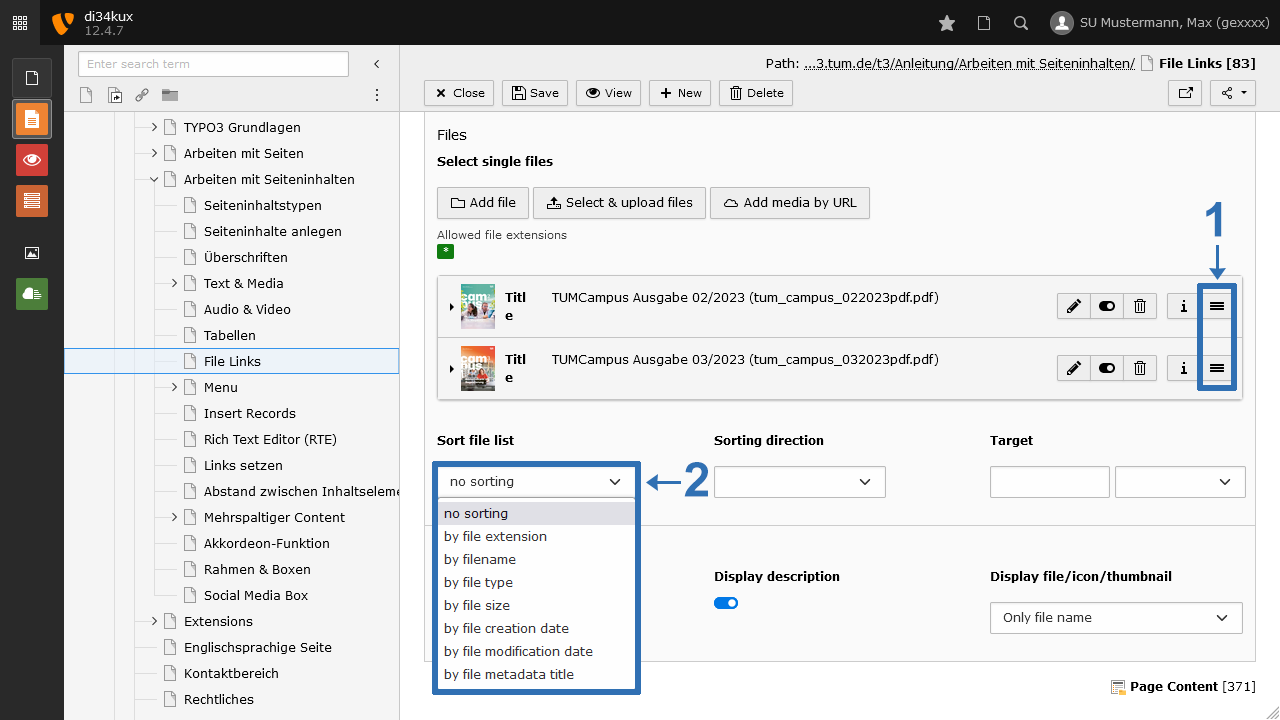
- Drag & Drop: Hold down the grabber (Image 6 No.1) and move the element.
- Determine the order of the files using the Sort Filelist option (Image 6 No.2):
- no sorting: Order as in the backend
- by file extension
- by filename
- by file type: Sort by file type, referring to the "Internet Media Type" (MIME Type, e.g., image/jpeg)
- by file size
- by file creation date
- by file modification date
- by file metadata title: Sort by the entered Title (Image 3)