
Links

A "hyperlink", abbreviated as "link", connects webpages, videos, PDFs, or other documents. Links can be incorporated into text, headings, or even images.
Linking Headers
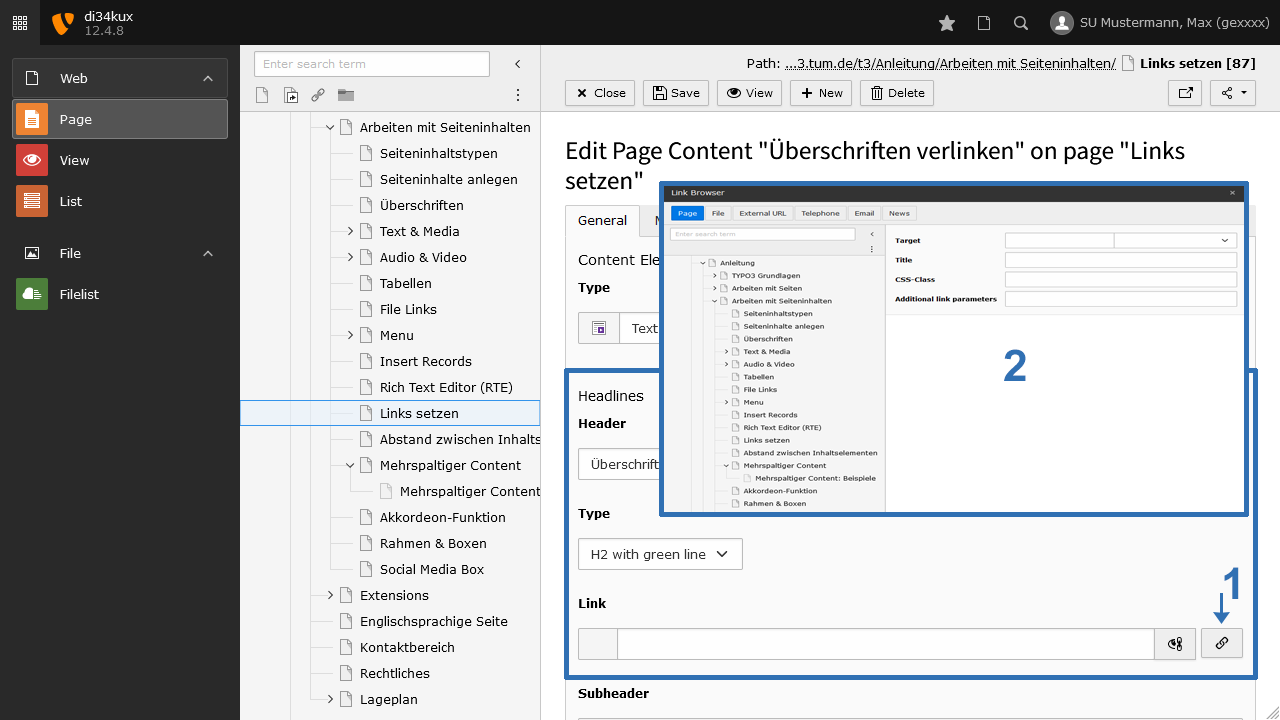
- Click on the icon to the right of the link field (Image 1 No.1).
- The Link Browser opens (Image 1 No.2), where you can enter the link address.
Linking Text
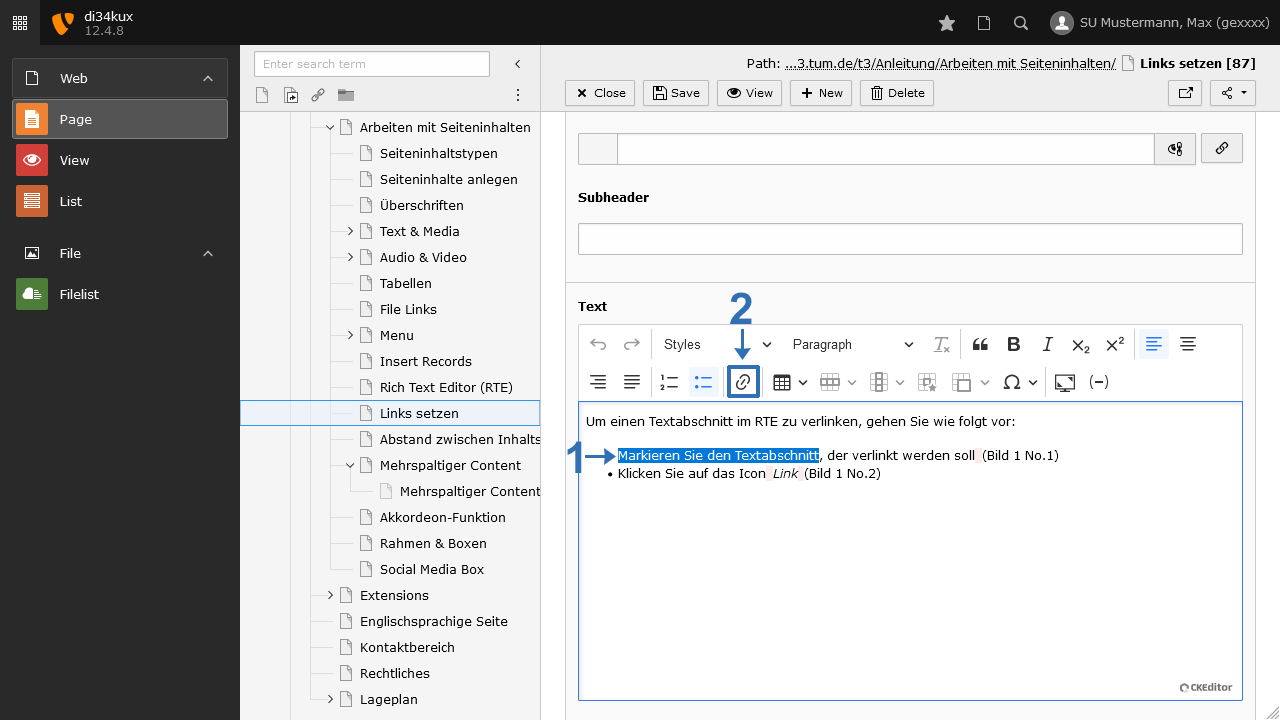
- Highlight the text section that you want to link (Image 2 No.1).
- Click on the Link icon (Image 2 No.2).
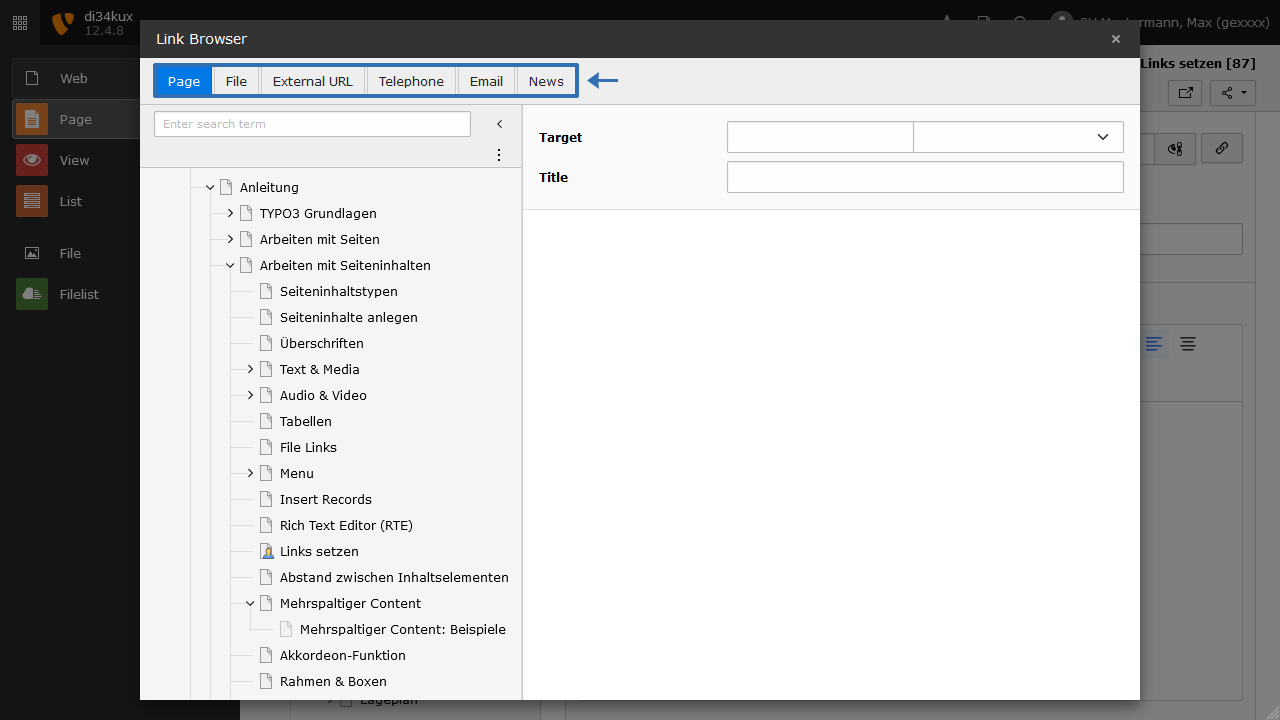
The Link Browser opens (Image 3), where you have the following link options:
- Page: for links within your website.
- File: for links to a file in your file list.
- External URL: links to external websites.
- Telephone: for linking to phone numbers (e.g., useful for smartphones).
- Email: for linking to email addresses.
- News: for linking to news posts (only if the news extension is implemented).
Linking Images
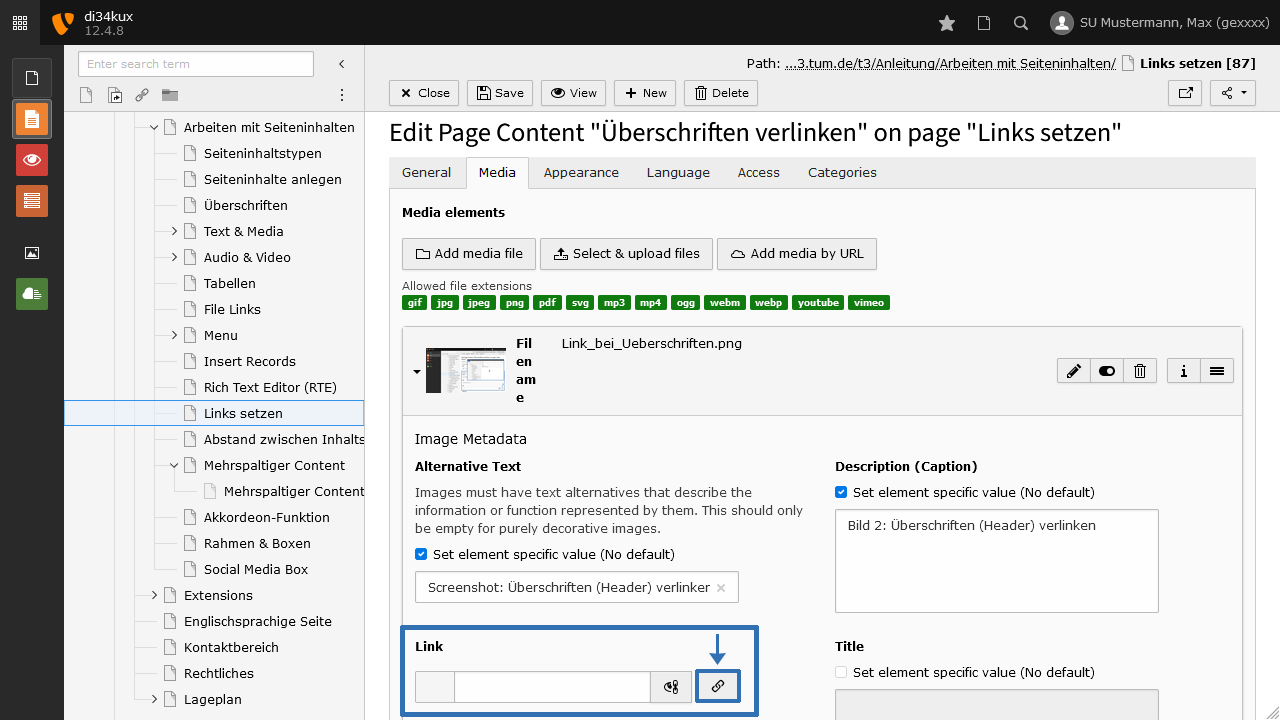
- Click on the icon to the right of the link field (Image 4).
- The Link Browser opens, where you can enter the link address.
Option "no-hint"
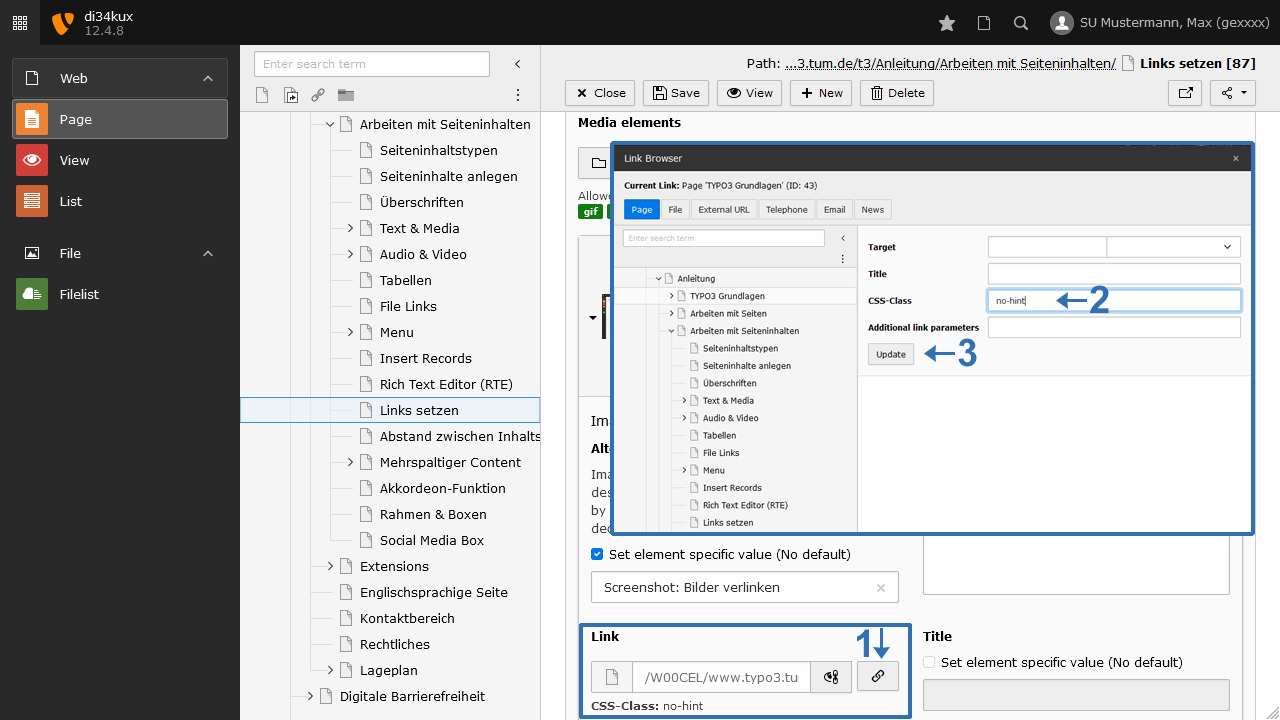
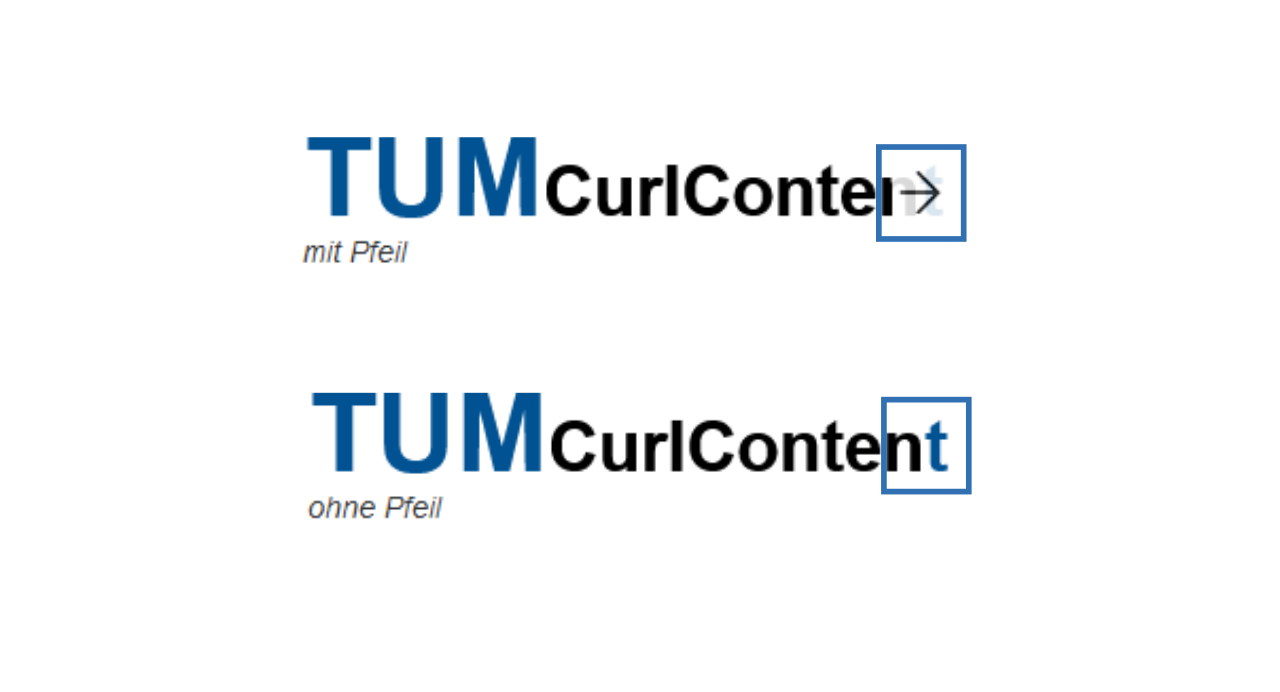
Images with a link are displayed with a small arrow icon. In some cases, such as logos or icons, these arrows can be distracting. You can disable the arrow:
- Enter "no-hint" (without quotes) in the CSS-Class field of the Link Browser (Image 5 No.2) and click the Update button.
Changing/Deleting Links
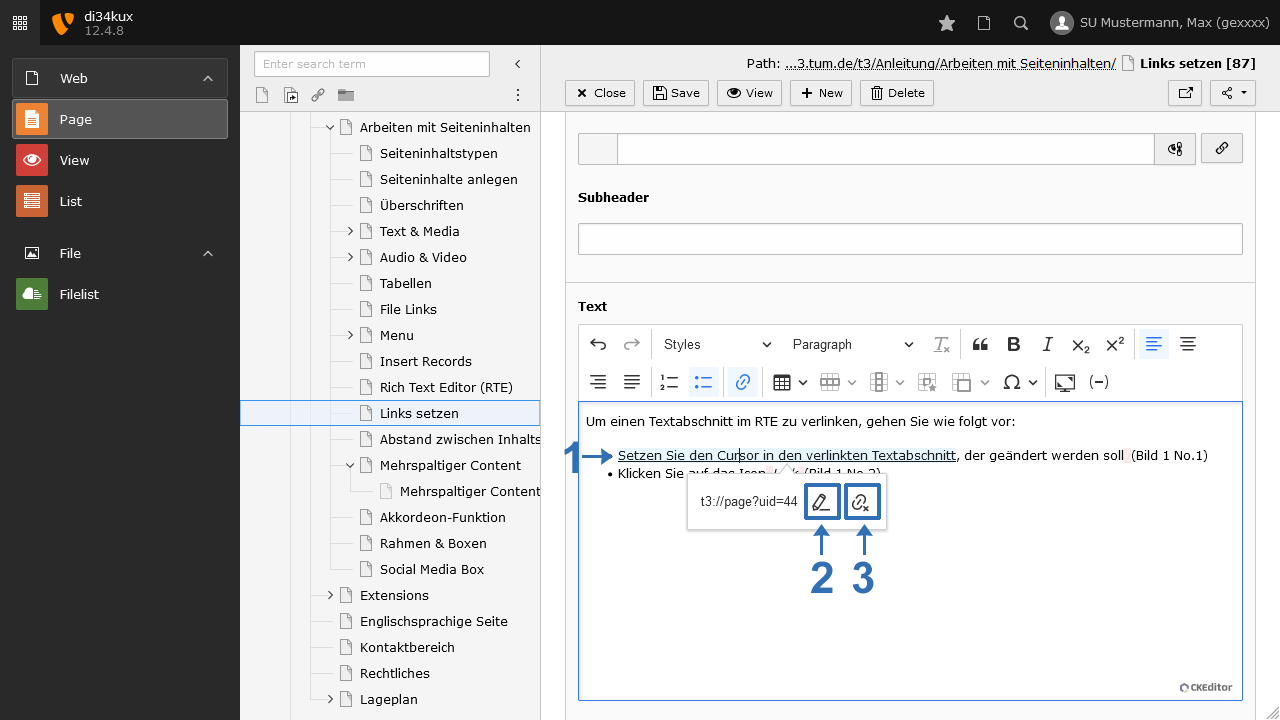
To edit an existing link:
- Place the cursor in the linked text.
- Click on the Edit Link icon (Image 7 No.2).
- Use the Unlink icon to delete an existing link (Image 7 No.3).
Creating Meaningful Link Text
Always link meaningful words or phrases. The title of the linked document or website is a good choice. The goal and purpose of a link should always be clear from the link text itself.
In the following examples, the linked text is marked with square brackets:
- Incorrect: For more information, click [here]. -
- Correct: For more information on the [Dialogue-Oriented Service Procedure – DoSV].
- Incorrect: [Further information]
- Correct: For further information, go to the page [Bachelor's degree program step by step].
Avoid using words like "here" or "more" as link texts. Screen reader users often hear only the link texts. Without meaningful text, they must also listen to the surrounding text. This is especially challenging when multiple links are simply labeled “here.”
Meaningful link texts improve the usability of your website for all users and help search engines like Google index your content better. The link text is treated as a keyword when search engines evaluate the linked content.
Link to an Internal Page or Directly to a Content Element
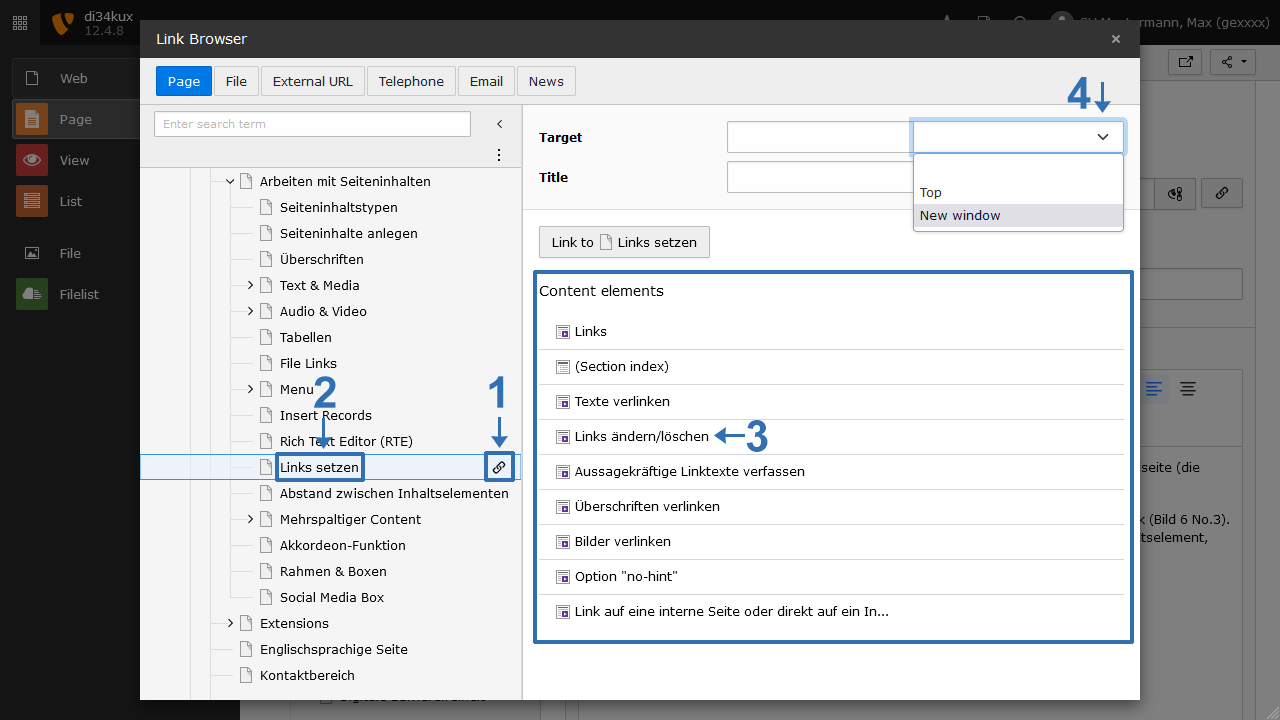
For a link to a page within your website:
- In the Link Browser, under the Page tab, you can see the navigation structure of your site.
- Select the target page (Image 8 No.2) and click on the chain symbol next to the page title (Image 8 No.1).
To link directly to a content element:
- Click on the page title (Image 8 No.2). The content elements of this page will be listed in the right column.
- Click on the desired content element (Image 8 No.3) to generate the link.
Additional Options:
- The link will open in the same window if you leave the field (Image 8 No.4) blank or select "Top."
- If you select "New window", the page will open in a new window or tab (Image 8 No.4).
Link to an Internal File
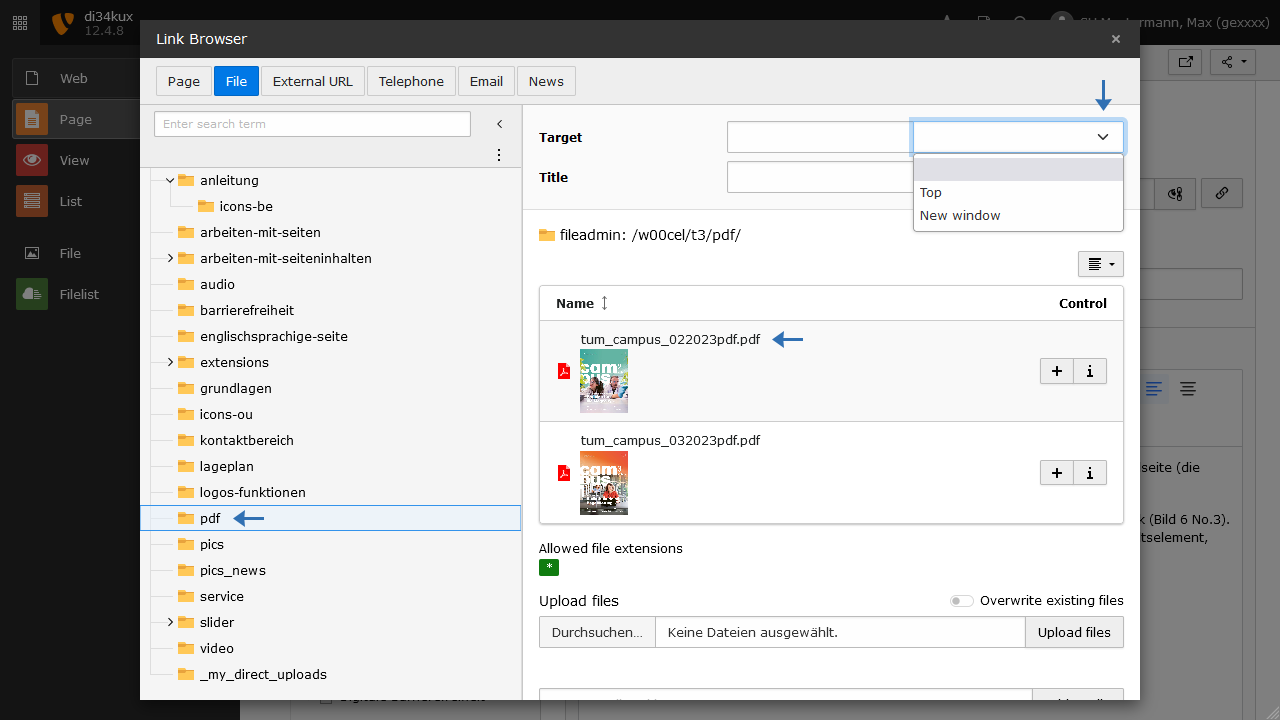
In the Link Browser, under the File tab, you can select a file (e.g., PDF) from your filelist:
- Click on the relevant folder and then on the desired file.
- Instead of linking a text section to a file, you can use the File Links content element, which provides different styling options.
Link to External Websites
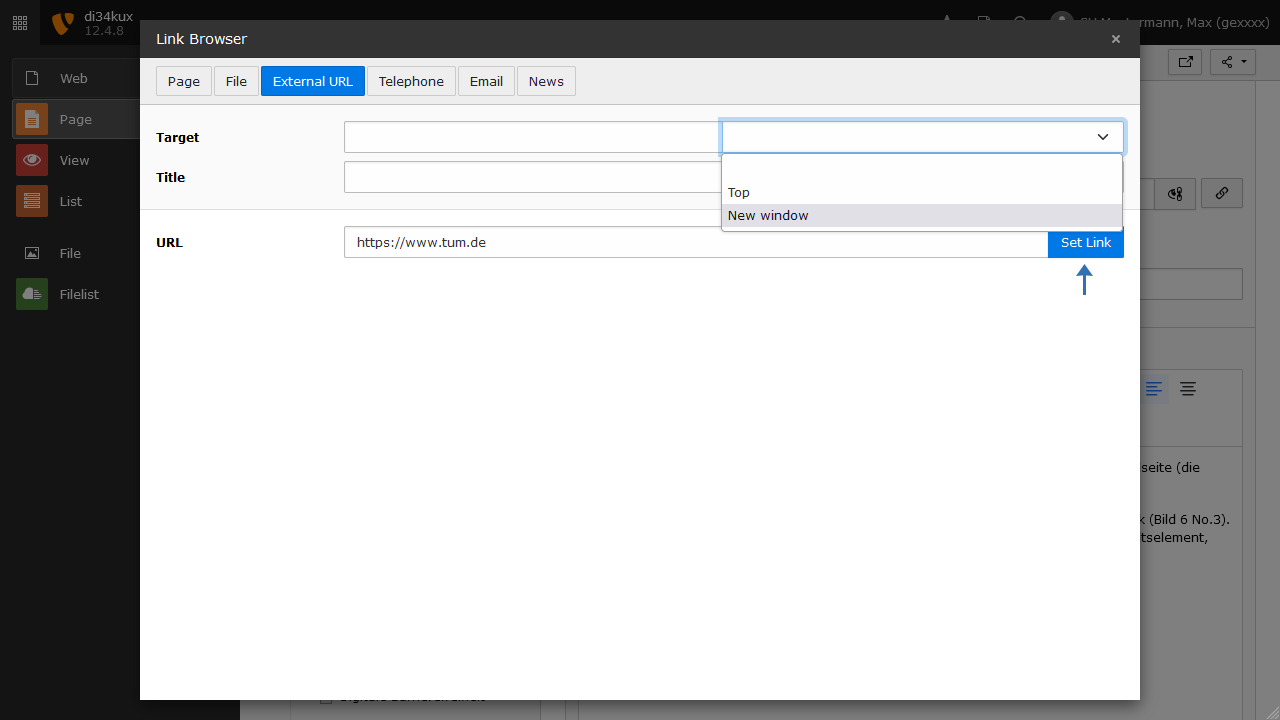
- Switch to the External URL tab in the Link Browser.
- Enter the complete URL (make sure to include "https://") in the corresponding field and then click Set Link.
- The link will open in the same window if you leave the field blank or select "Top".
- If you select "New window", the page will open in a new window or tab.
Link to an Email Address
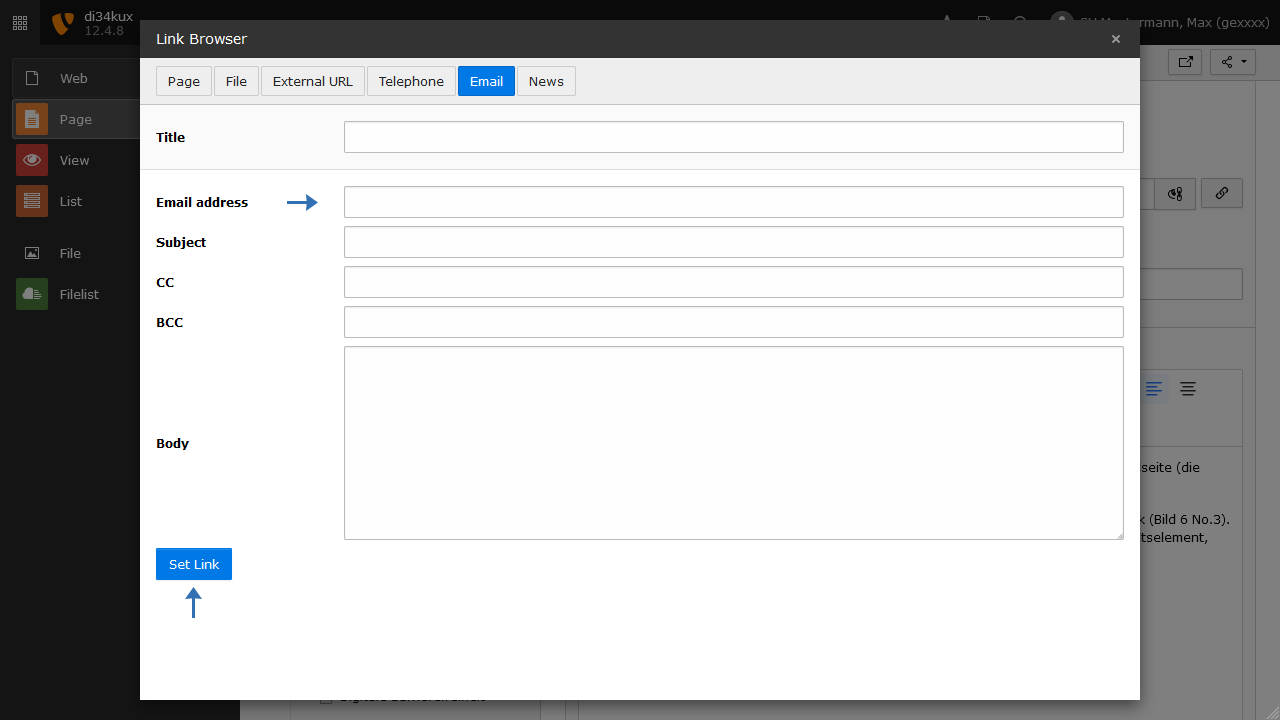
To link an email, click on the Email tab in the link browser:
- Enter the desired email address in the Email Address field and confirm by clicking Set Link.
- Optionally, you can fill in the additional fields.
- You can also add an icon to the email address (Image 12 No. 4).
Link to a Password-protected Area
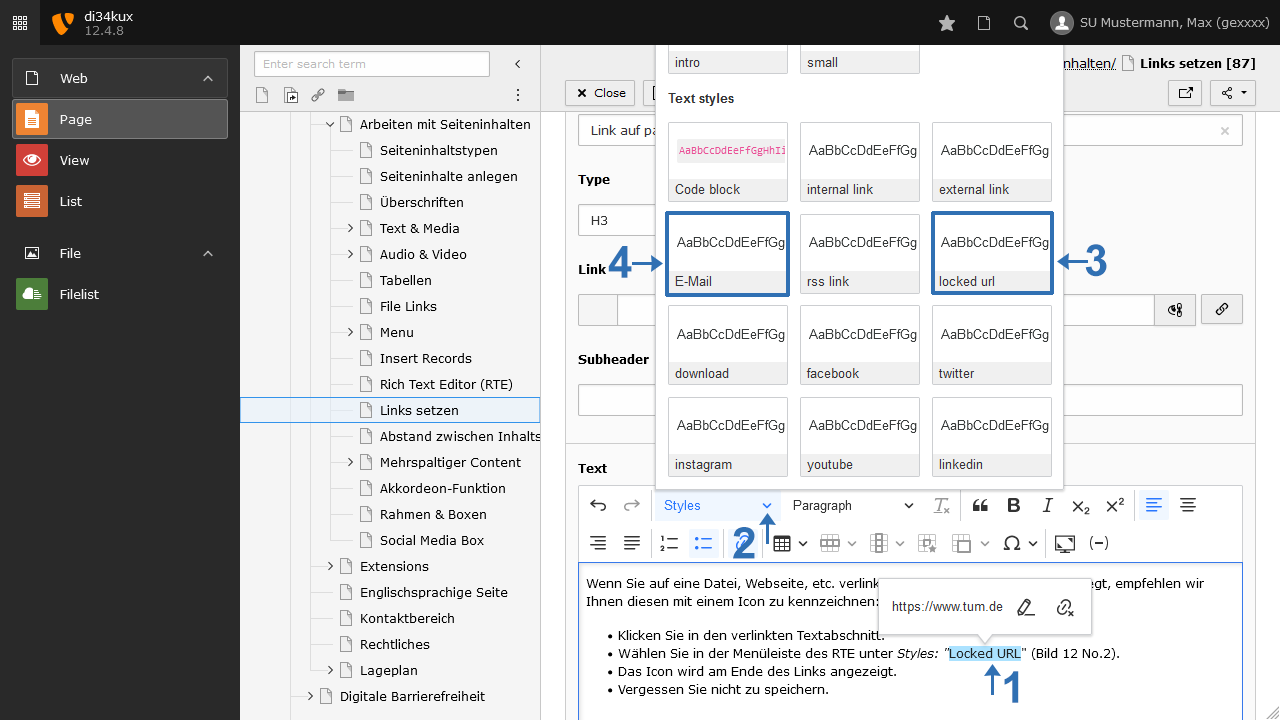
If you are linking to a file, webpage, etc., that has password protection, we recommend marking it with the "Locked URL" icon:
- Click on the linked text section (Image 12 No. 1).
- Select “Locked URL” (Image 12 No. 3) from the Styles menu in the RTE.
- The link will be marked with an icon.
- Don't forget to save.