
How do I register for the backend?
If you do not yet have access to the backend, you must first register. To do this, follow these steps:
Access the backend for your website by appending "/typo3" to the URL of your site right after ".tum.de."
For example: www.[your-website].tum.de/typo3/
or for the website of a chair: www.[department].[school].tum.de/typo3/ (please omit the chair shortname here).
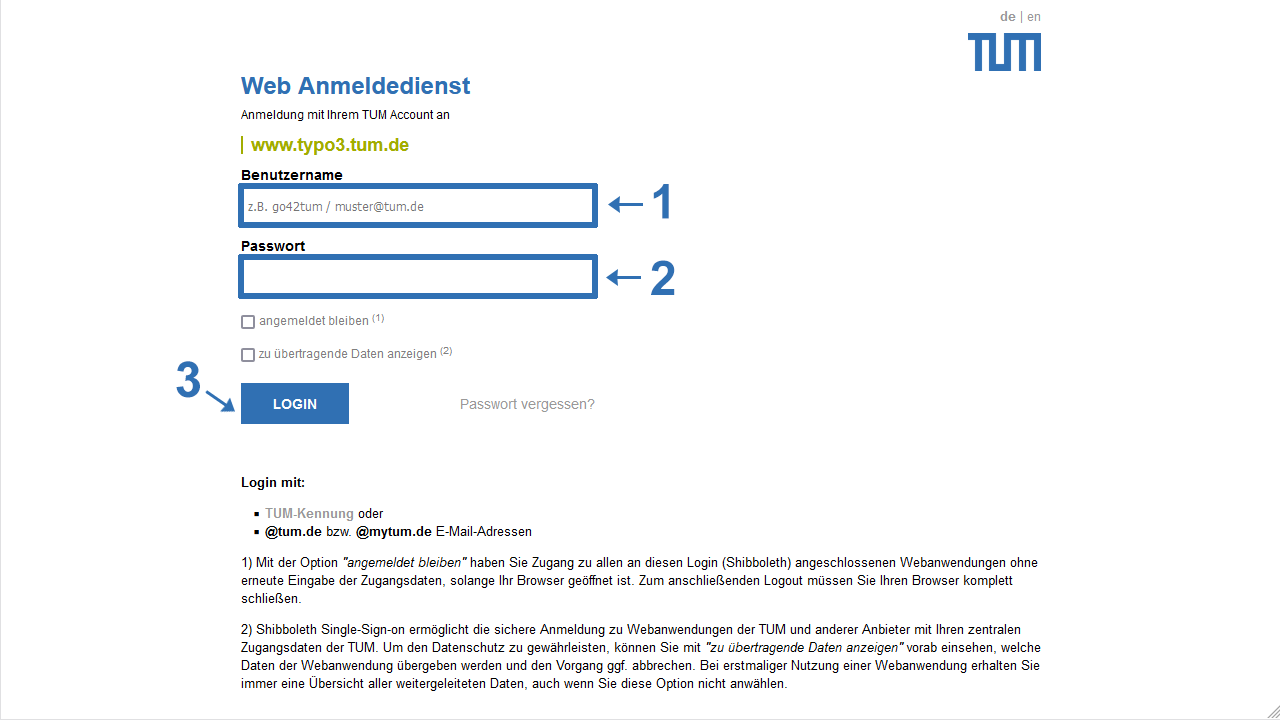
- Enter your TUM ID or TUM email address (with endings @tum.de or @mytum.de).
- Enter the corresponding password.
- Click on "Login."
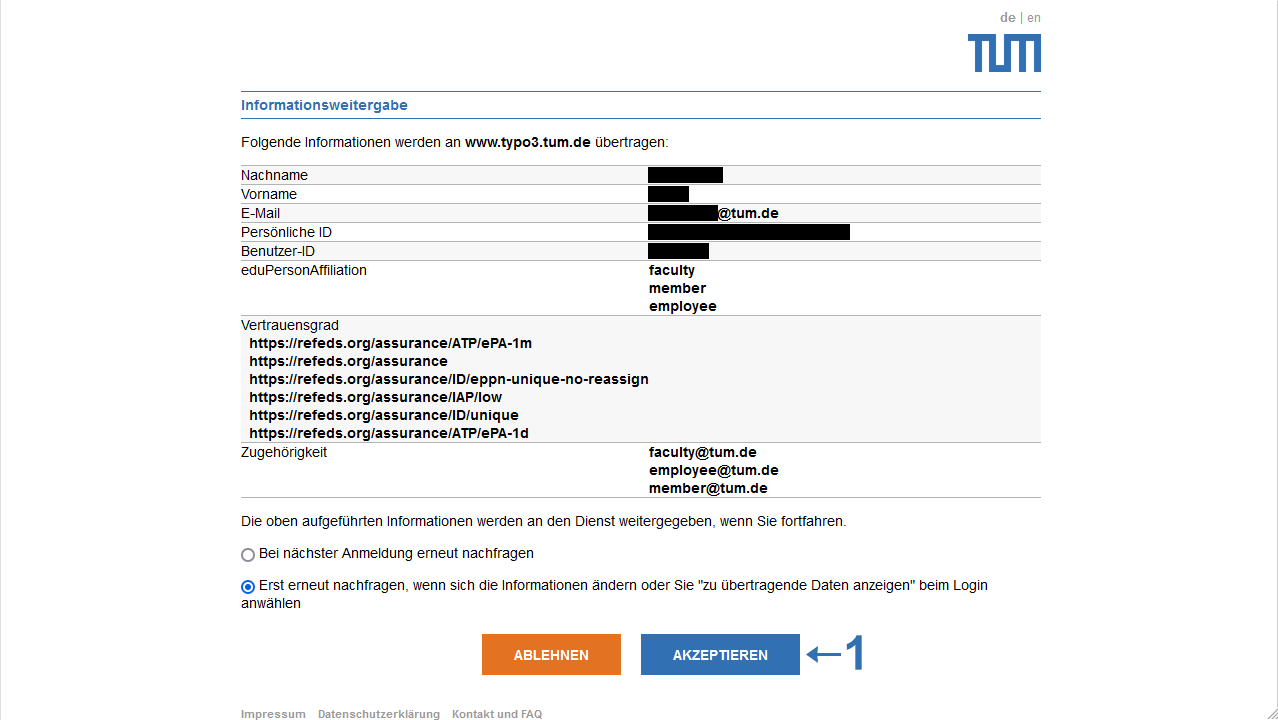
If you check the box for "Show transferable data," your digital ID will be displayed in the next step (Image 2), which you will then need to accept.
After registration
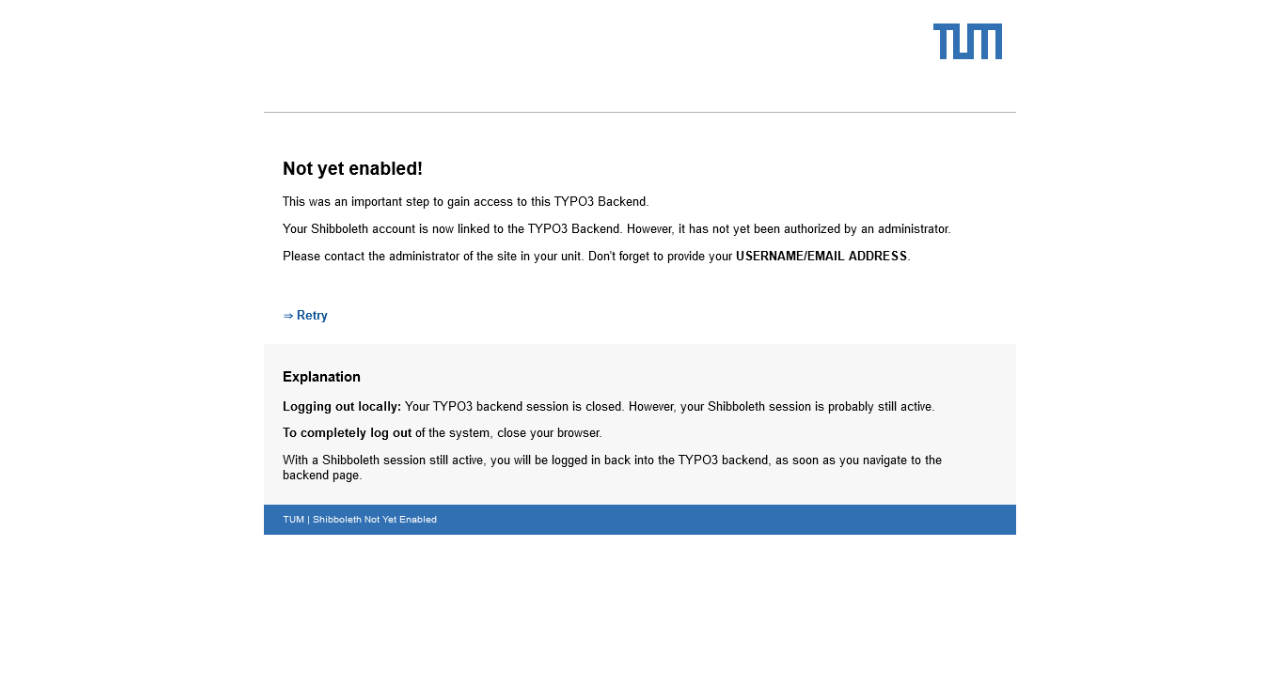
After a successful identification during the web login, you are registered in the TYPO3 backend, and you will see a message like the one in Image 3.
Now, you need to contact the main person responsible for your website (editor-in-chief) so that your account can be activated and access permissions can be set. Once you have been activated by the responsible person, please click on Retry or enter www.[your-website].tum.edu/typo3/ in your browser's address bar.
As long as your account has not been activated by the editor-in-chief of your website, you will receive this message with every subsequent login attempt.
Informations for the editors-in-chief
You can find out how the activation of newly created accounts (after successful registration) works under Groupdelegation.
Login
In this registration dialog (Image 1), you need to log in with your TUM ID and the associated password. Alternatively, you can enter your TUM email address (ending in @tum.de or @mytum.de) and the corresponding password.
If you have already been granted access to your website, you will be redirected directly to the backend.