
Groupdelegation
The permissions for the backend are set based on group membership. Editors-in-chief with "groupdelegation" can assign or remove the predefined permission groups for registered users.
What is "Groupdelegation"?
Users with the function "Groupdelegation" (Chief Editor) represent the highest level of authorization at their respective organization regarding their TYPO3 website. They are responsible for managing user accounts and their group memberships. They also serve as the primary contact for the TYPO3 team regarding the technical aspects of their website.
The "Groupdelegation" role can only be assigned by the TYPO3 team. At least one active user must be designated for each TYPO3 website. If no user with Group Delegation is appointed for a TYPO3 website, we will assume that the website is not needed and will deactivate it.
Note
Please designate two users for the role of “Editor-in-Chief”. This will ensure effective coverage during vacations or illness.
Local administration with Groupdelegation
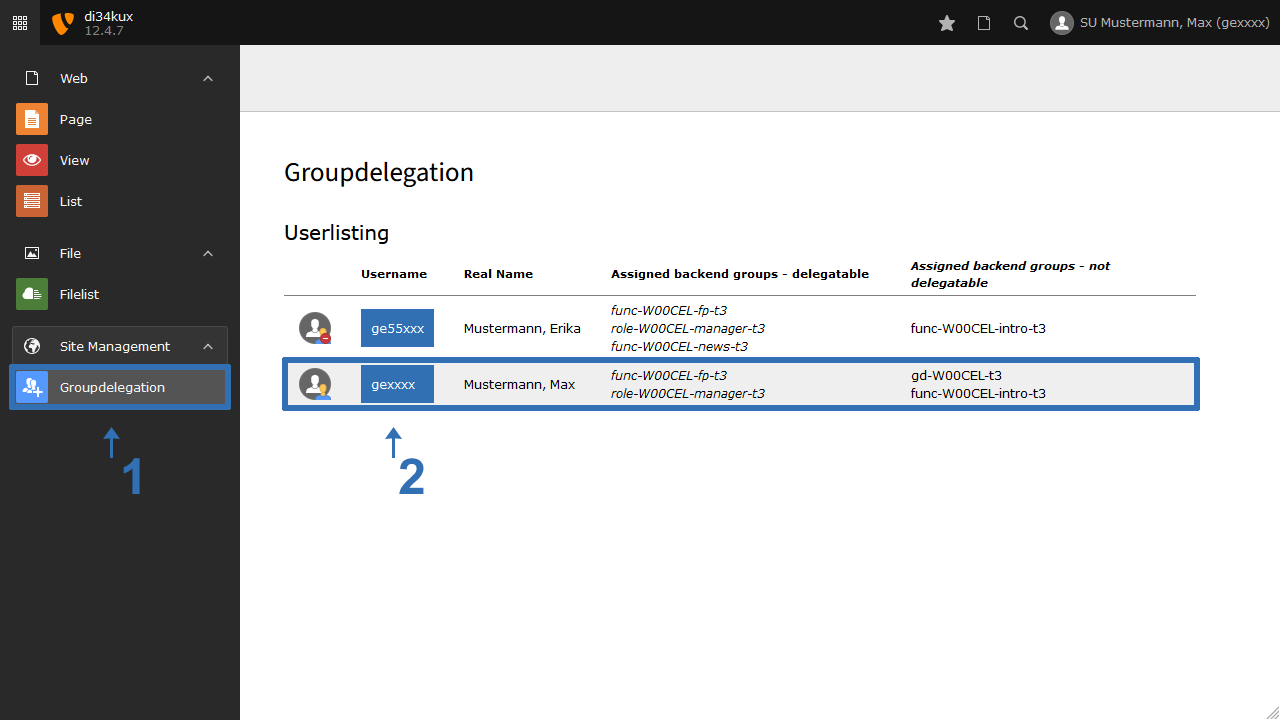
- Click on "Groupdelegation" in the module bar (Image 1 No.1).
- This will open an overview page for user administration, where all users registered in your TYPO3 installation are listed.
- Click on the username in the overall overview (Image 2 No.2) to edit a user's group membership.
- Please remember that new accounts still need to be activated (Image 3 No.1).
Attention!
With Groupdelegation, you can assign or remove predefined groups for existing users. You cannot define individual permissions or create new users.
In a TYPO3 installation, multiple websites for a school/institution can also be hosted. In the overview of the “Groupdelegation”, users from other websites will also be displayed. If a user in your list is unknown to you, please leave them untouched. As long as they do not have permissions for your website, they will not be able to see or edit it.
Distinction of Permission Sets
There are two main groups that establish general editing rights:
- Redakteur (Editor) can create, edit, or delete content elements.
- Manager: can create, edit, or delete content elements and pages (menu items).
Note
If a user is assigned the permission group Manager, they do not need the permission group Editor. The permission group Manager also includes all the rights of the Editor group.
Other optional groups contain additional permissions for specific functions:
- fp: can edit the “functional pages” (e.g., legal notice, contact area)
- news: can create news articles and edit news plugins
Adding or Removing Permission Groups from an Account
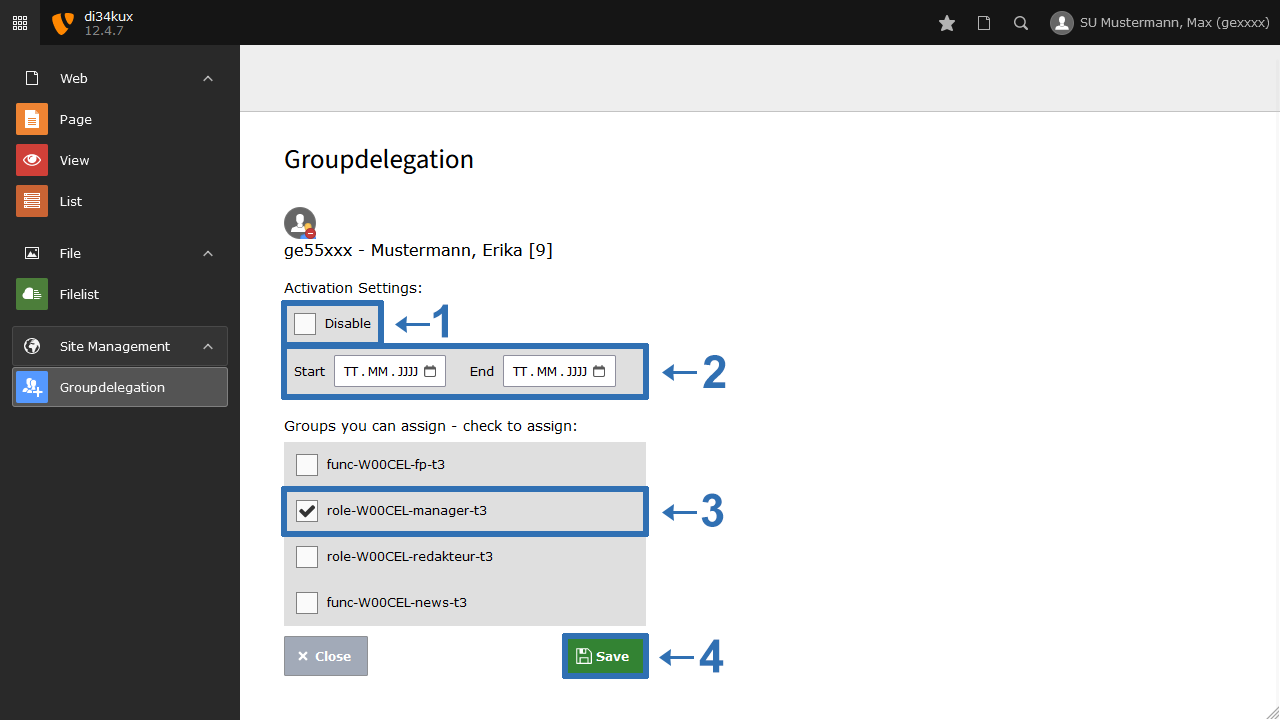
The existing groups are predefined and cannot be changed. Editors-in-chief can assign these permission groups to an account using the funcion Groupdelegation. In the overview (Image 2), you can see which user has which rights (groups). There is a distinction between groups that you can manage yourself and those you cannot, such as the permissions for Groupdelegation itself (assigned by the TYPO3 team) or rights on other websites within the same TYPO3 installation (assigned by other local admins).
To edit a user's group membership:
- Click on their username in the overview.
- The view from Image 2 will open.
- Under "Groups you can assign - check to assign:", you will see all the groups that you can assign.
- To select a group you want to associate with the user, simply check the box (Image 3 No.3).
- Save your chosen settings by clicking Save!
Activate or deactivate accounts
New users register through self-registration in the backend. They are initially deactivated and do not have permission to access your website.
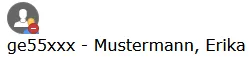
You can activate a user by removing the checkbox for "Disable" under "Activation Settings:" in their user permissions (Image 2 No.1). By checking the box again, you can deactivate the account once more. Save your changes with "Save." Deactivated accounts can be recognized by the red symbol (Image 3).
Former Employees
If an employee should no longer have access to your website (e.g., because they have left your organization), revoke all permissions for that account and deactivate the account. Please ensure that the employee does not have permissions for other organizations.
The TYPO3 team regularly deletes deactivated accounts.
Time-limited Accounts
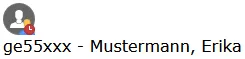
At the start and end dates (Image 2 No. 2), you have the option to activate an account for a specific period of time. Please note that you cannot set a specific time; the account will be activated or deactivated at 12:00 AM on the designated date. For example, if you want a user to remain active until November 29, 2026, you should enter November 30, 2026, as the "End" date! Individuals with time-limited accounts who are currently inactive are marked with a red clock symbol (Image 4). If the account is still active, the clock symbol will be white.